
Introduction
Canvas Peer Review is an integrated assessment tool that enables students to give feedback on another student’s work.
As an instructor, you control whether peer reviews are assigned randomly or manually, as well as whether reviewer and reviewee names are visible or hidden. To access their assigned peer reviews, students must first submit their own work.
How to Create a Canvas Peer Review Assignment
STEP 1: Start by creating a File Upload assignment in the usual way that you would in Canvas. For guidance, see: Creating File Upload Assignments.

To enable Peer Review, the assignment’s submission type must be set to either Online, On Paper or No Submission. Canvas peer review does not support the External Tool assignment submission type.
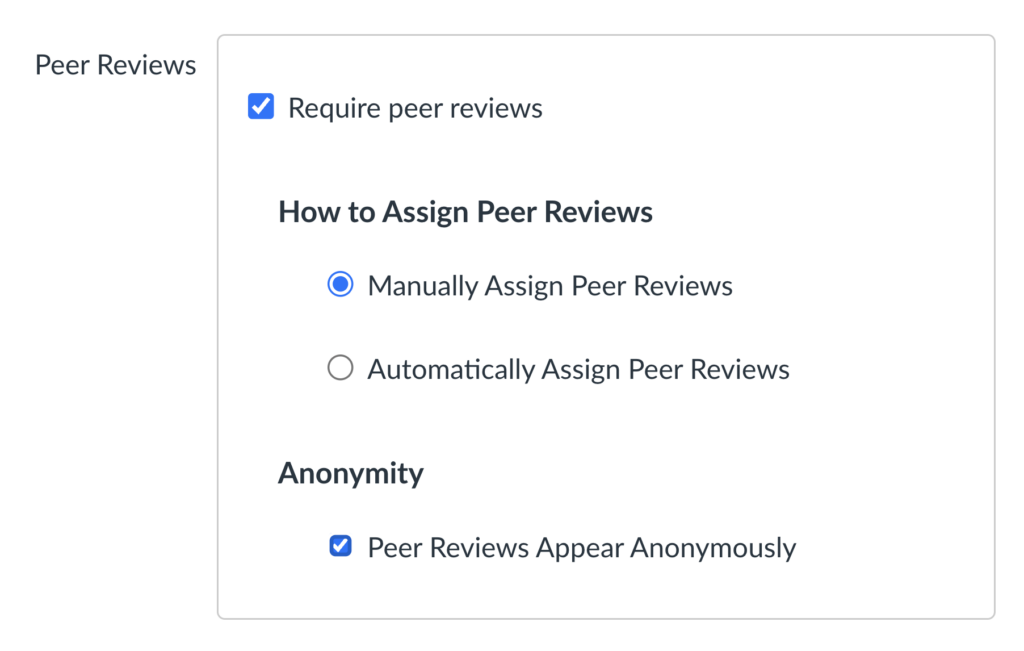
STEP 2: In the assignment settings, under Peer reviews, tick the Require peer reviews option to enable peer reviews.

STEP 3: Select whether you would like to manually assign peer reviews yourself or let Canvas do the work by automatically assigning peer reviews.
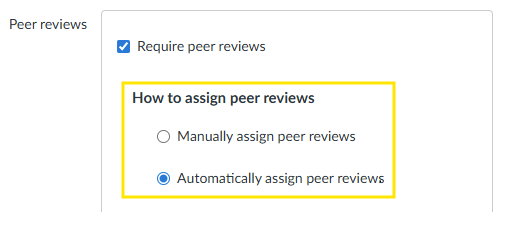
If you decide to user peer reviews with an On Paper or No Submission assignment type, then peer reviews must be assigned manually.
If you select to assign automatically, a couple of additional options appear.
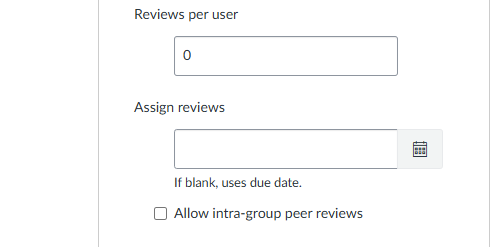
These options allow you to select the number of reviews assigned per user, as well as the option to choose a specific date when you would like Canvas to automatically assign reviews to students. If you do not select a specific date, Canvas will assign reviews on the assignment’s due date.
STEP 4: Select whether you would like peer reviews to be anonymous. When enabled, students won’t see who wrote the feedback they receive, or whose work they’re reviewing.
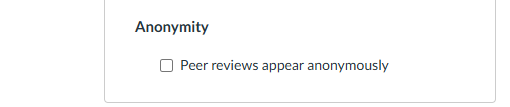
STEP 5: Click Save & Publish if you are ready to publish your peer review assignment, or click Save if you would like to publish it later.

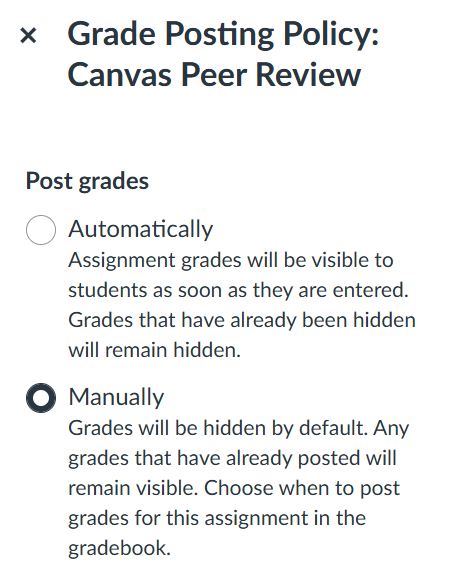
STEP 6: Check that the assignment is using a manual grade posting policy.
- Go to the Gradebook and find the column for the peer review assignment.
- Click the three dots then select Grade Posting Policy.
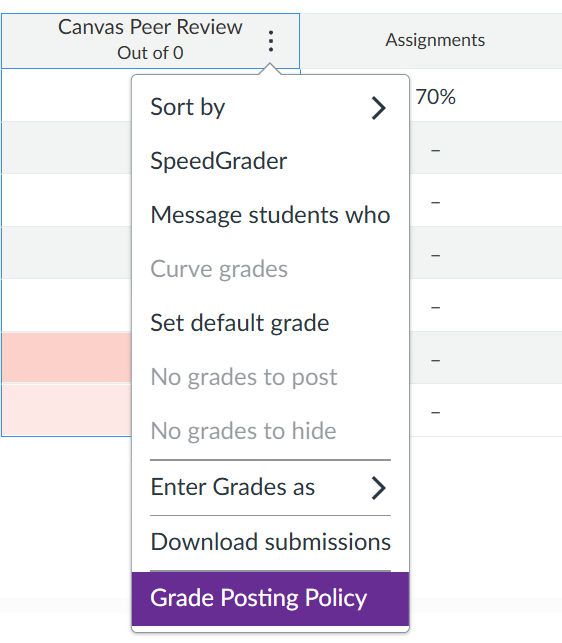
- Check that Manually is selected. This ensures that grades and instructor feedback remain hidden until they are manually released.
Setting up anonymous peer reviews
When setting up a Canvas peer review, you have the option for reviews to appear anonymously. This means students do not see the name of the person they are reviewing, and the student receiving the peer feedback cannot see who left the comments. Using anonymous peer reviews can help reduce bias, support more honest and constructive feedback, encourage fairness and reduce pressure on students.
We recommend enabling Peer Reviews Apper Anonymously within the Peer Reviews settings to ensure peer reviews remain anonymous.
Canvas does not support anonymous annotations. When peer review anonymity is enabled, students will not be able to add in-line comments or annotations when reviewing a submission.
Anonymity settings explained: Anonymous grading vs anonymous peer reviews
Canvas peer assignments have two separate anonymity settings that are easy to mix up but serve very different purposes: one ensures fair marking by hiding student names from instructors; the other keeps peer feedback honest by hiding names from students.
Anonymous grading
This setting is controlled by the Graders cannot view student names option, found in the Anonymous grading section of the assignment settings.

Enabling anonymous grading hides student names from the instructor while they’re marking submissions. The instructor sees submissions labeled as Student 1, Student 2 etc., instead of real names.
This reduces unconscious bias in marking and affects the instructor’s view only.
Anonymous peer reviews
This setting is controlled by the Peer Reviews Appear Anonimously option, found in the Peer Reviews section of the assignment settings.
When Peer Reviews Appear Anonymously is turned on, students cannot see the name of the person they are reviewing, and the student receiving feedback cannot see the name of the peer who’s left that feedback.
This setting only affects what students see: instructors can always see the names of all reviewers for every completed peer review.
Anonymous peer reviews encourage more honest and unbiased feedback.
How anonymity settings affect what you and your students can do
- If Graders cannot view student names (anonymous grading) is enabled, you will not be able to see student names in SpeedGrader and submissions will appear anonymously. You will also be unable to access submissions through the assignment’s peer reviews page and you will see an “access denied” message instead.
- If Peer Reviews Appear Anonymously is enabled, students cannot see who reviewed their work or whose work they are reviewing. However, student names remain visible to instructors in the assignment’s peer reviews page.
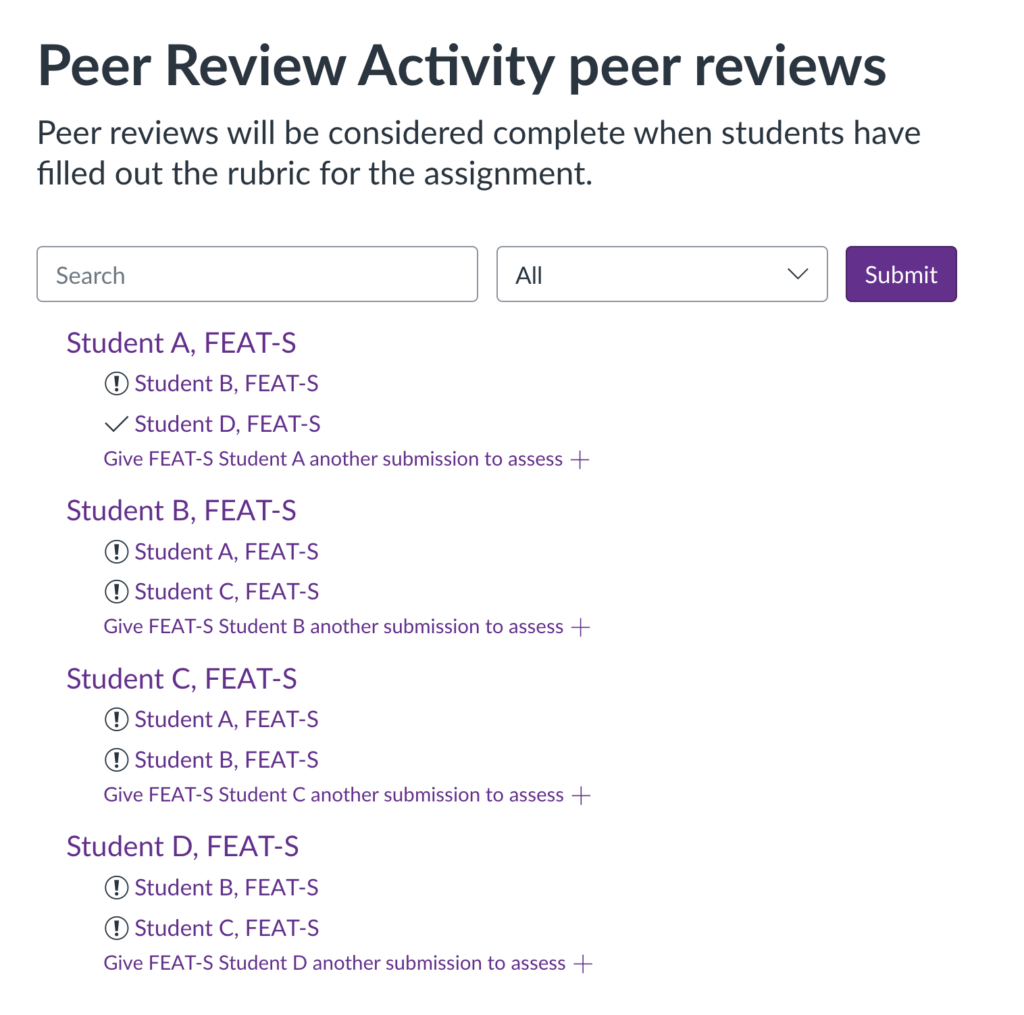
- Student names remain visible in the assignment’s peer reviews area, regardless of the anonymity settings you choose, so you will always be able to view and adjust peer review allocations as well as track completion status.
The image below shows an example of how instructors can view and manage allocations and monitor completion in the assignment’s peer reviews area.
Setting Peer Review requirements
Step 1: Decide how students should give peer feedback
You should decide before setting up the peer review how you want students to provide feedback, as this will shape the instructions, settings, and support students receive. Making this decision in advance helps ensure students understand exactly what is expected of them and reduces the risk of feedback being submitted in the wrong place, in a format that is difficult to review, or the feedback being released prematurely.
Options for leaving peer review feedback
In Canvas, students can usually provide peer review feedback in three main ways: by completing a rubric, by leaving assignment comments, or by adding in-line comments and annotations to the submitted work.
Peer feedback method | How it works | When it’s released |
|---|---|---|
Rubrics (recommended option) | The instructor attaches a rubric to the assignment for students to assess peers’ work and provide structured feedback. Rubrics clarify assessment criteria, support consistent feedback, and help staff review and manage feedback release. | Rubric feedback is released according to the Grade Posting Policy. This gives instructors control over when peer feedback becomes visible to students. |
Assignment comments | Students can provide feedback using free-text assignment comments. Because comments are unstructured, feedback quality and consistency may vary. | ⚠️ Assignment comments are visible immediately. Use rubrics to delay feedback release until grades are posted. |
In-line comments and annotations (unavailable for anonymous reviews) | Students comment and annotate directly on the submission they are reviewing. This supports detailed feedback but is not available for anonymous peer reviews and may result in less consistent feedback across a cohort. | ⚠️ In-line annotations are visible immediately. Use rubrics to delay feedback release until grades are posted. |
How to add a rubric to a peer assignment
Rubrics can be created and added to the assignment using the usual process, as explained here: Managing Rubrics in Canvas.
Once a rubric is added to a peer review assignment, students will automatically see and be able to complete it during the review, and no additional settings are needed. The rubric is available to both staff and students for grading and peer feedback. Without a rubric, students can’t leave structured feedback and they’re limited to free-text comments, or in-line comments (when anonymity is turned off).

Rubrics are the recommended method for giving peer feedback, as they promote consistency. Avoid free-text comments, since these become available to the reviewee immediately. In-line comments are not available for anonymous peer reviews.
Step 2: Communicate expectations to students before they begin the peer review
It’s crucial that students are given clear instructions in advance so they understand exactly what they are expected to do to complete a review, and what they should avoid doing. The instructions should explain the required feedback method, the level of detail expected, and whether the review is anonymous.
Using a rubric is recommended because it provides a structured way for students to complete the peer review. When feedback is provided through the rubric, it will not be released to students until grades are posted, giving staff greater control over when peer feedback becomes available.
If you don’t want peer feedback released immediately, explicitly ask students not to add assignment or in-line comments.
Setting up Peer Review: Best practices
- Anonymity: Decide whether peer reviews should be anonymous before you create the assignment and reviews are assigned. Avoid changing peer review anonymity settings once the assignment has been created as this may affect what students and staff can see.
- Peer feedback mechanism: Decide what students must do to complete a review and how they should deliver feedback. We recommend using rubrics to facilitate structured peer feedback, and avoid using assignment comments as these become visible immediately and cannot be withheld for later release.
- Set clear expectations:
- Tell students they must submit their own work before they can review their peers’.
- Tell students what they must do for their peer review to be considered complete (e.g., complete a rubric).
- Tell students what they must avoid during the review process (e.g., adding comments, as these become visible immediately).
- Let students know that peer comments are released immediately, but feedback entered via a rubric only becomes visible once grades are posted.
- If anonymity is a requirement, remind students to keep their submissions and peer feedback anonymous – no names, student IDs or email addresses in their submission, file names, attachments or peer feedback.
- Explain the benefits of peer assessment.
- Provide clear guidance and examples on giving contructive feedback.
Further Support
- Managing Canvas Peer Reviews
How to manage allocations, monitor completion, review peer reviews, and release grades. - Troubleshooting Canvas Peer Review Issues
Practical steps to resolve the most common issues encountered when using peer reviews. - Student Guide: How to complete a peer review in Canvas
Helps students submit and complete their peer review assignment in Canvas. - Student Guidance: Peer Assessment
Includes useful tips for students on how to give constructive criticism. - Staff Guidance: Peer Assessment
Additional guidance to help you prepare for a successful implementation.