As part of your studies, you may be asked to complete a peer review task in Canvas. This means you’ll review the work submitted by other students and provide feedback and constructive criticism on their work. You will also reflect on the feedback you receive from your peers.
Follow the steps in the guidance below to complete a peer review assignment.
Introduction
Peer review is designed to help you strengthen your understanding of the marking criteria, improve your communication skills, and learn from your peers.
To complete a peer review well, you’ll draw on a few important skills:
- Understanding the marking criteria and identifying where the work meets those expectations.
- Giving constructive and actionable feedback. This involves explaining your thoughts clearly, respectfully and in a way that helps your peer improve.
- Reflecting on the feedback you receive, taking on board suggestions and using them to further improve your work.
To help you structure your feedback, your course tutor may include an assessment rubric for you to complete.
Some peer reviews may also be anonymous, which means you won’t see the name of the student whose work you are reviewing. Likewise, the student receiving your feedback will not see your name.

Always check the guidance provided by your course tutor to confirm what steps are required to complete a peer review.
How to submit your work for review
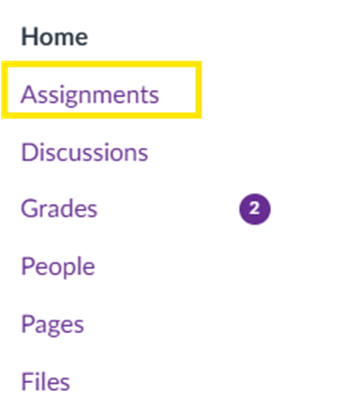
1. Click Assignments in the course navigation menu.
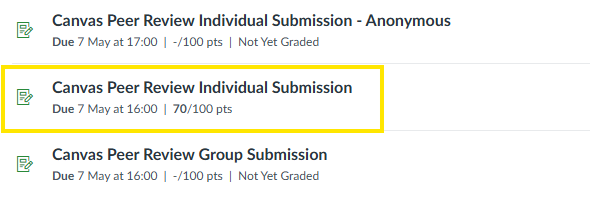
2. Select the relevant peer review assignment from your list of assignments.
3. Submit your work for review by following the guidance in this link: How to submit assignments on Canvas.

You need to submit your assignment first to access your assigned peer reviews.
Where to find your assigned reviews
Once you have submitted your work, you’ll be able to see any reviews that you’ve been assigned to complete. Follow the steps below to view and access your assigned reviews.
1. Click Assignments in the course navigation menu, then select the relevant peer assignment.
2. If you’ve been assigned an assignment to review, this will appear under Assigned peer reviews in the right-hand sidebar.
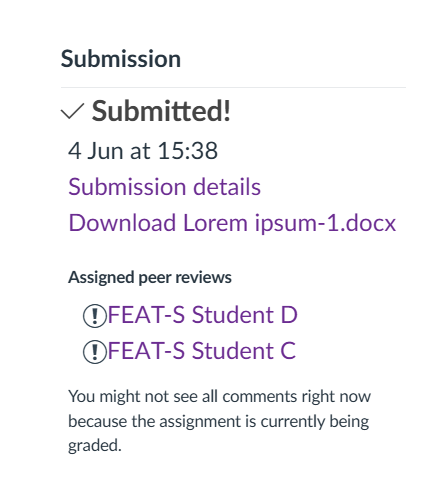
Any peer reviews assigned to you will also appear on the course homepage, in the right-hand sidebar under To do.
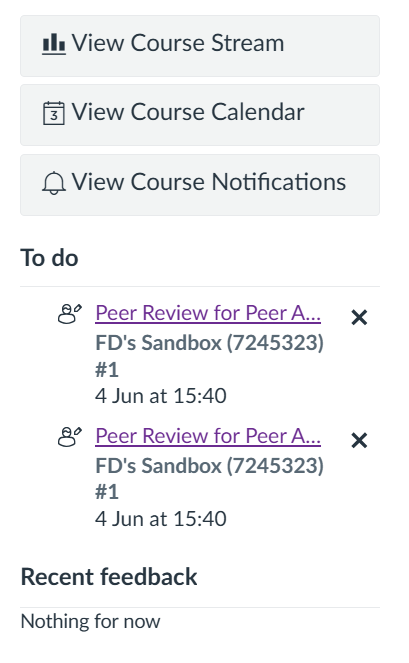
How to complete a Canvas Peer Review
To complete a peer review you must:
- Read the assignment submitted by another student
- Assess the work against predefined assessment criteria (if unsure what these are, ask your course tutor)
- Give constructive feedback on the work you’ve reviewed
Depending on the task, you may be asked to provide feedback by completing a rubric, writing free-text comments, or annotating the submission you’re reviewing.
Your course tutor will explain exactly what’s required for the peer review, the assessment criteria you should use, and how you’re expected to provide your feedback.
If you’re unsure what’s expected, check with your course tutor before you begin your review.
How to give peer feedback using a rubric
A rubric is a set of criteria used to assess student work and provide feedback. A rubric may be included in the peer review for you to provide structured peer feedback.
1. Access your assigned peer review and read through the work your peer has submitted. If the submission preview doesn’t appear, use the View Feedback link or download the submitted file to open it.
2. Select Show Rubric in the top-right to view the rubric and add your feedback.
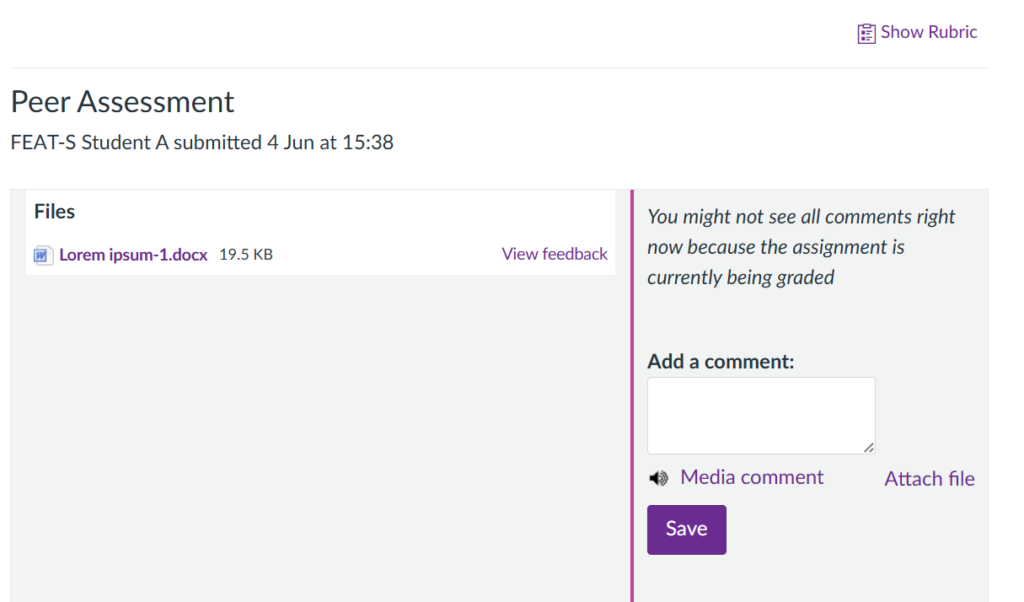
3. Fill in the rubric to provide peer feedback.
Depending on how the rubric is set up, you may need to either enter a comment for each criterion or simply select the appropriate cell. If the rubric includes automatic scoring, selecting a cell will automatically apply the associated rating or point value to the overall score.
⚠️ DO NOT add comments or attachments in the Add a comment box unless your course tutor has specifically asked you to do so. Review the assignment instructions carefully before starting your peer review, and contact your tutor if you are unsure what feedback to provide.
4. When you’re finished, click Save comment at the bottom to save the completed rubric. Once the rubric is saved, you won’t be able to return to edit or change any comments or ratings.
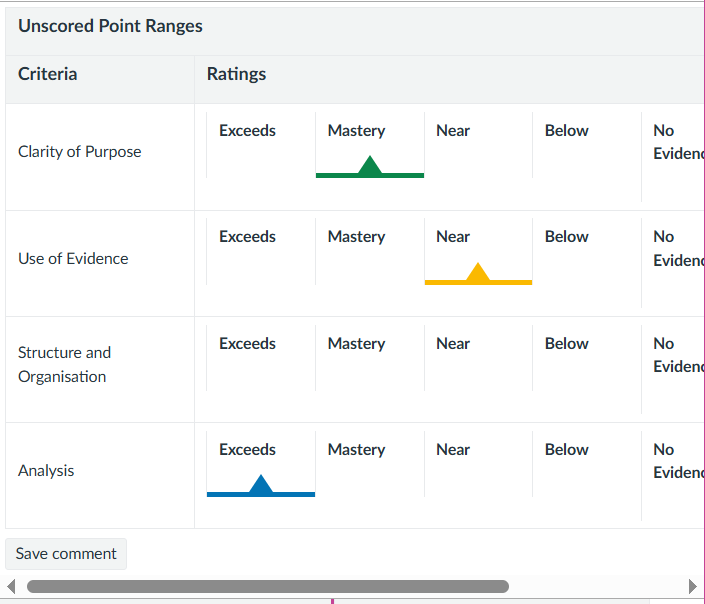

⚠️ Warning: You cannot go back to change your comments or ratings once the rubric is saved.
How to give peer feedback via free-text comments
Your course tutor may ask you to give feedback by adding a free-text comment to the submission you’re reviewing.
⚠️ DO NOT add comments unless specifically asked to do so. Always check your tutor’s instructions before you begin your peer review.
1. Access your assigned peer review via the assignment page.
2. Read through the work submitted by your peer, then add your feedback in the Add a comment box in the right-hand side bar. You may also be required to add a media comment (audio/video feedback) or attach a file as part of the feedback process. Always check the guidance provided by your course tutor before you begin a review.
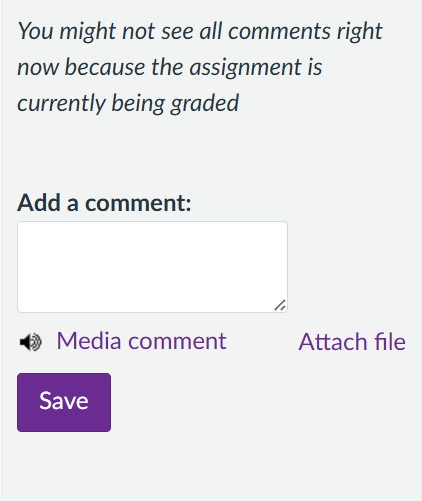
3. When you have finished adding your feedback, click on the Save button.
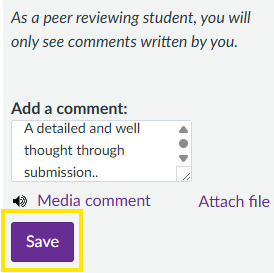
This will add your peer review comment to the assignment, and it will be displayed in the right-hand side bar. Once a comment is saved, you won’t be able to edit or delete it.
You can repeat this step as many times as is required. Each time you click the Save button, the new comment will be added to the right-hand side bar.
⚠️ Warning: You won’t be able to edit or delete a comment once saved.
4. Once you have finished adding comments, simply navigate away from the peer review page.
How to give constructive criticism
You will find some useful tips on how to give constructive criticism in the article below.
How to access peer review feedback and grades
Step 1: Navigate to the course for which you wish to see your grades.
Step 2: Select Grades in the left-hand course menu. This will open up a list of all your completed Canvas assignments within that course.
Step 3: Click on the peer review assignment name to view additional details, including grades and feedback.
Step 4: If your peer review assignment includes a rubric, you can view scores and comments for this by clicking on the ‘Show Rubric’ link.