
The following guide contains a list of issues that you may encounter when setting up and using the Canvas peer review tool, along with suggestions of potential solutions to help resolve these.
For guidance on setting up and managing peer reviews, see: Peer Assessment using Canvas Peer Review.
- Check that the assignment is published.
- Check that the student has submitted their own work. Peer review tasks only appear after submission.
- Review allocations: open the assignment and select Peer reviews to check or adjust allocations.
- Check the assignment settings and confirm that Automatically Assign Peer Reviews is enabled.
- Allow time for Canvas to process automatic allocations (this can take up to an hour).
- Students who submit late may need a manual allocation.
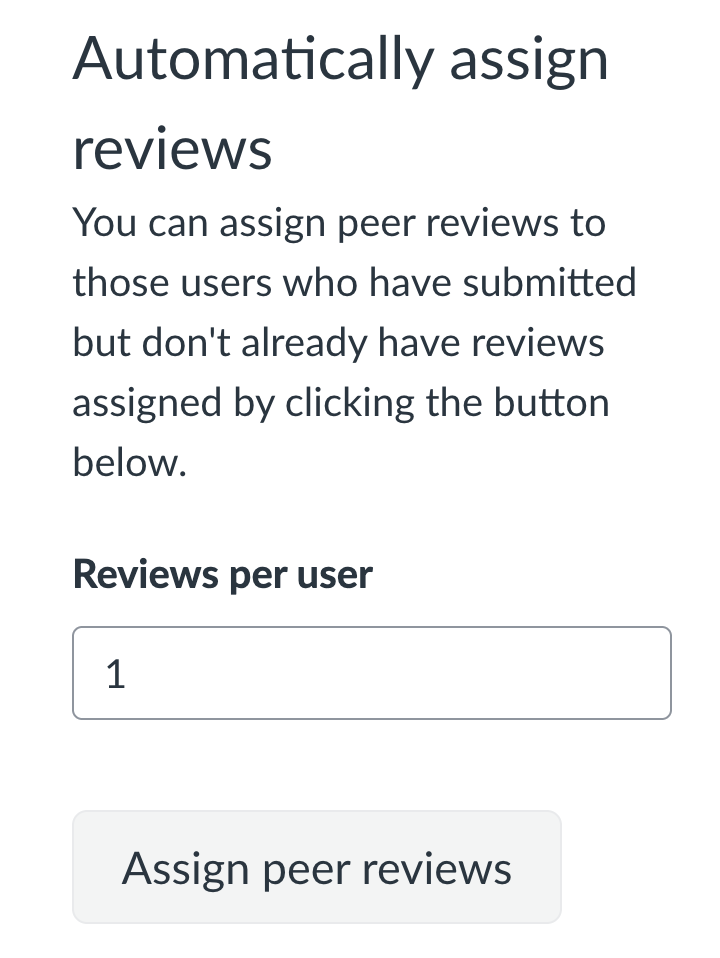
- If automatic allocation is enabled but reviews have not been assigned, open the assignment’s Peer reviews page and use the Automatically Assign Reviews option in the sidebar.
- Check whether anonymous peer reviews are enabled.
- When anonymity is on, reviewer and reviewee names are hidden from students.
Once a rubric assessment has been submitted, students cannot edit it directly. To allow the student to revise their rubric feedback, remove the peer review and then reassign it via the assignment’s Peer reviews area. This creates a new review and enables the student to edit and resubmit the rubric.
Students cannot edit or delete assignment comments once they have been submitted as part of a peer review. Unlike rubric assessments, removing and reassigning the review does not allow the original comments to be changed or removed. If a comment needs to be deleted, it must be removed by a member of staff in SpeedGrader.
- If a rubric is attached, students must complete it for the review to be marked as complete.
- Open the assignment and check if a rubric is attached.
- Access SpeedGrader to confirm whether the rubric has been filled in.
- Adding a comment will not mark the review as completed – students must fill in the rubric.
- If no rubric is attached, students must leave at least one comment in the Assignment comments area.
- Adding in-line comments or annotations will not mark the review as completed – students must complete the rubric (if available) or add a comment (if no rubric is available).
- If needed, check the assignment’s Peer reviews area to verify allocations and completion status.
- This is expected behaviour. Peer comments and annotations are visible immediately once submitted.
- Grades, rubrics, and instructor feedback follow the course or assignment Grade Posting Policy.
- Use rubrics and ask students not to add comments, to avoid peer feedback being released prematurely.
- Use the assignment’s Peer reviews area to monitor completion and see who has finished their review.
- DO NOT use the reminder tool to follow up with students as it does not currently function as intended.
- Use SpeedGrader to view submissions and all peer feedback – rubrics, comments, and in‑line annotations (if enabled).
- If anonymous grading is enabled, reviewee names are hidden, but reviewer names remain visible.
- Check whether anonymous grading is enabled in the assigment settings. If so, submissions appear anonymously.
- If anonymous grading is enabled, reviewer names remain visible.
- Use the assignment’s Peer reviews area to view allocations, add or remove reviewers, and monitor completion.
- Check whether anonymous grading (Graders cannot view student names) is enabled in the assignment settings.
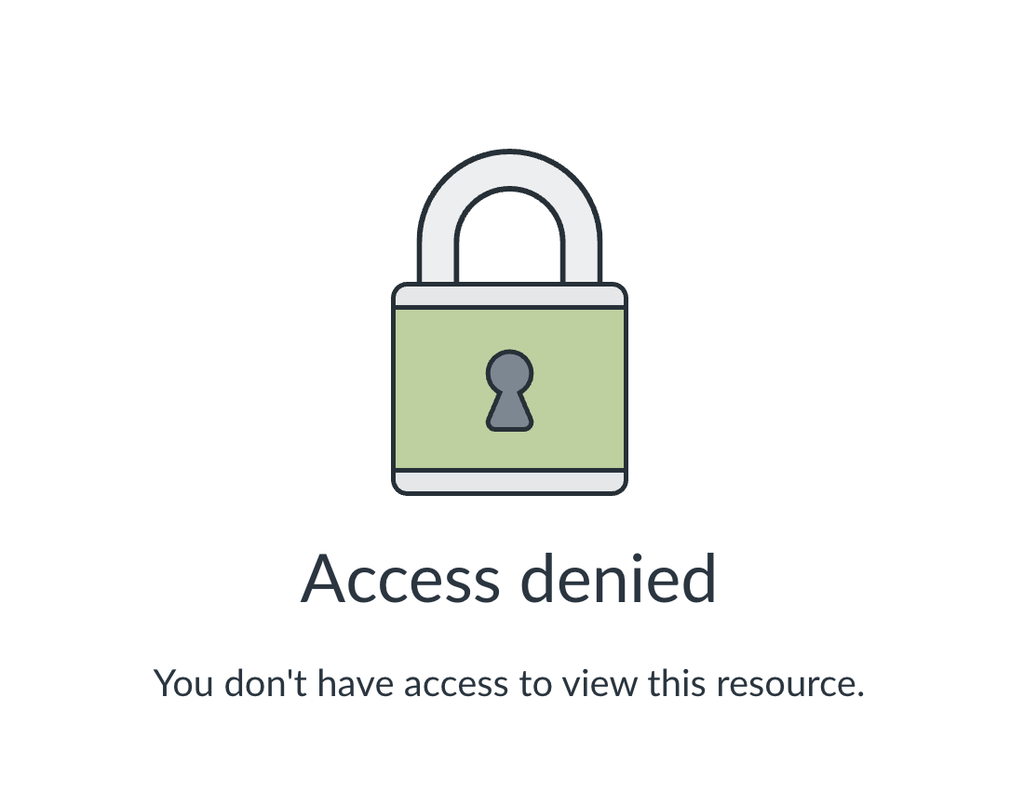
- When anonymous grading is enabled, instructors cannot open submissions from the assignment’s Peer reviews page and will see an “access denied” message.
- Instead, access the submission through SpeedGrader via the Gradebook.
- This is expected behaviour and helps maintain student anonymity during grading.
- Canvas does not support exporting or downloading peer review allocations.
- Allocations can only be viewed within the assignment’s Peer Reviews area.
- Canvas does not support bulk export of peer feedback.
- Peer feedback (rubrics, comments, annotations) can only be accessed individually through SpeedGrader.
Need further support? Book a 1-to-1 consultation with FSE eLearning: Book your Consultation.