
Once the peer review assignment has been published and peer reviews have been assigned to students, staff can monitor progress and review feedback before grades are released.
For guidance on setting up a peer review assignment in Canvas, see: How to set up a Canvas Peer Review Assignment.
How to monitor peer review progress
You can view, remove and add allocations in the assignment’s peer reviews area. This is also where you can monitor progress and see which students have completed their reviews and which allocations are still outstanding.
1. In the course menu, select Assignments and click on the peer review assignment.
2. Select Peer reviews from the Related items sidebar.
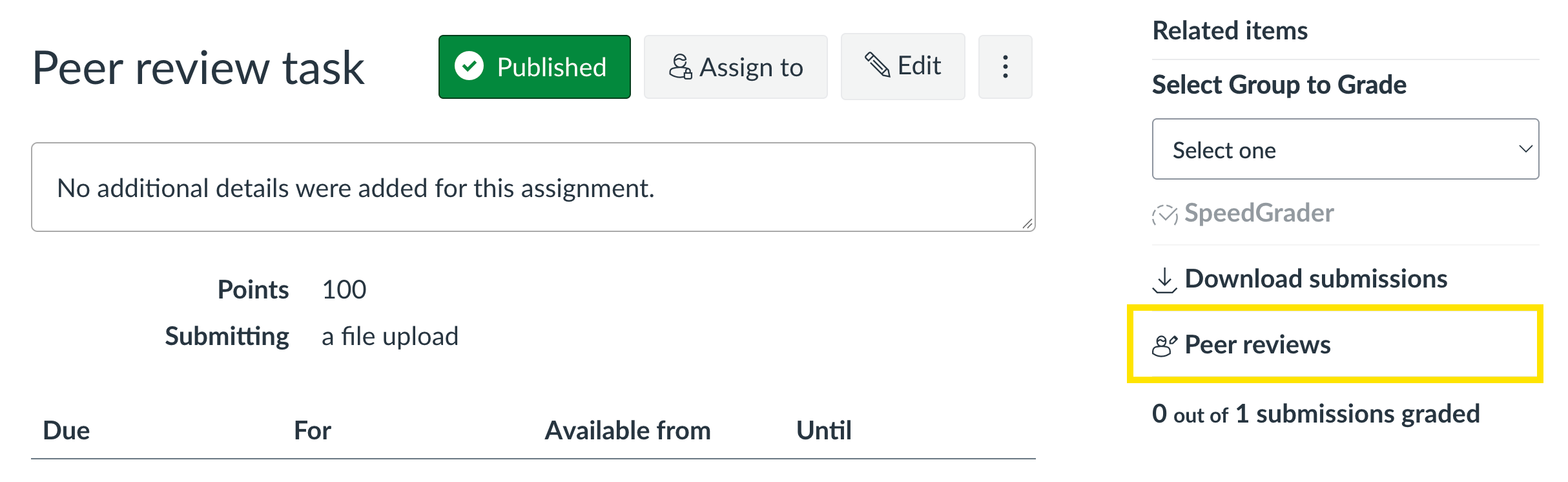
3. On the peer reviews page, you can review the allocations and check which students have completed their reviews.
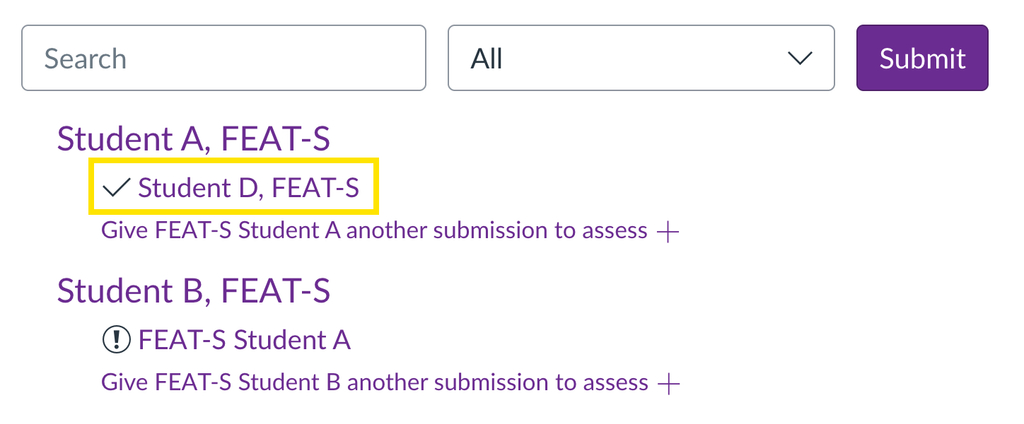
Status: Review completed (✓)
If a student has successfully completed a peer review, a tick will appear next to the name of the student whose work they’ve reviewed.
In the example to the right, Student A has completed the peer review of the work submitted by Student E.
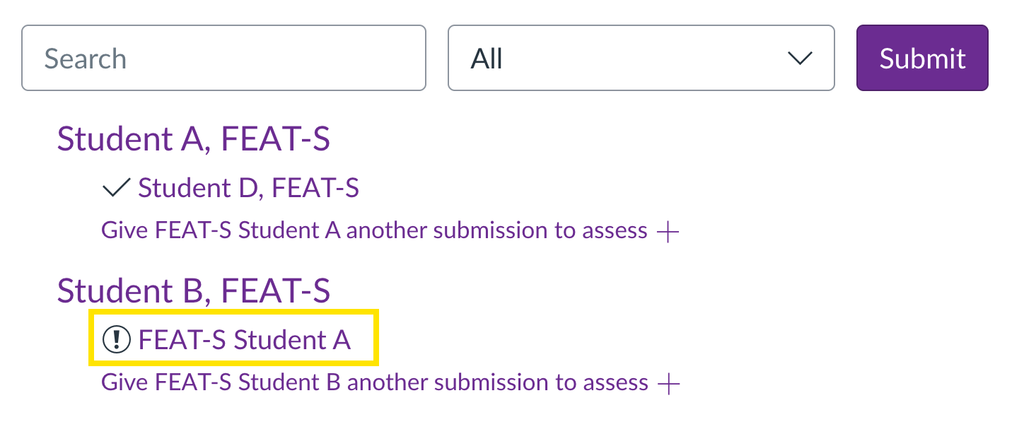
Status: Review not completed yet (!)
If a student has not yet completed a peer review, an exclamation mark will appear next to the name of the student that they have been assigned to review.
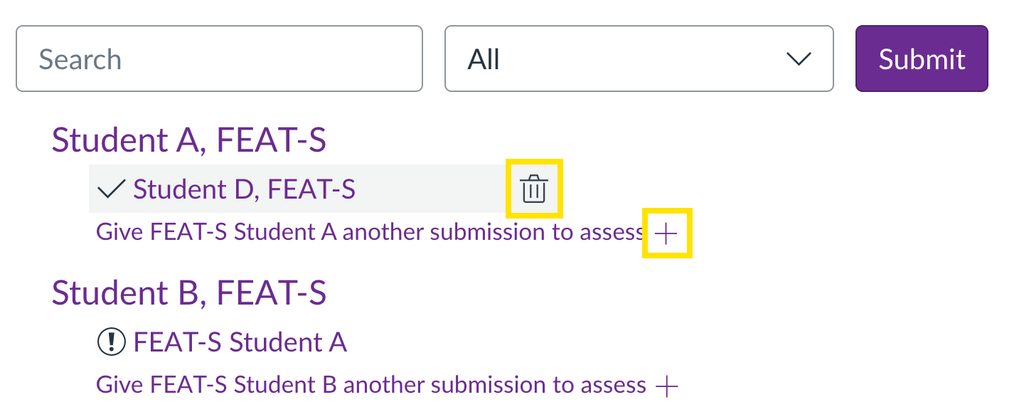
Action: Remove allocation
If a review has been assigned incorrectly, remove it and manually assign a different review where appropriate.
⚠️ Avoid: Send a reminder
DO NOT USE the reminder option (bell icon) to prompt students who have not completed their assigned review. Testing has shown that this feature does not currently function as intended, so reminders may not be delivered reliably.
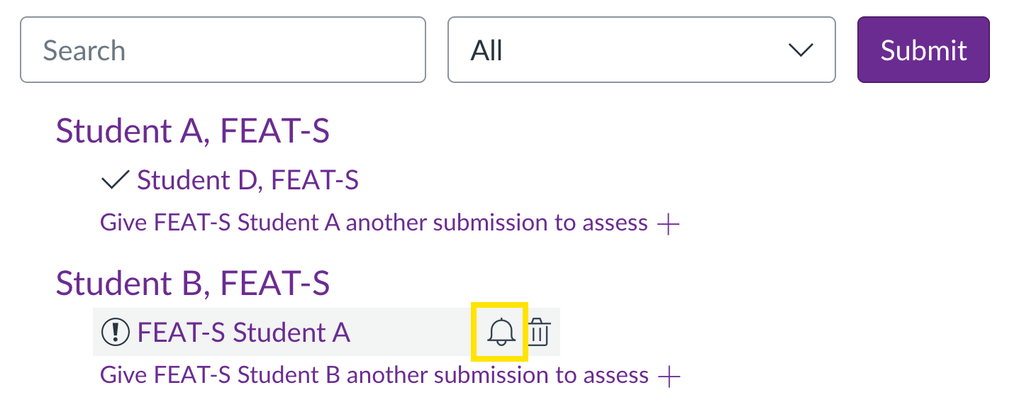

If anonymous grading is enabled for the assignment, student names will still appear in the peer reviews area where you can check allocations and monitor completion.

Canvas does not support bulk downloading or exporting allocations or completion status data. This is worth keeping in mind if you’re working with a large cohort.
How to review peer feedback in SpeedGrader
Once students begin completing their reviews, you can view their peer feedback in SpeedGrader. Here, you’ll see each student’s submission along with any feedback provided by their peers – whether entered as a comment or via a rubric.
1. In the course menu, select Assignments and click on the peer review assignment.
2. Select SpeedGrader from the Related items side panel.
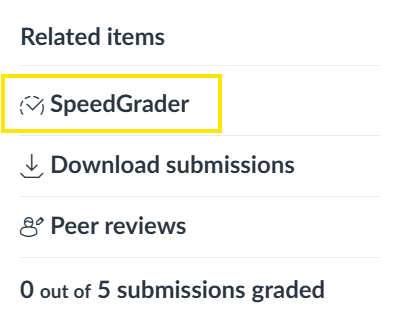
You can also access SpeedGrader from Grades, by clicking the three dots in the relevant column header and selecting SpeedGrader.
3. Within SpeedGrader, use the drop-down menu in the top right to open a student submission.
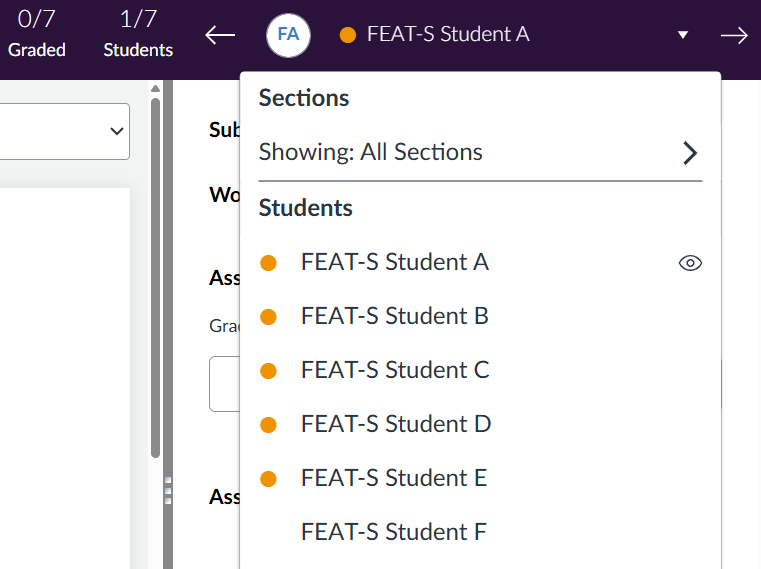
If student names appear hidden in SpeedGrader, check whether anonymous grading is enabled in the assignment settings. When anonymous grading is turned on, staff cannot see student names in SpeedGrader.
4. In the side panel, review any rubric and comment feedback entered by peers.
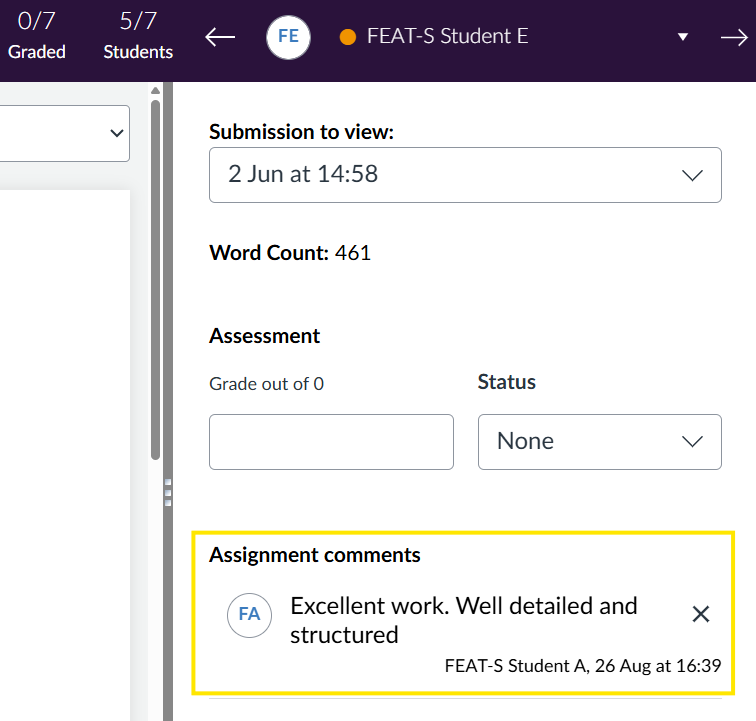
Canvas does not support bulk downloading or exporting peer feedback. This is worth keeping in mind if you’re working with a large cohort.
Understand how feedback is released
Students can view assignment comments and inline annotations from their peers immediately after they are added. The visibility of other feedback, such as grades and rubrics, depends on the course or assignment Grade Posting Policy.
Use the table below to see when different types of peer and instructor feedback become available to students and what controls their release.
Feedback method | How it’s released |
Assignment comments added by peers | ⚠️ Released immediately and automatically Students can see comments left by their peers immediately, as soon as they are posted. This applies even when a manual Grade Posting Policy is in place and instructor grades have not yet been posted. |
Assessment rubric completed by peers | Release controlled by instructor Rubrics completed by students are released according to the assignment or course Grade Posting Policy. |
In-line grading and annotations added by peers (unavailable for anonymous peer reviews) | ⚠️ Released immediately and automatically Students can see in‑line comments and annotations from peers as soon as they are posted, even when a manual Grade Posting Policy is in place and instructor grades have not yet been released. |
Assignment comments added by instructors | Release controlled by instructor Instructor comments are released according to the assignment or course Grade Posting Policy. |
Assessment rubric completed by instructors | Release controlled by instructor Rubrics completed by instructors are released according to the assignment or course Grade Posting Policy. |
In-line grading and annotations added by instructors | Release controlled by instructor Instructor in‑line comments and annotations are released according to the assignment or course Grade Posting Policy. |

Ensure the course Grade Posting Policy is set to Manual to avoid accidental release of grades and comments: Managing the Release of Grades and Feedback.
How to release grades and feedback to students
When the Grade Posting Policy is set to manual, grades and instructor‑controlled feedback remain hidden until you choose to post them. Once students have completed their assigned reviews, and you’ve finished marking and checking any peer feedback, you can manually post grades to release scores and feedback to students.
Please note that peer comments and in‑line annotations (where enabled) are released immediately and automatically as soon as they are entered, regardless of the posting policy.
How to manually post grades in the Gradebook
1. Click Grades in the course menu to access the Gradebook.
2. Within the Gradebook screen, find the column for the peer review assignment.
3. Select the options menu (three dots) in the column header.
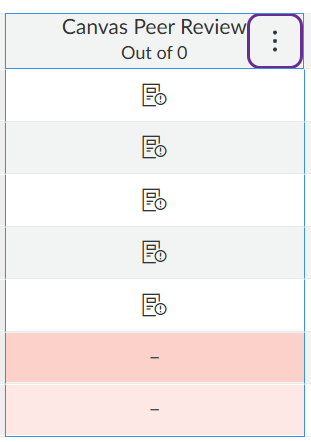
4. Select Post grades.
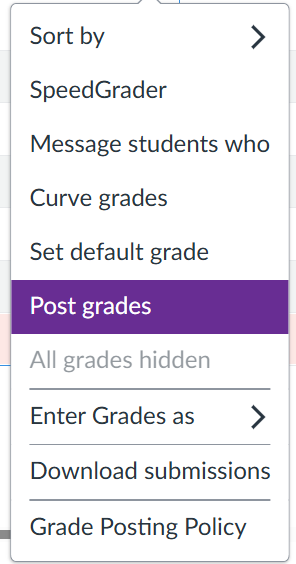
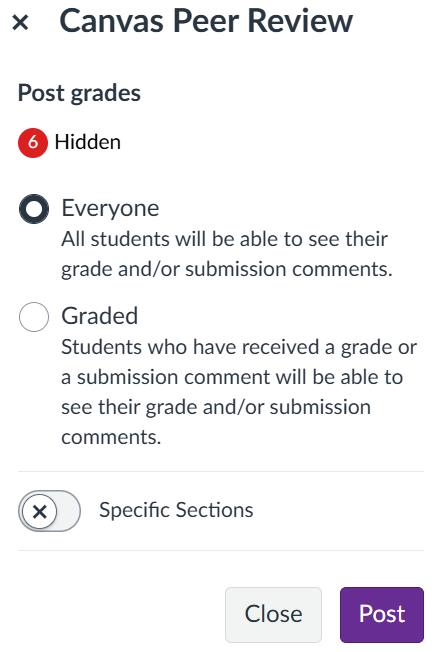
5. Choose whether to post grades and feedback to everyone or only to students with graded submissions, then select Post to release the grades and feedback to students.
- Everyone releases all current and future grades for the assignment. Any new grades and feedback you enter later – such as for late work or resubmissions – become immediately visible, effectively functioning as automatic posting for any subsequent grading.
- Graded releases only the scores that exist at the moment you click post. Any grades and feedback added afterward stay hidden until you manually post again.
Before posting grades, check in the peer reviews area for any outstanding peer reviews, and review peer comments in SpeedGrader to confirm that all feedback is relevant and constructive.
Help with troubleshooting issues
Use the guide below to troubleshoot issues that you may come across when using the Canvas peer review tool.