Quizzes in Canvas are used to assess your learning and can appear in multiple places throughout your course. This guide shows you how to find and access quizzes, results and feedback.
How to find the quizzes
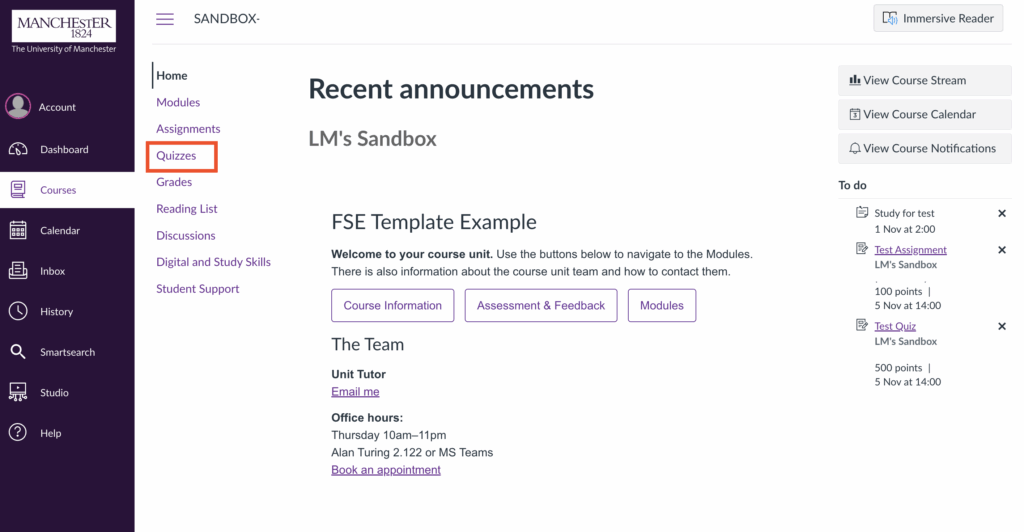
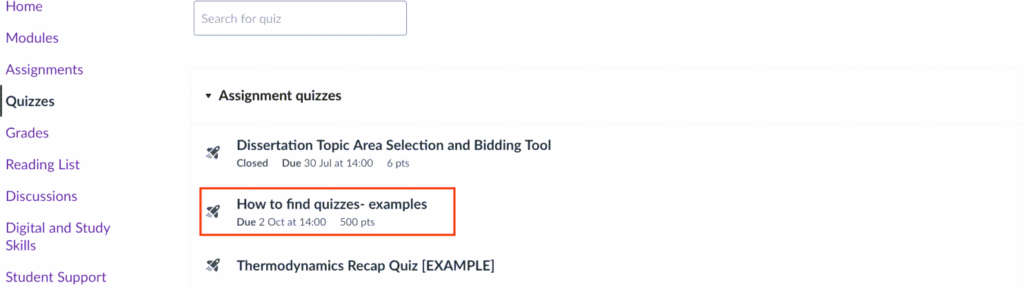
Quizzes can always be found in the Quizzes area of your course menu. If you’d like a step-by-step guide on how to access them, please see How to find assessments on Canvas.
Instructions and Requirements
Before taking a quiz, make sure to carefully review the key information provided in the quiz instructions before you begin the quiz.
As part of the quiz instructions you should be able to see:
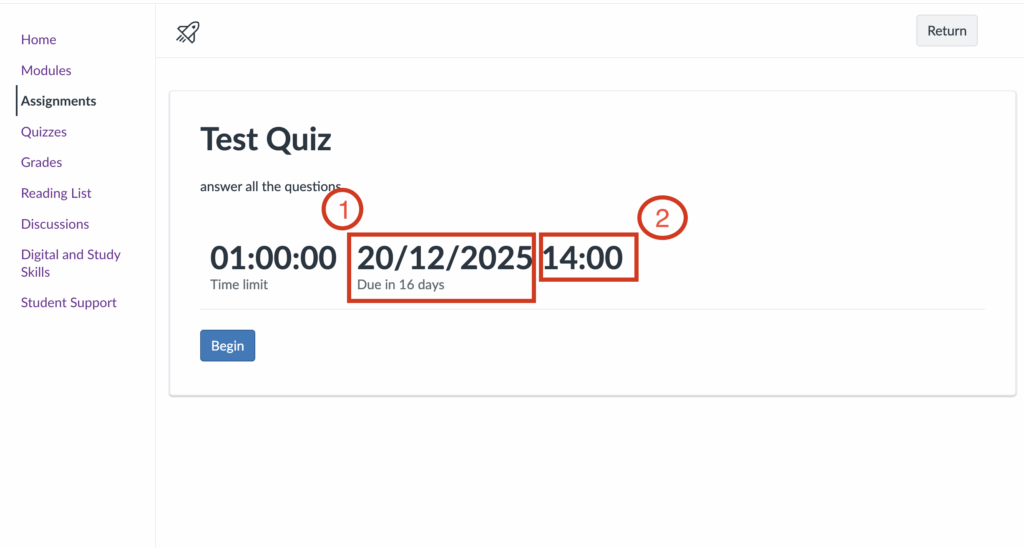
- The due date and time (if set).
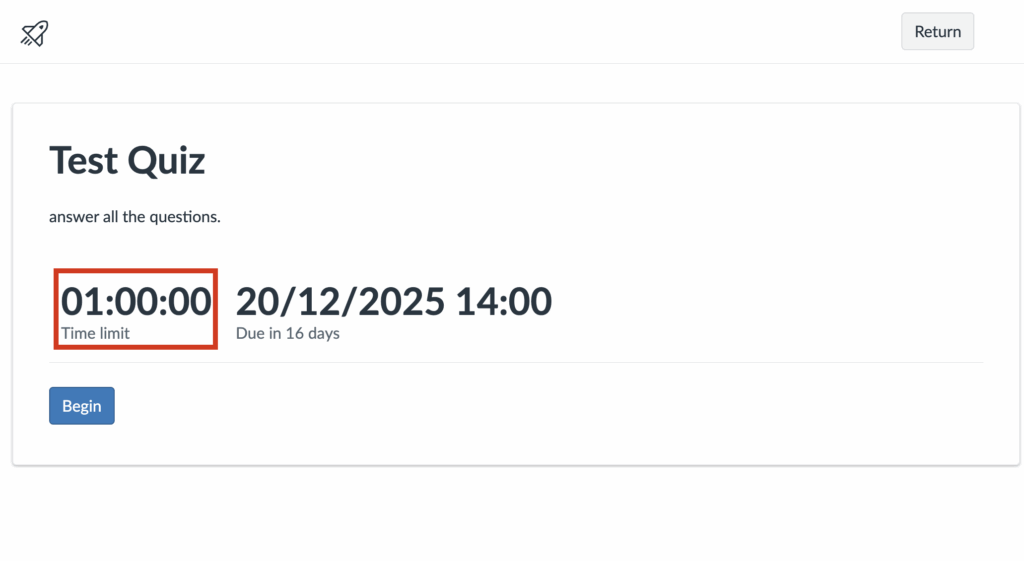
- Whether the quiz has a time limit.
- The number of attempts available (for example, single attempt or multiple tries). If your assignments allows multiple attempts this will be displayed on the screen.
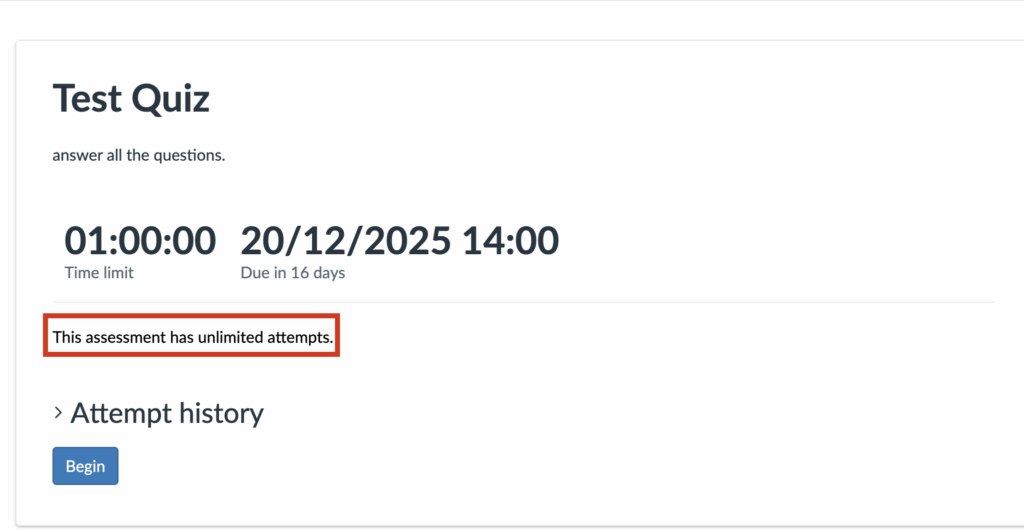
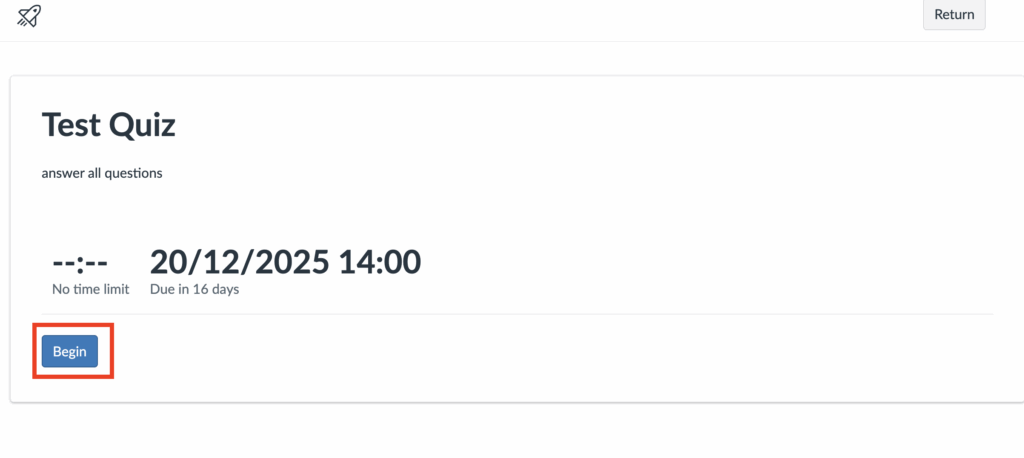
- To begin the quiz, simply click the “Begin” button. As you progress, Canvas will automatically save your answers, so you won’t lose your work if your internet connection is interrupted.
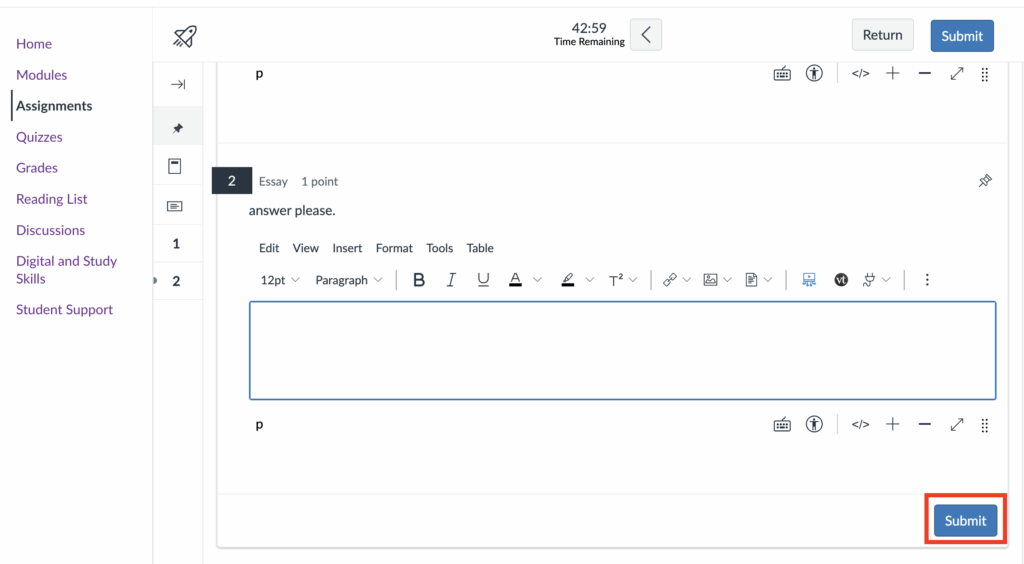
- When you reach the end of the quiz, make sure to click “Submit” to complete your attempt.
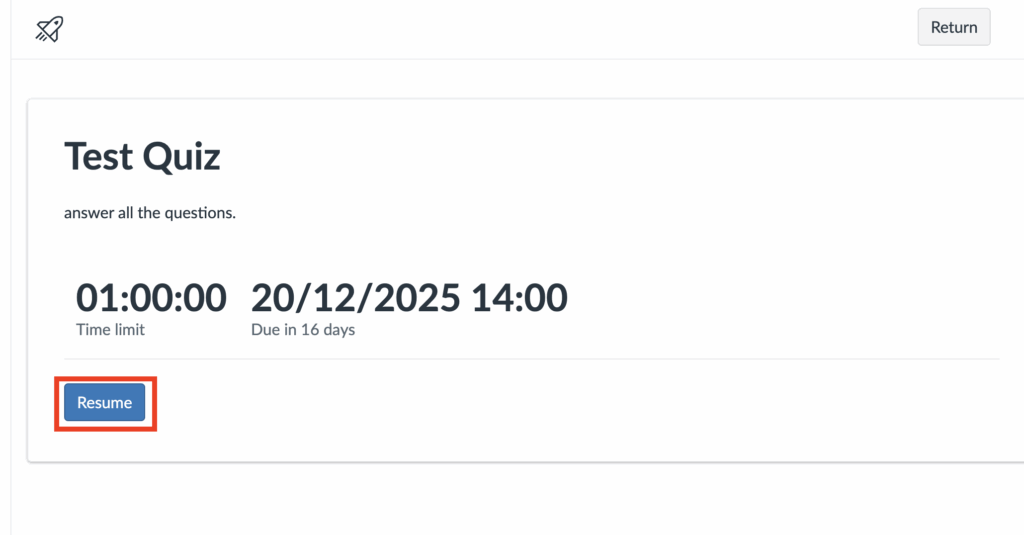
- You can leave a quiz partway through and return to it later by clicking the Resume button, your progress should automatically be saved. However, you can only resume a quiz if the quiz is still open and you have attempts remaining.

If you begin a timed quiz and then leave the quiz, the timer will continue counting down in the background and will automatically submit the quiz once the time limit is reached.
How to reattempt a quiz
Make sure to read instructions carefully before taking or reattempting a quiz. Your instructor may limit the number of attempts or require a waiting period before you can reattempt the quiz. If you have several attempts, your instructor may calculate your final grade based on your highest, average, first or latest score.
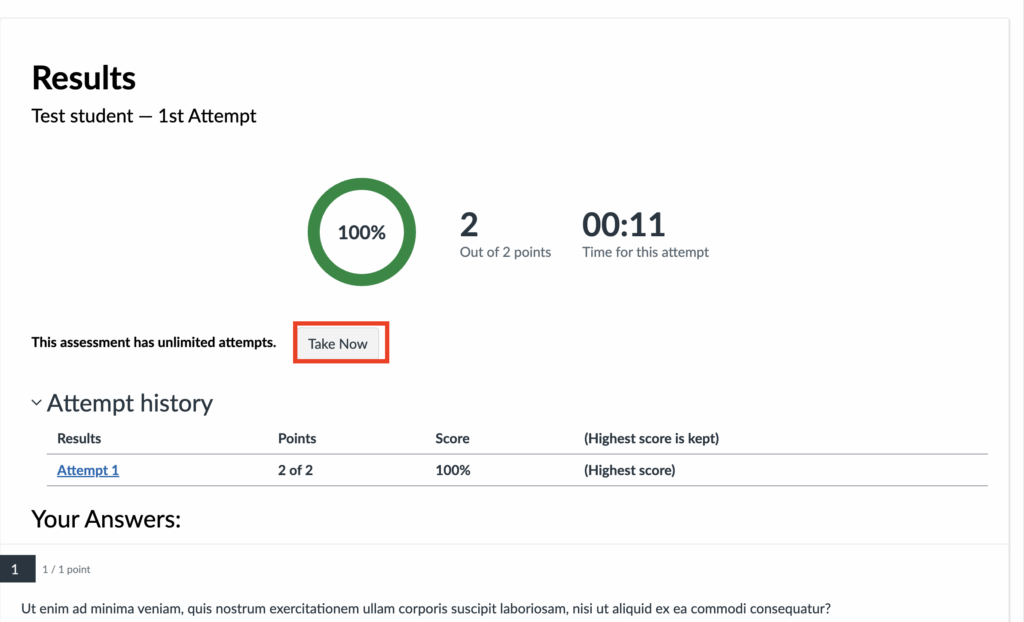
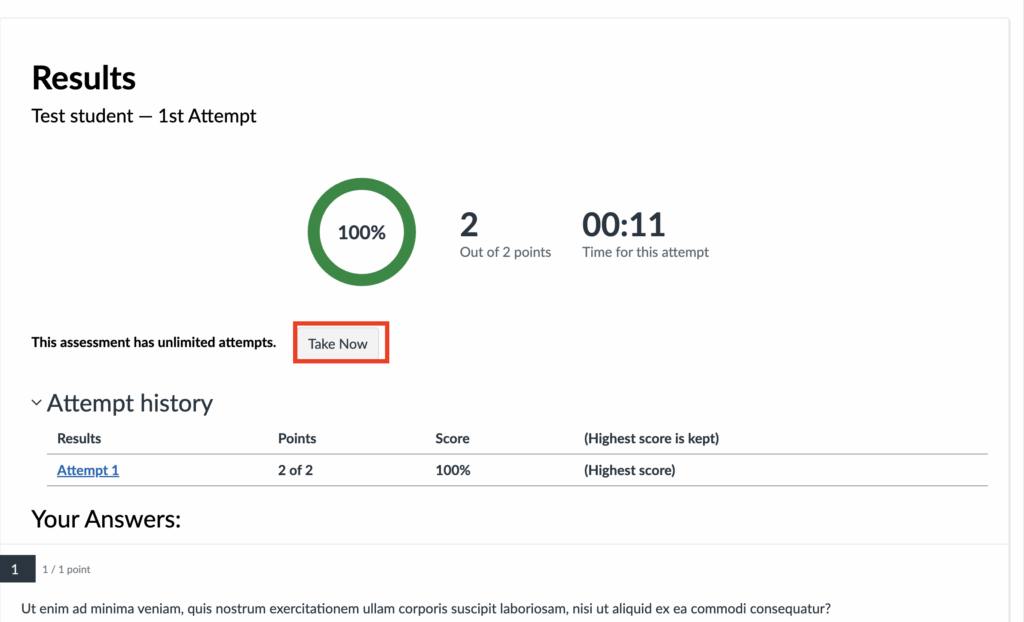
- If your instructor has enabled multiple attempts, once you’ve completed the quiz, you will see a Take Now button. Clicking this button allows you to reattempt the test.
- If you have closed the quiz, you can return to the quiz via the Quizzes menu.
- Click on the Quizzes menu and then click on the quiz title to reopen the quiz.
- The result page will open and if multiple attempts are enable you can click on the Take Now button to reattempt the quiz.
How to access your feedback
The information available to you, will depend on the quiz settings used by your instructor. If your instructor has enabled automatic feedback, you will see feedback immediately on screen once you have completed the quiz.
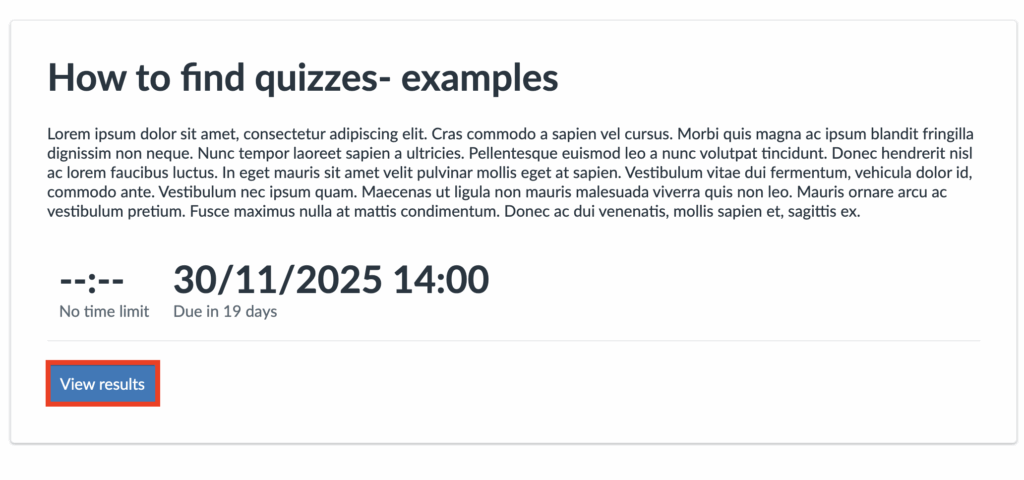
You can also access feedback by following the steps below:
- From the left hand menu, click on Quizzes.
- Then click on the quiz title to open it.
- Then click on View Results:
How to access feedback comments
Instructors may leave feedback comment on quizzes. To access feedback follow the steps below:
- Open the relevant course unit.
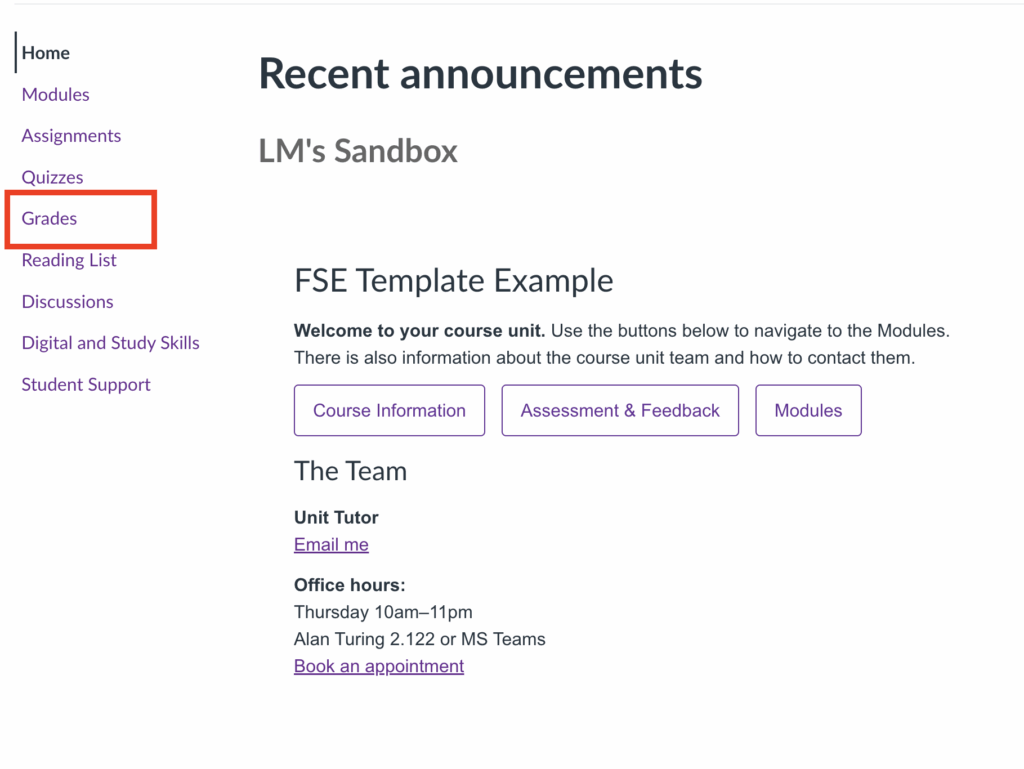
- From the left hand menu click on Grades.
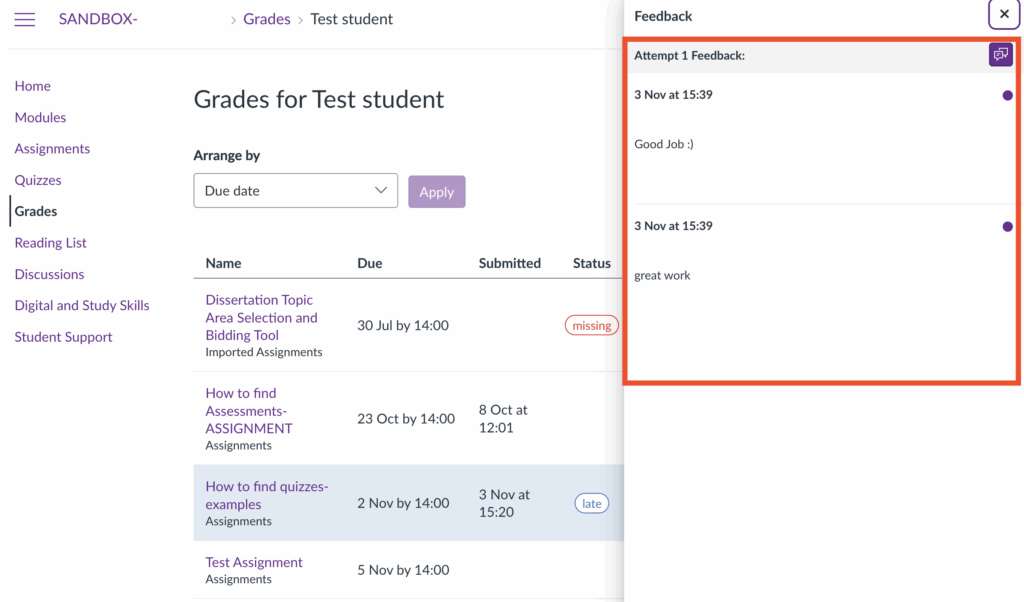
- Within the Grades screen, locate your quiz then click on the comment button.

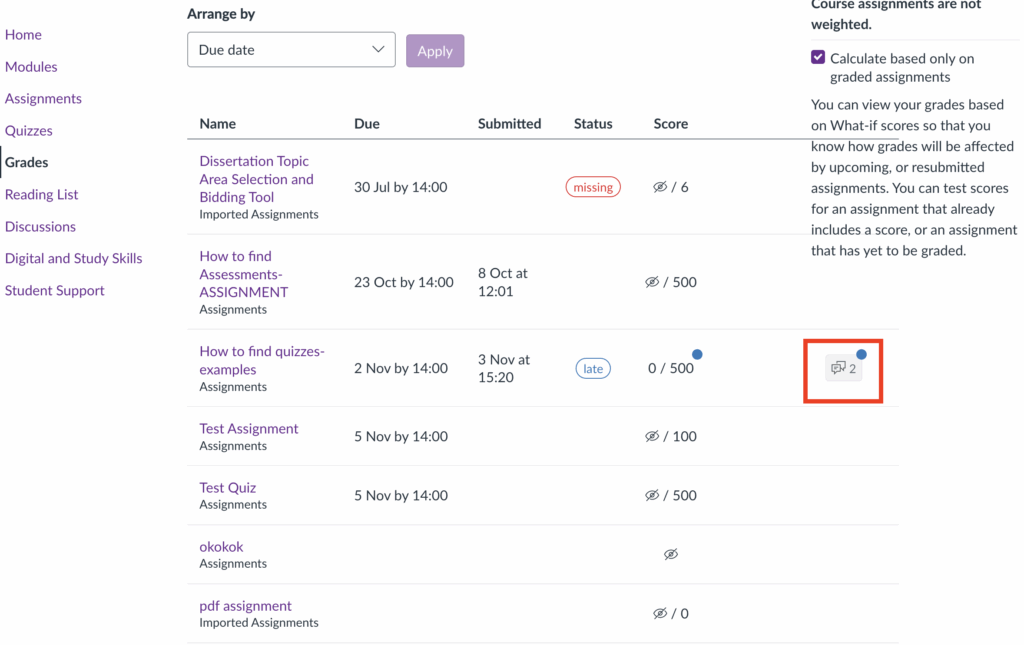
- Once you click on the comments button you should see a pop up window on the right handside of your page containing your feedback.