
Gradescope is a tool, accessed via Canvas, which enables you to submit handwritten written work (including formulae and diagrams), typed work and code.
How do I access Gradescope?
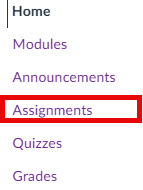
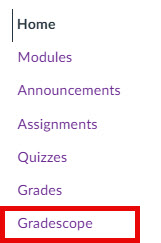
You can access Gradescope assignments like any other assignment, by opening the Assignments menu and then opening the relevant Assignment link. If a direct menu link has been added within your course, you can also access Gradescope via your course navigation menu.
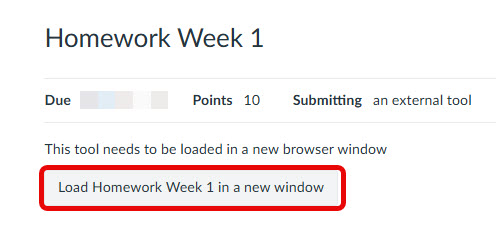
Depending on the settings used by your instructor, Gradescope may open within Canvas or you may be asked to select to load (open) the assignment in a new browser window.
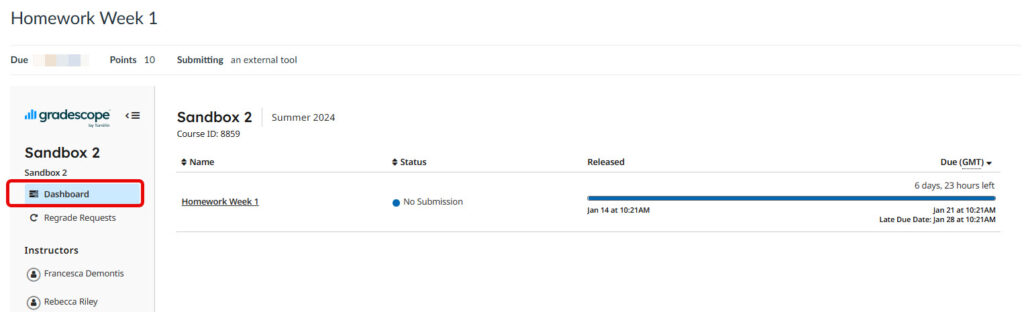
Once Gradescope opens you can access your assignment via the Dashboard menu. Open the relevant assignment link and then follow the on screen instructions to submit your work.
Submitting work in Gradescope
The format for your submission will depend on what you need to submit (eg. images, PDF file, code). Follow the instructions within Gradescope to submit your work and contact your instructor if you need help. If you are submitting handwritten work check out the guidance on converting handwritten work to a pdf.
The steps below show example instructions for submit a PDF file.
- Open Gradescope, then within Gradescope go to the Dashboard and open the relevant assignment.
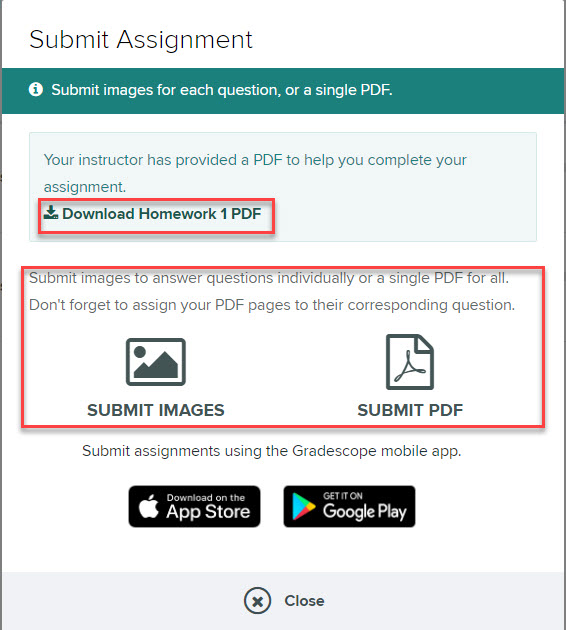
- In the submission box, select Submit PDF>Select PDF locate the file you wish to upload > Upload PDF. (You can only submit one PDF file per assignment).
- To tag a page select a question number and then select the pages that you wish to submit for that question (a tick will appear on the selected pages).
- Once you have assigned all of your pages to a question, select Submit. A popup message will appear to confirm you have submitted your work. A receipt for the submission should be sent to your University email account.
- After you have submitted new menu options will become available on screen which allow you to:
- Reselect pages (use this if you have tagged pages to the wrong question number).
- Download Original (Download a copy of your work)
- Submission History (to see the date / time of submissions)
- Resubmit (only use this if you wish to replace the file you have uploaded).
- If you don’t need to make any changes you can simply close Gradescope.
Group submission
If your instructor has enabled group work, then one student should be nominated to submit on behalf of the group. Any student can submit work on behalf of the group.
Steps for submitting on behalf of your group:
We recommend that you agree who will submit the group work in advance of the deadline and allow sufficient time to complete the necessary steps (see below).
- Before submitting on behalf of your group, check that you know the full names and email addresses for the other members of your group.
- Follow the steps for submitting work.
- Once you have uploaded and submitted your work, a pop up box will appear to confirm the submission.
- You will now need to select group members to add them to the submission. Select Group Members and type their name or email address to find them.
- Select Add once you have located each member. Gradescope will email each group member that you add to confirm that you have submitted the work.
Information for non-submitting group members:
Only one student should be nominated to submit on behalf of the group.
- The chosen group member will access Gradescope, submit the work and then add you as a group member.
- Once the nominated group member has submitted and added you as a group member, you will receive a confirmation email. (This is an automated email from Gradescope, please note the view submission link may not work or may prompt you to create a Gradescope account).
- To access the submitted work, login to your course unit and follow the steps to access Gradescope.
Accessing feedback and grades
Your instructor will usually let you know when grades and feedback are available for you to access via Gradescope.
Accessing Grades and Feedback within Gradescope
- Follow the steps to access Gradescope.
- Within Gradescope, locate the relevant assignment in the dashboard and open it.
- Any published grades or feedback will be visible on screen together with your submission.
- For Homework assignments with multiple questions, you can select the question number to view the feedback for the specific question.
- Along the bottom of the screen are various menu options including to Download Graded Copy to download a copy of your graded assignment.

Grades for Gradescope assignments will only become available via Canvas>Grades if your instructor chooses to share them from Gradescope to Canvas.