
This article provides an overview of using Piazza within Canvas and signposts useful guides on creating a class and using different types of posts. It’s designed to help you get started quickly and use Piazza effectively to support course communication.
Create a Pizza Class in Canvas
For guidance go to How to I set up a Piazza class in Canvas.
Configure your Class settings in Piazza
Once you have created your class, you will need to configure some basic class settings. These include class information (such as the course start date), options for adding staff and students, question and answer settings (for example, anonymous posting), and setting up a folder structure to organise your discussion board.
These initial settings are accessed by selecting Setup from the top navigation menu in Piazza. The Setup area is designed to guide you through the core configuration of your class when you first get started.
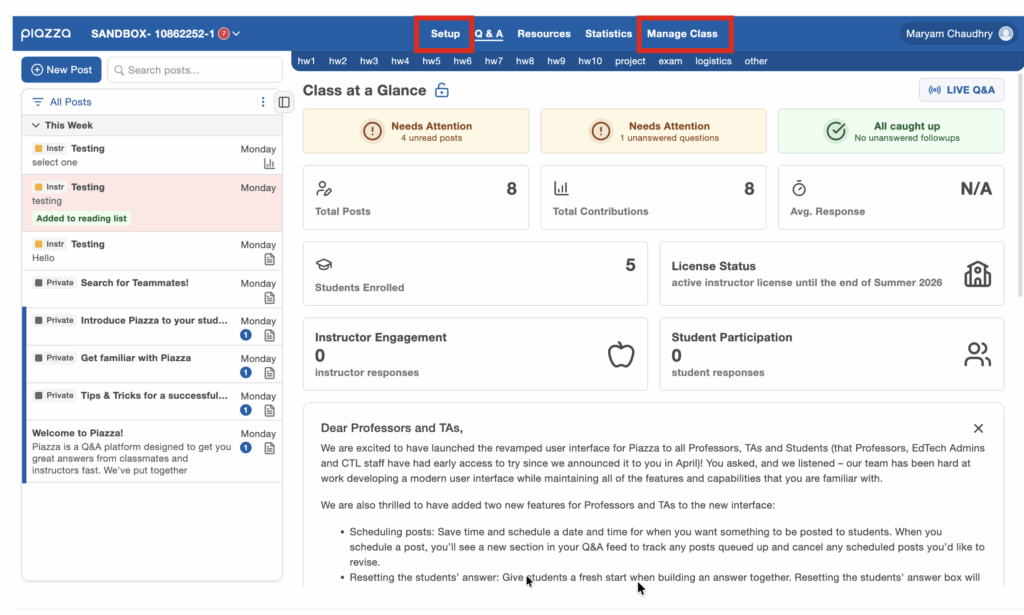
Beyond the initial setup, most class settings and administrative functions can be accessed and updated at any time via Manage Class, including:
- Updating question and answer setting (including options for anonymous posting and student polls)
- Editing class information (should you need to change the start date for your discussion board)
- Configuring class folders (the folder structure used in your discussion board)
What type of posts can I use in Piazza?
Staff and students can create posts in Piazza using the Q&A section of the discussion board.
To create a post, select New Post from the left-hand menu within the Q&A section. This opens the New Post window, where you can choose the type of post you want to create.

Post types
Piazza offers three different post types, depending on the purpose of your post:

- Question (if you need an answer) Use this when a response is required. Questions include a students’ answer and an instructors’ answer area, with optional follow-up discussion.
- Note (if you don’t need an answer) Use notes to share information or announcements. Students can respond using the follow-up discussion if needed.
- Poll / In-Class Response (if you need a vote) Use polls to collect quick feedback or responses from students.
Linking Piazza posts to Canvas
It is possible to insert a link to a Piazza post within a Canvas page. However, students must be enrolled on the Piazza class to access the post.
1.Navigate to the relevant post in Piazza.
2. Select the link (paperclip) icon on the post to copy the post URL.

3. Open the Canvas page, announcement, or module where you want to add the link and paste the URL. The link will appear as a clickable URL.

4. (Optional) To change how the link text appears, select Edit in Canvas, double-click the link, and choose Link options. You can then update the link text so it displays as descriptive text rather than a full URL.

Note: Students must already be enrolled in the Piazza class to access the linked post.
You can use the Resources section in Piazza to add files or links on Homework, Homework Solutions, Lecture Notes and General Resources. Bear in mind that information added in the resources section will only be available to students via Piazza. Any core course content should be made available to students directly in your Canvas course space.
Student View
The student view of Piazza is very similar to the instructor view, except students will not have the Manage Class section. Guidance that you can share with your students is available here.
Tips for using Piazza
Below are some tips and links to further resources to help you get started.
- Set expectations, be clear to students what your role will be (eg. answering common questions, when / how frequently to expect a reply, facilitating discussion etc).
- Encourage students to ask all content related questions on the discussion board. If you receive questions by email copy and paste the question and your answer as a note into the discussion board.
- Refer to questions and contributions raised via Piazza in lectures, to encourage students to use and reflect on the benefits of using Piazza.
- Set activities using Piazza. For example, ask students to post their reflections on a reading via Piazza.