
This article provides an overview of moderated grading in Canvas. Before using moderated grading on assignments, we recommend contacting the eLearning team for an initial discussion to ensure it meets your marking and feedback release requirements. You can either submit a ticket to the helpdesk or book a 1-to-1 via this link: Book your consultation.
What is moderated grading in Canvas?
When creating an assignment in Canvas, you can choose to set it up with moderated grading. Moderated grading allows multiple markers to review the same assignment submission independently, and provide provisional grades and feedback. These provisional grades and feedback are then manually reconciled, and a final grade is agreed.
Moderated grading is typically used to enable double marking – when first and second markers grade the same submission separately – and is not intended for use when there is only one marker per submission.
Limitations of moderated grading
Moderated grading has a number of limitations, which mean it may not always be suitable for assessments requiring multiple markers. These limitations are summarised below.
- Moderated marking cannot be removed once students have submitted work to the assessment.
- Moderated grading currently allowsa maximum of 10 different markers across the entire assignment.
- A single member of staff needs to be chosen to act as ‘final grader’ who then has access to moderate (reconcile) the provisional marks. The final grader cannot also be a marker for the assessment.
- Canvas currently allows you to release only one marker’s grade and feedback to students. Once you do this, any provisional grades and comments from other markers are automatically suppressed, so students cannot see them and staff also lose access to that data. While you can manually enter a custom grade and feedback for each student, this adds extra work and can be very time-consuming.
- Once a final mark is released, it is not possible to retrieve rubric data from provisional markers.
How do I set up moderated grading?

IMPORTANT: Moderated grading cannot be removed once students have submitted assessments!
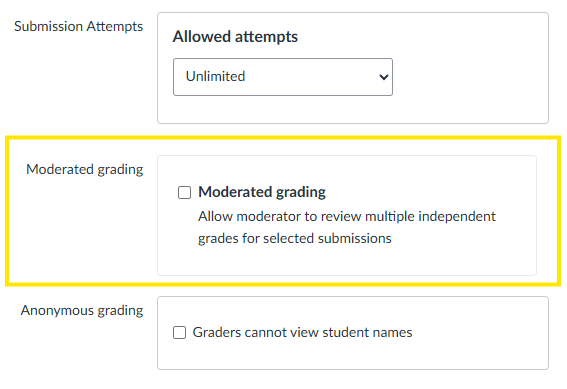
Moderated grading can be found within the setup options when creating or editing a Canvas assignment. Further information regarding moderated grading can be found on the Instructure’s Canvas Website.
How do I review and release grades for a moderated grading assignment?
Further information see Instructure guides: