
This guide covers how to manage the release of marks and feedback via the Canvas Gradebook. We will look at the Grade Posting Policy, where you can control whether grades are posted automatically or manually. We will also cover quiz settings, which allow us to control the release of quiz scores and feedback to students.
Grade Posting Policy
Canvas uses grade posting policies to control when students can view their grades and feedback. All courses should have this set to Manual by default, and this setting should NOT be changed. Manual posting ensures that grades remain hidden from students until staff are ready to release them, allowing time for moderation and review.

Ensure that you keep your course Grade Posting Policy set to Manual. This will prevent the accidental release of marks and feedback, and allow you to release grades to students all at once, when you are ready.
Setting a Manual Grade Posting Policy for your course
You can check your course grade posting policy and ensure it is set to manual via the Gradebook.

Please note that the following instructions shows you how to set the Grade Posting Policy for the whole course.To set the Grade Posting Policy for specific assignments please see: Setting a Grade Posting Policy for specific assignments.
- Click Grades in the Course Navigation Menu to access the Gradebook.
- Once you are in the Gradebook, select the Settings icon in the top right-hand corner of the page.
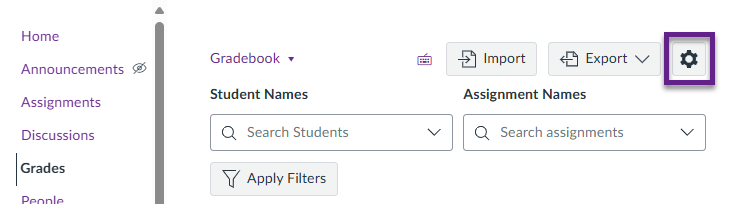
- Select the Grade Posting Policy tab.
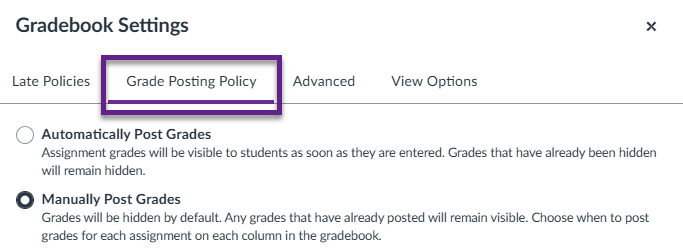
- Ensure that Manually Post Grades is selected.
- If the policy is set to automatic, please select Manually Post Grades and click Apply Settings.
Keeping your course Grade Posting Policy set to Manual will prevent the accidental release of marks and feedback.
Please note that changing a Canvas grade posting policy only applies to future grades entered. Switching from Automatic to Manual does not retroactively apply to grades already released to students. To hide existing grades, you must manually select “Hide grades” in the Gradebook column header.
Setting a Grade Posting Policy for specific assignments
As mentioned, your Grade Posting Policy should be set to Manual, but there may be specific assignments you wish to set up automatic grading for.
Provided that the course-level Grade Posting Policy is set to Manual, and you haven’t overidden it for specific assignments, all existing assignments will also follow the manual posting policy. When a manual policy is turned on for an assignment, a label saying MANUAL will appear in the Gradebook column header. Please note that unpublished assignments won’t show this label, but once you publish them, they will automatically take on the course-level Grade Posting Policy you have set.
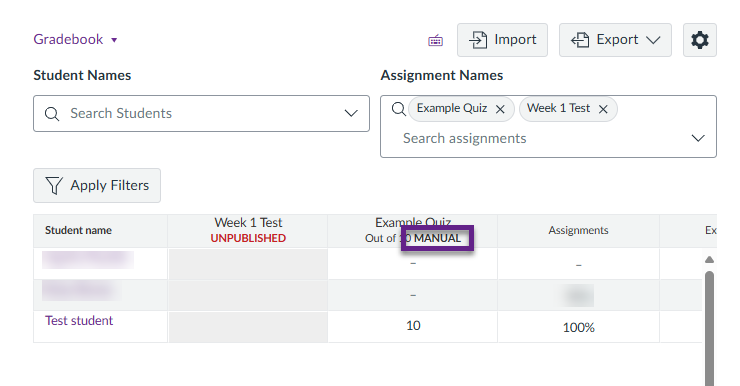
Follow the steps below to change the grade posting policy for a spacific assignment.
- Select Grades in the Course Navigation Menu to access the Gradebook.
- Identify the column associated with the assignment for which you wish to change the grade posting policy.
- Select the three dots in the column header, next to the assignment name, and select Grade Posting Policy.
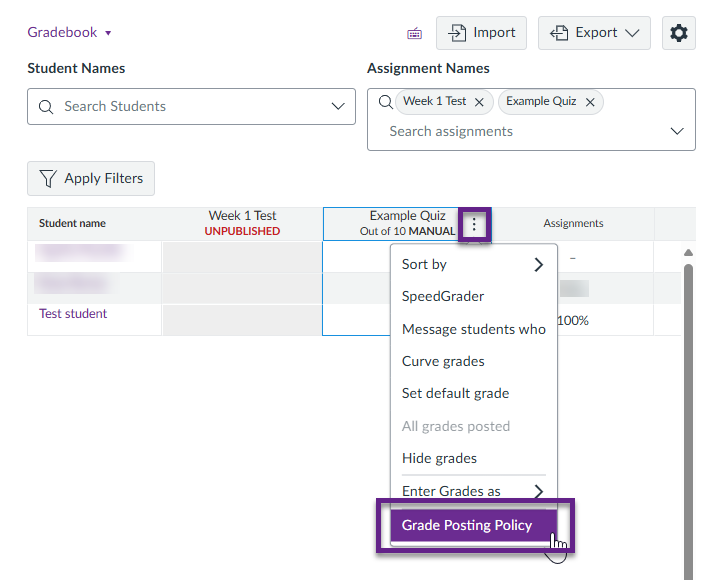
- From here, you can check the current posting policy for the assignment. Select the desired policy and then click Save.
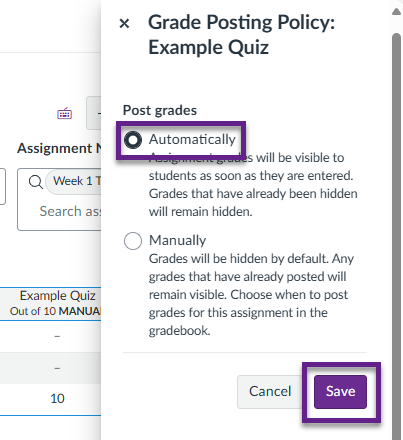
- After changing the assignment’s policy, you will see that the word MANUAL is no longer present on the assignment column header, indicating that the assignment now follows an automatic policy.
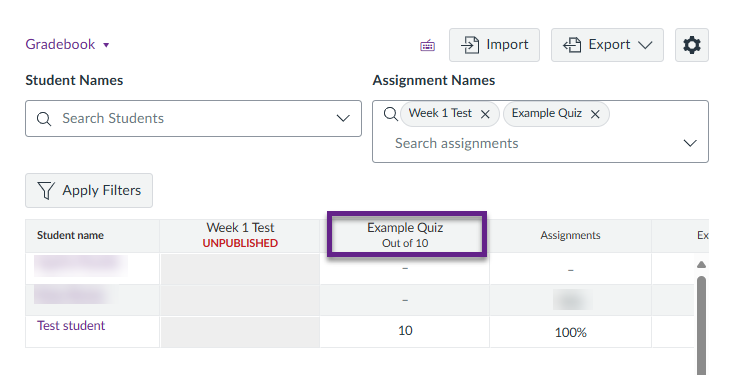
Please note that if you were to now change the general Grade Posting Policy (as explained here), it would override any changes you have made to the Grade Posting Policies of specific assignments. However, as you should keep your general Grade Posting Policy set to manual, this shouldn’t be a problem.
Releasing Grades and Feedback
With a manual Grade Posting Policy in place, staff will need to manually post grades to students. For step by step instructions on this, see:
Please also note that if a rubric has been completed in Canvas, posting grades will release the rubric as completed by the marker, including the assessor’s name. For full details on what students see when grades are released, please see:
Managing the Release of Quiz Scores and Feedback
You can also configure the settings on individual quizzes to control whether scores and feedback are released to students immediately or at a later date. It is important to consider this step in addition to the Grade Posting Policy settings, as it is possible for students to see their results upon completion of a quiz even if a manual policy is selected in the Gradebook.
- First, navigate to the Quizzes area in the Course Navigation Menu.

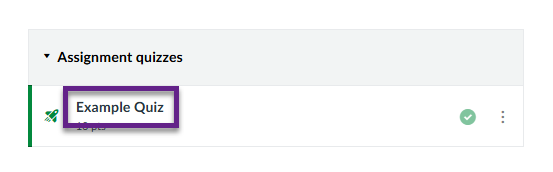
- Then, select the name of the individual quiz you wish to edit.
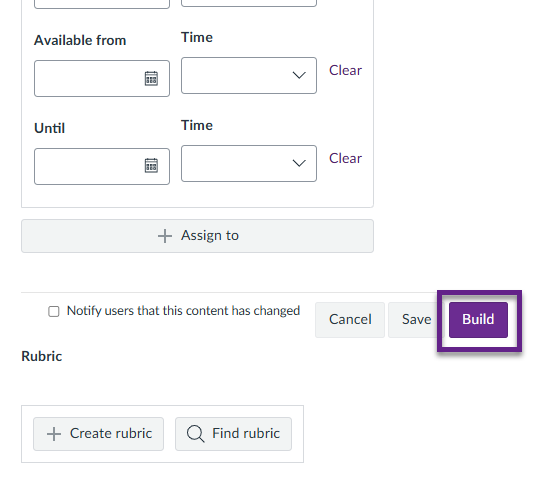
- Now, scroll to the bottom of the page and select the ‘Build‘ button.
- If you select ‘Settings‘ as shown, you now have the option to hide results from students (among other settings).
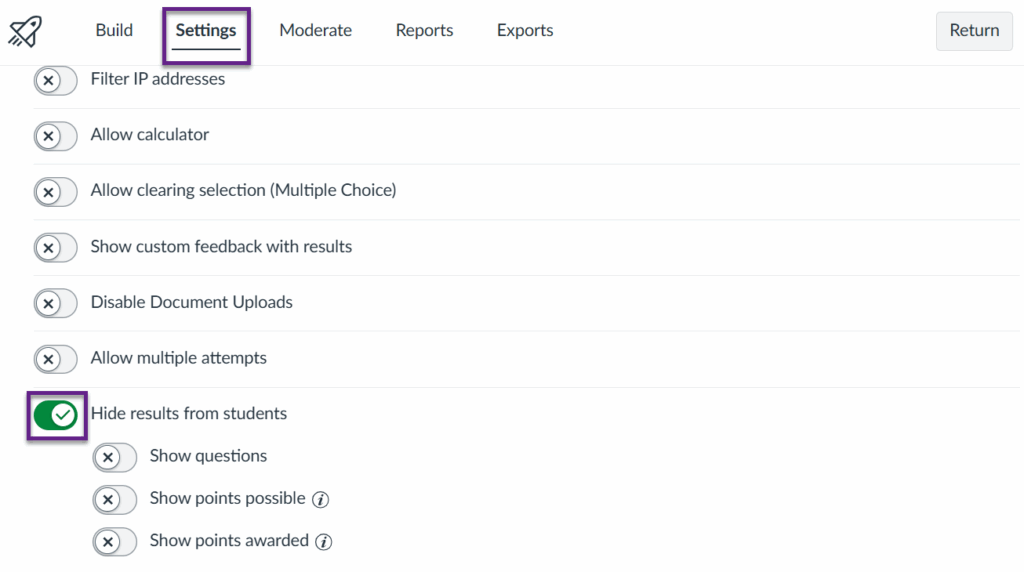
- The student would then see the following message after completing the quiz, with no results or feedback being dispalyed.
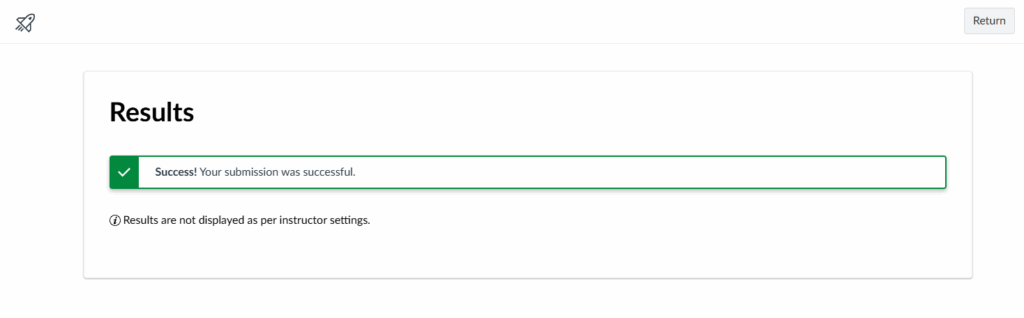
It is important to note that even if the student sees the above message, they would still be able to view their mark in the Gradebook if you have set the Grade Posting Policy to automatically post grades. Likewise, if the policy is set to manual, the student would see their grade upon submission if you don’t select Hide results from students for individual quizzes. However, the grade would not be visible in the Gradebook in this case.
Therefore, to prevent the accidental release of marks and feedback, it is essential that you do BOTH of the following:
- Ensure that Manually Post Grades is selected in the Grade Posting Policy.
- Select Hide results from students for any quizzes where you do not wish for students to immediately see their scores.
To prevent the accidental release of quiz scores and feedback, ensure that a Manual Grade Posting Policy is set AND that Hide results from students is enabled in the quiz settings.