
Piazza is an online discussion and Q&A tool used to support communication between students and teaching staff. It allows students to ask questions, engage in discussions, and view responses from both staff and classmates in one shared space.
Piazza is commonly used to:
- Ask questions about course content or assessments
- View answers to questions asked by other students
- Participate in class discussions
- Receive announcements from teaching staff
Piazza is accessed directly through your Canvas course.
To access Piazza:
- Log in to Canvas and open your course.
- Navigate to the Modules area.
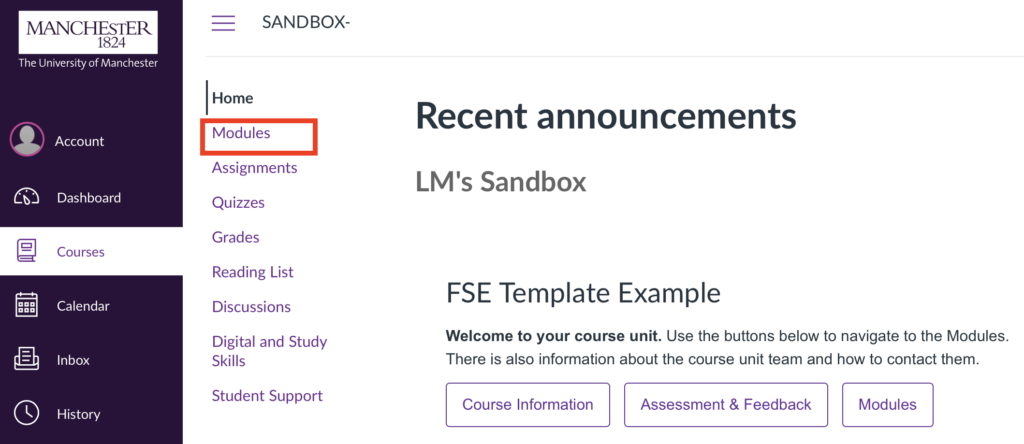
- Locate your Piazza link and click on the link to open the discussion board.
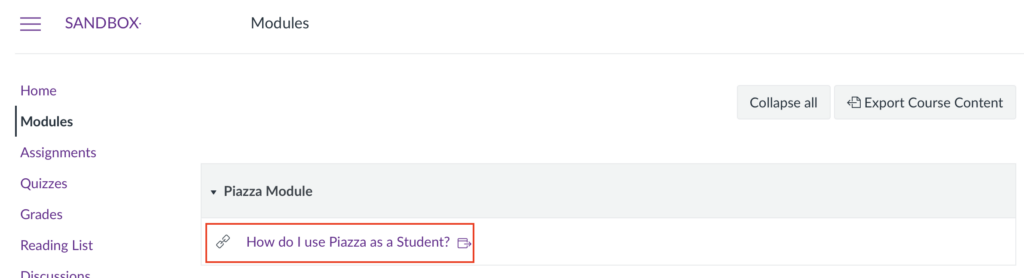
You will be able to access Piazza at any time through Canvas via the Piazza link.
As a student you can:
- Ask questions publicly or privately
- Respond to questions posted by classmates
- View answers provided by teaching staff
- Participate in discussions
- View announcements and posts
- Vote on helpful answers
This helps keep course communication organised and avoids duplicate questions.
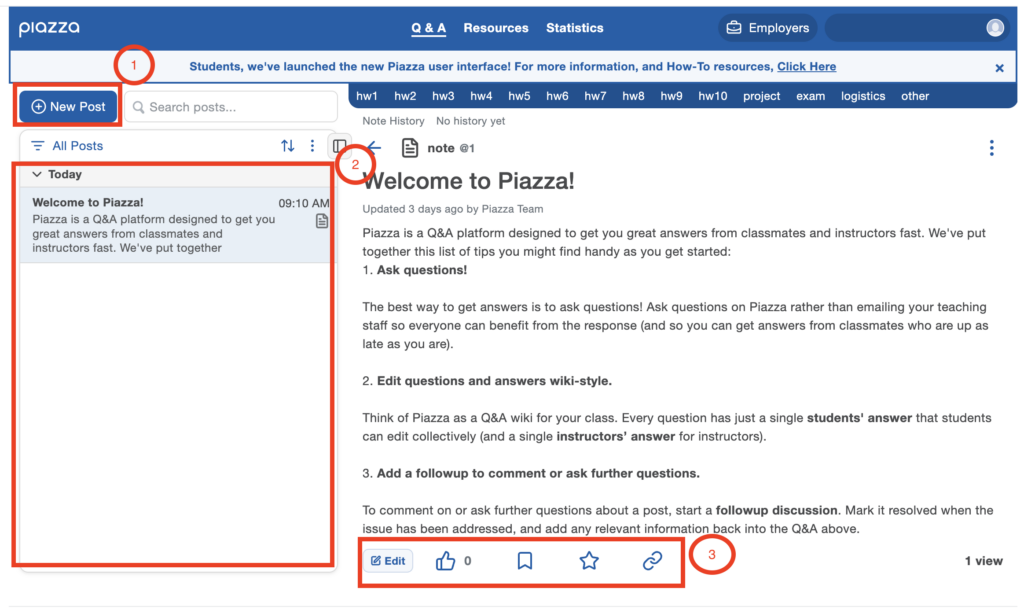
- Posts feed: Shows all posts organised by date, with the most recent posts listed under “Today” you may also use the search bar on the top right to find a specific post.
- Post interaction buttons: Use these to edit your post, like/upvote answers (thumbs up), bookmark posts (flag icon), mark as favourite (star icon), or copy the post link (chain icon).
How to participate in conversations
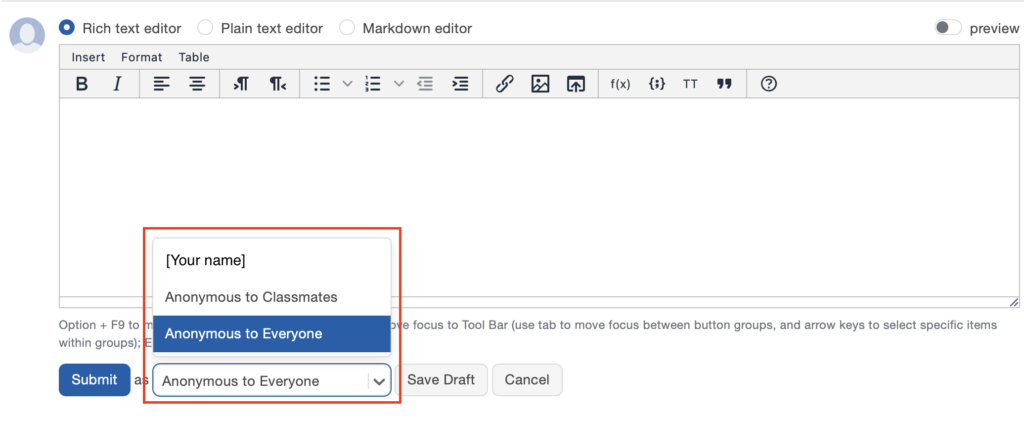
To participate in a conversation, click on the relevant post and then add your response in the rich text editor box.
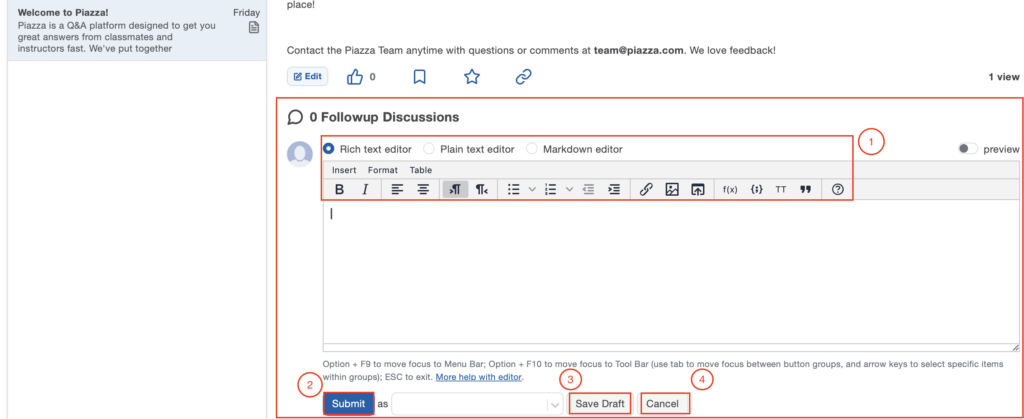
- Rich text editor: Choose between Rich text, Plain text, or Markdown editor to format your response.
- Submit button: Click to post your followup discussion or response.
- Save Draft button: Click to save your response as a draft without posting it publicly.
- Cancel button: Click to discard your response and close the editor.
Once you’re done editing your answer, you may decide how you would like to submit:

You will only be able to use the anonymous options only if your instructor has enabled them.
How to create new posts
To create a new post you will have to click on the ‘New Post’ button. The following screenshots will show you how to navigate the post interface:
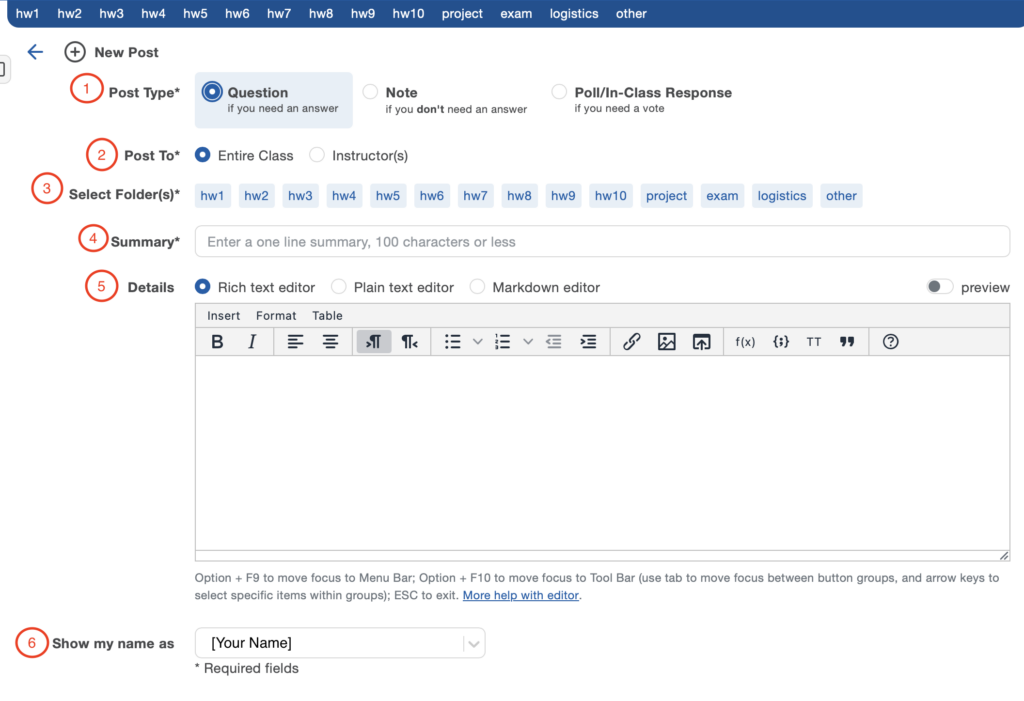
- Post Type: Select whether you’re asking a Question (if you need an answer), sharing a Note (if you don’t need an answer), or creating a Poll/In-Class Response (if you need a vote).
- Post To: Choose whether to post to the Entire Class or only to Instructor(s).
- Select Folder(s): Choose relevant tags or categories for your post (such as hw1, hw2, project, exam, etc.) to help organise discussions.
- Summary: Enter a brief one-line summary of your question or post (maximum 100 characters).
- Details: Use the rich text editor to write the full details of your question or post, with formatting options for bold, italic, lists, links, and images.
- Show my name as: Choose how your name appears on the post using the dropdown menu (options include posting with your name visible, anonymously to classmates, or anonymously to everyone).
Once you’ve filled in your post details, you can choose how to submit it:
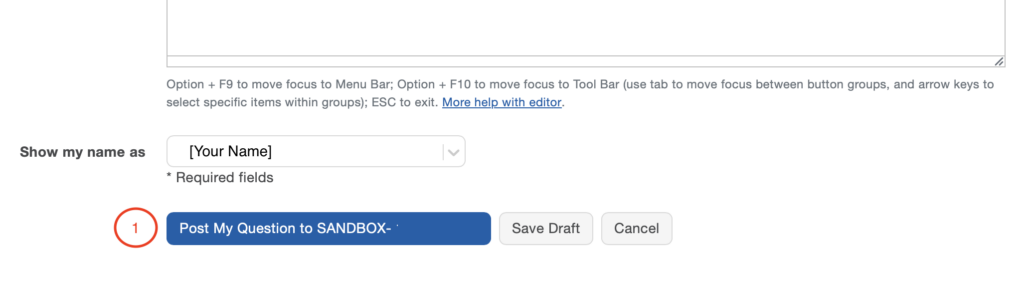
- Post My Question button (1): Click to publish your question or post to the class. You may also Save your Draft and Cancel your post using the respective buttons.
Tips for using Piazza effectively
To use Piazza effectively:
- Search before posting: Use the search bar to check if your question has already been answered
- Use clear subject lines: Make it easy for others to find relevant discussions
- Choose the right anonymity level: Post anonymously if asking sensitive questions, but consider posting publicly to help classmates with similar queries
- Check back for responses: Enable notifications or check regularly for replies to your questions
- Vote on helpful answers: Use the thumbs up button to highlight particularly useful responses
- Tag your posts appropriately: Use relevant folders/tags (like hw1, hw2, etc.) to organise discussions.