
Hypothes.is is a collaborative annotation tool available in Canvas that enables students and staff to read, comment, and discuss course materials directly within the margins of a webpage or PDF. This guide covers what Hypothes.is is, how to add it to your Canvas course (via assignments), how to use it effectively, and how students can access and interact with it.
What is Hypothes.is?
Hypothes.is is an easy-to-use pedagogical tool which supports social annotation. Social annotation involves reading and thinking together, it brings the process of marking up texts to the digital learning space while making it a collaborative exercise. Students and staff can open a PDF or webpage, highlight, comment on, and share ideas about the text, video, or images they see, all within the margins of the text.
How do I add Hypothes.is to my Canvas course?
- Go to your Canvas course.
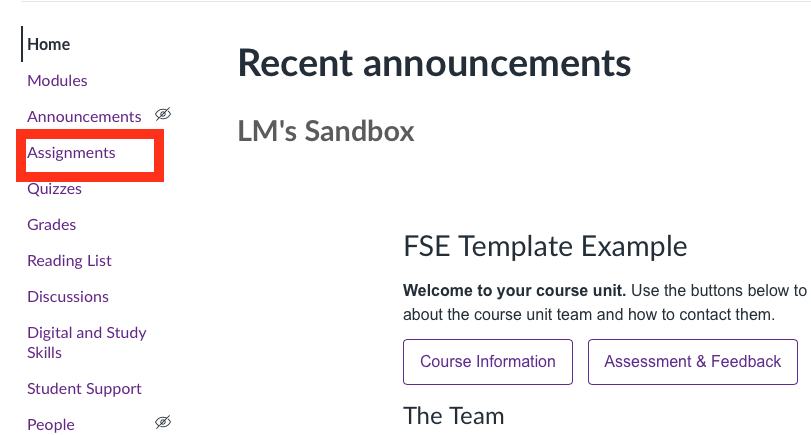
- From the left hand menu select ‘Assignments’.
- On your preferred module select the ‘+ Assignment’ button on the top right.

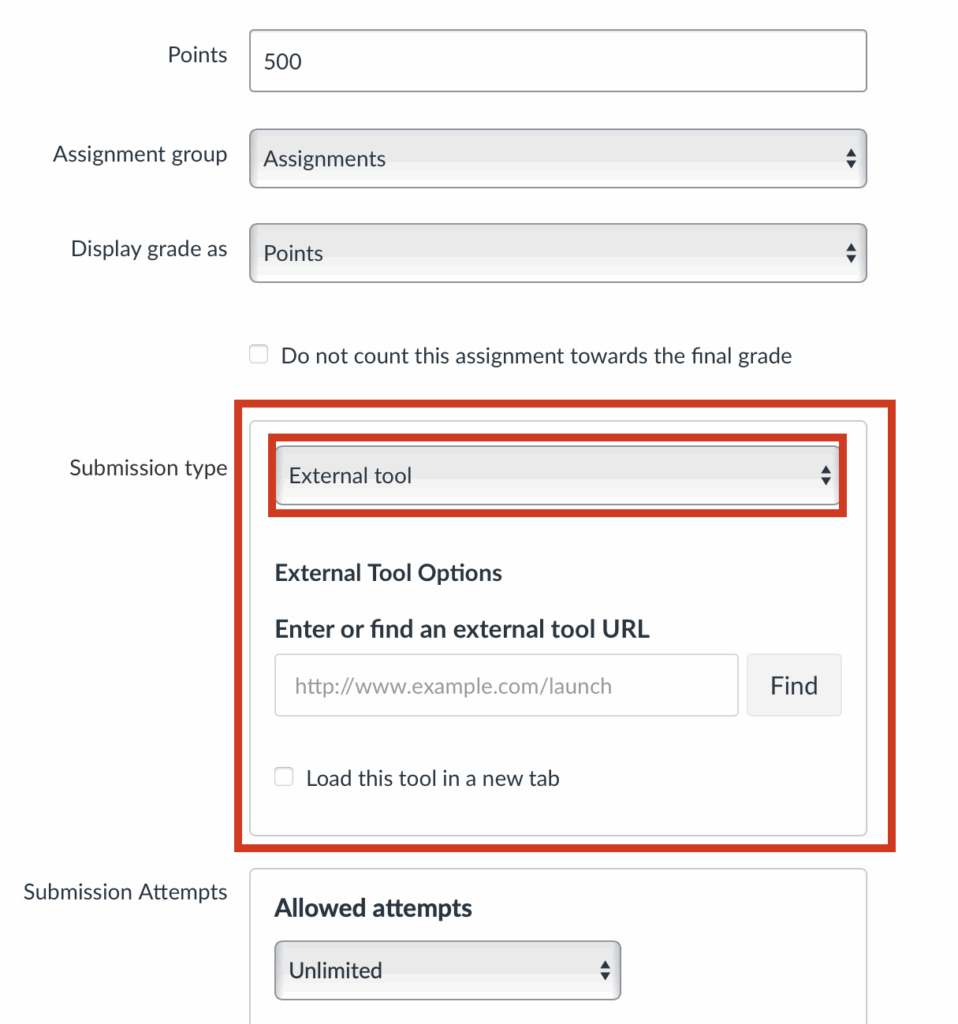
- Once you are on the new assignment page, Give a name and a description to your assignment. Then scroll down and find the ‘submission type‘ section. Click on the drop down menu (A highlighted in the image.
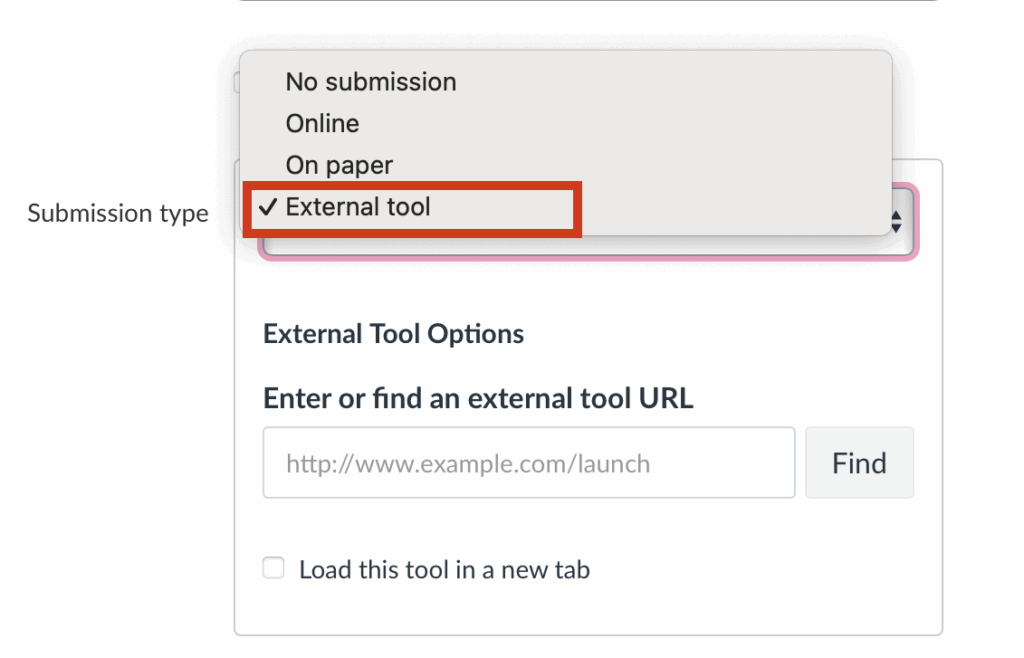
- Then select ‘External Tool ‘.
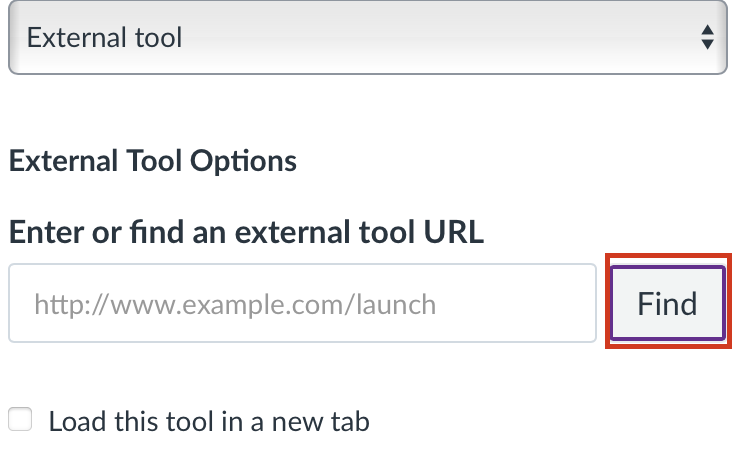
- Now a URL box will appear, click on the ‘find‘ button on the right.
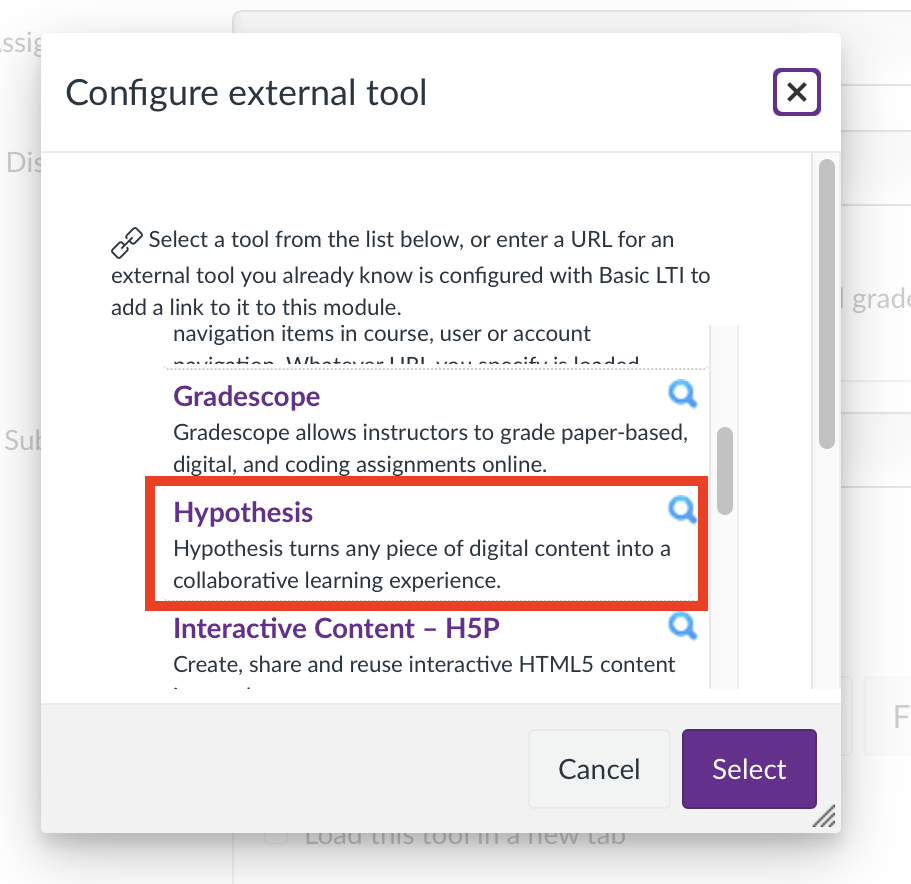
- This will trigger a pop up menu to appear, from it scroll to find ‘Hypothes.is‘ and click on it.
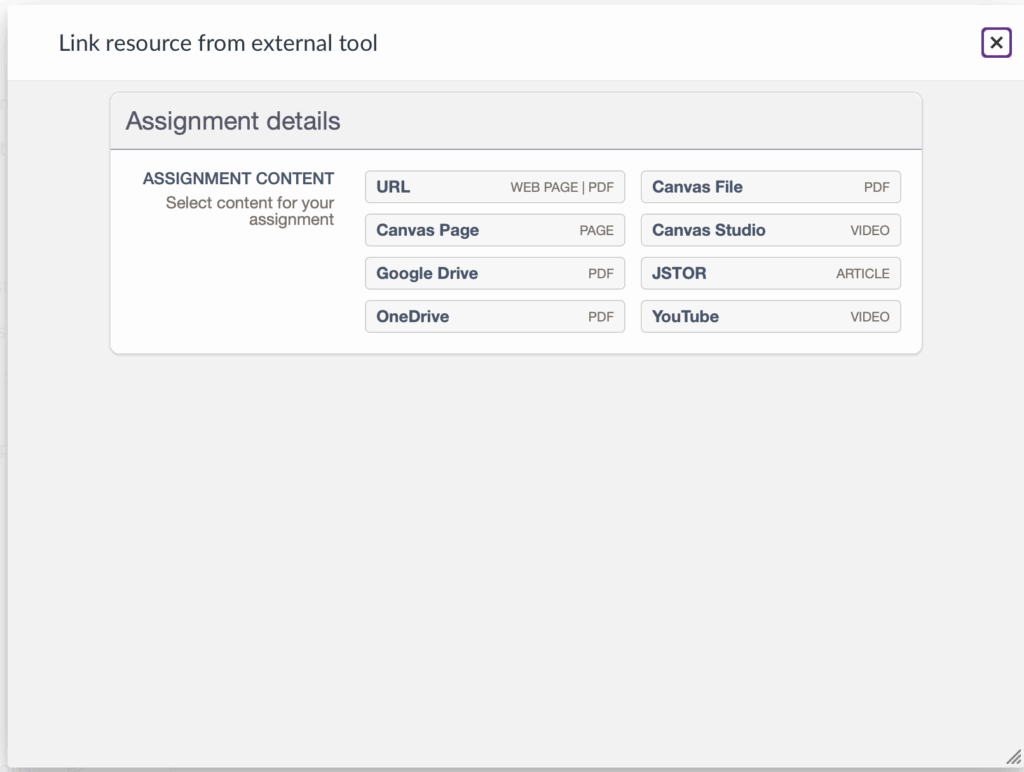
- Hypotes.is will open offering several ways to upload the document, select your preferred one.
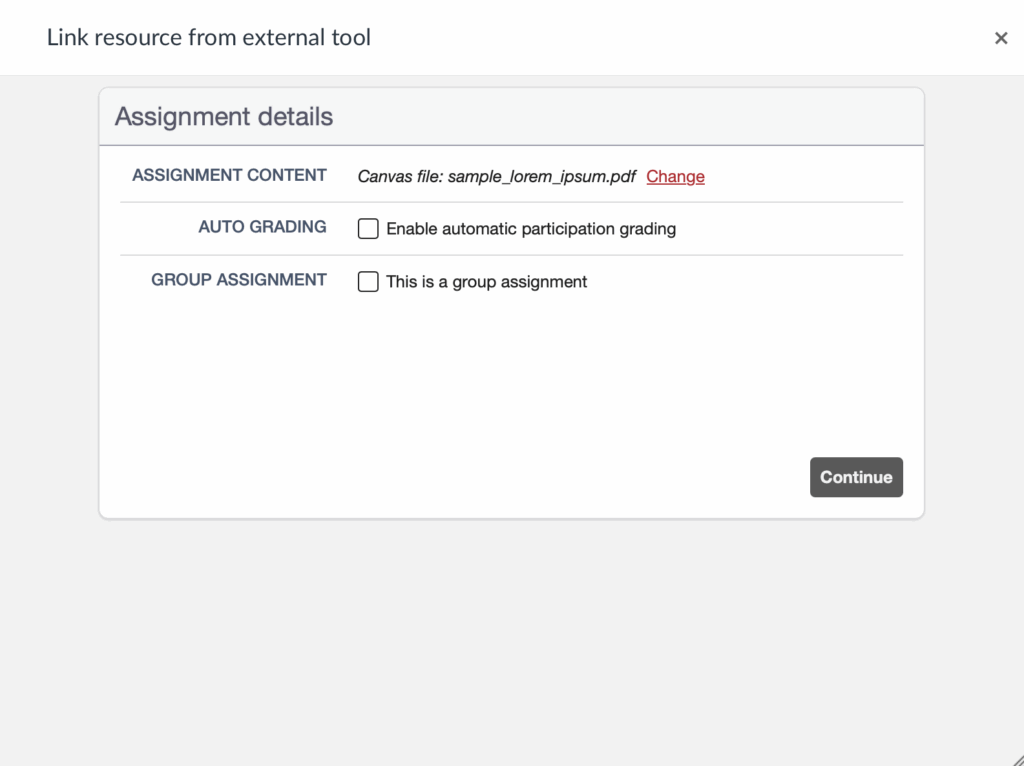
- Once chosen, you will also be able to pick your assignment details (see image on the right). Then press continue on the bottom right corner.
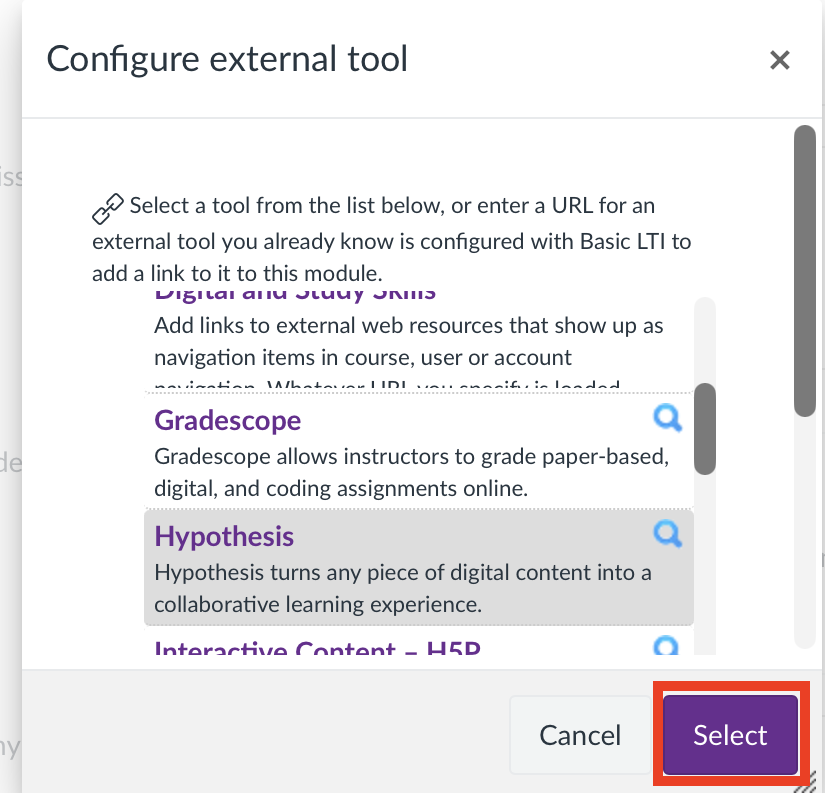
- After you are back on the canvas interface click on ‘select‘.
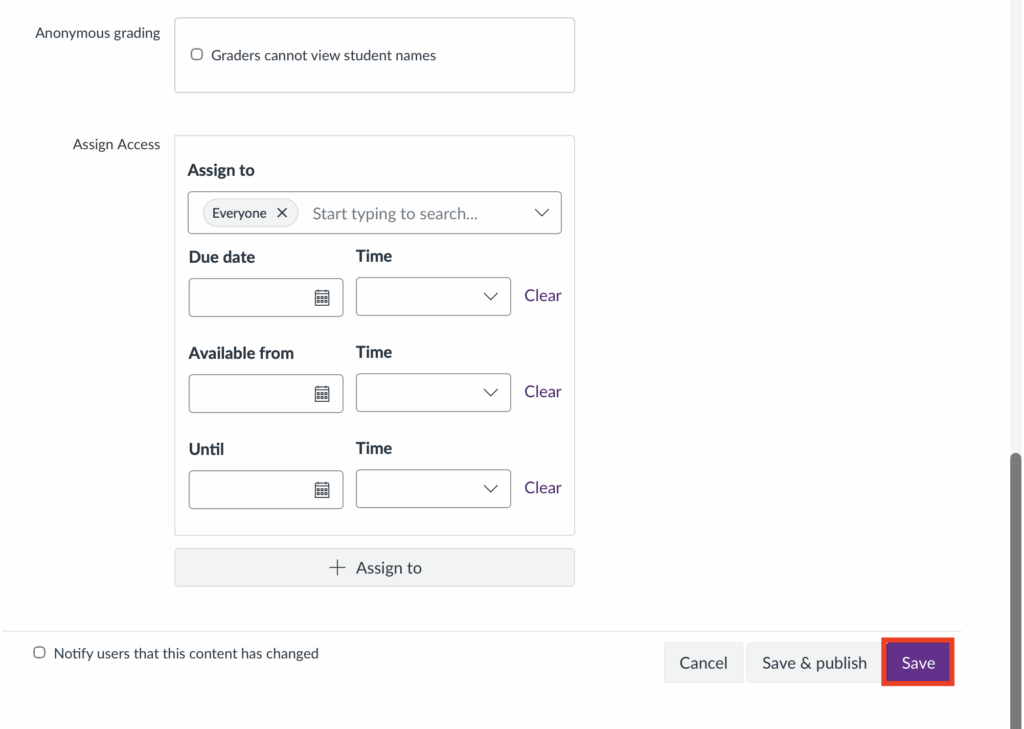
- Then scroll to the bottom of the assignment page and click on ‘save‘.
How do I use Hypothes.is?
When you open a Hypothesis assignment, you’ll see the web page or PDF you uploaded alongside the Hypothesis sidebar. Users can add comments, raise questions and post answers alongside the paper/website being reviewed.
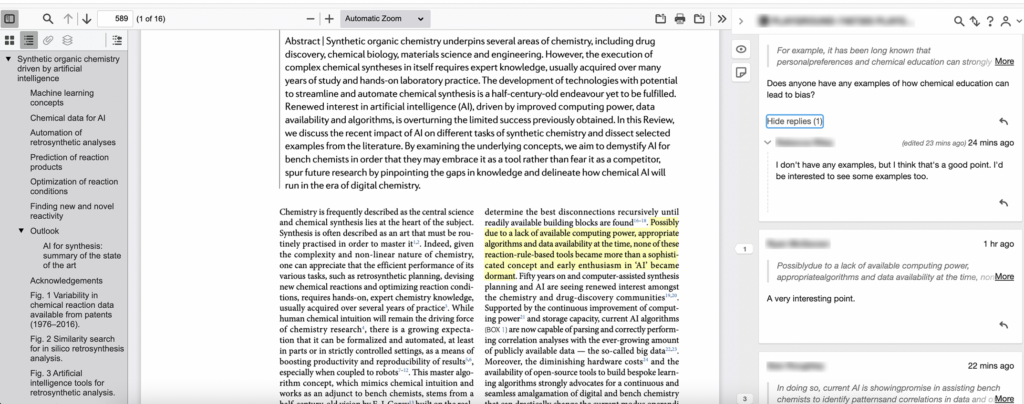
- To create a highlight, select text in the assignment and click Highlight from the popup.

NOTE: Highlights are only visible to the user who creates the highlight
- To create an annotation, select the text and click Annotation from the popup. Next, use the annotation text box in the Hypothes.is side bar to add your comment.
- The annotation text box provides menu options for you to format text, add links and images, format annotations with LaTeX and add basic lists (bullet points or numbered).
- Click the Preview option to see what your annotation will look like and click Write to continue editing your annotation.
- Use the Add new tags text field if you wish to add any tags to your annotation.
- When ready, click the Post button to post your annotation.
- Posted annotations will show in the Hypothes.is sidebar. Use the pencil icon to edit your annotation, use the trash can icon to delete your annotation and use the arrow icon to reply to comments.
NOTE: There is no moderation feature in Hypothes.is – i.e. you cannot edit or delete another users comments.
How do students access Hypothes.is?
Students will click on the Hypothes.is link through the modules or the assignments page to access it. Staff and students will be able to view and add annotations to the assignment in Hypothesis.
Further resources
Read this article on: The Use of Social Annotation to Support Neurodiverse Students