It may sometimes occur that you need to edit a quiz once submissions have already been made. This can happen when mistakes are found in the quiz, for instance. However, if you attempt to edit a quiz question after a submission has already been made, you will be presented with the following message:

This warning appears not only when students have begun the quiz, but also when you open and start the quiz in Student View. Any time you launch a quiz in Student View, Canvas records it as a student attempt and logs it as made by “Test Student”. This happens as soon as you click Begin, even if you don’t complete or submit the quiz.

To avoid complications, always make sure you use the Preview quiz feature instead of Student View. See our guide on How to Preview Quizzes for further information.
It’s generally not recommended to edit a quiz once students have begun attempting it, as this can create inconsistencies in grading. Students who submitted before the edit will be marked against the original version, while those who submit afterwards will be marked against the updated one. There are, however, workarounds to mitigate this. The best approach – whether duplicating an individual question or duplicating the entire quiz – depends on the scenario you’re facing and the extent of the changes required. The guidance below explains how to choose the right approach for your situation.
Editing a quiz when you have made a test student submission
When previewing quizzes you should always use the quiz Preview feature and never attempt the test in Student View. See further guidance here: How to Preview Quizzes.
Scenario: You accidentally used Student View to test a quiz. This has registered a test student submission and is preventing you from editing the quiz.
Suggested workaround: The easiest work-around to avoid complications is to duplicate the quiz, keep the duplicate and delete the original quiz. This will fully erase the test student submission and allow you to edit the quiz.
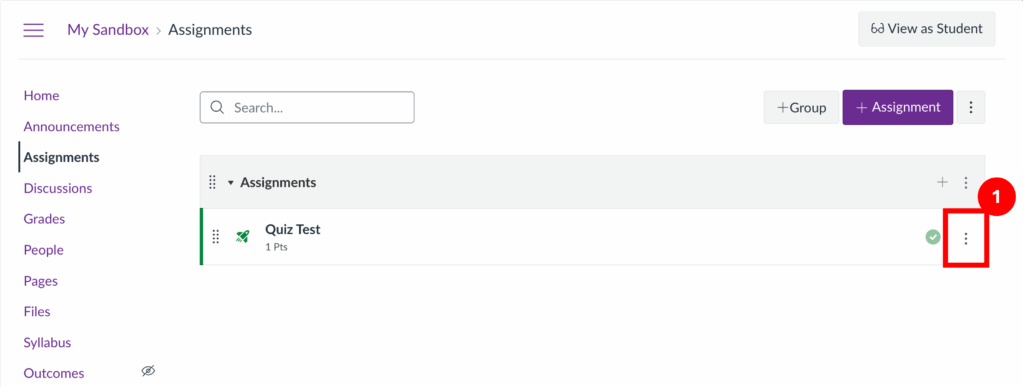
Step 1: Click the 3 dots to the right-hand side of your quiz.
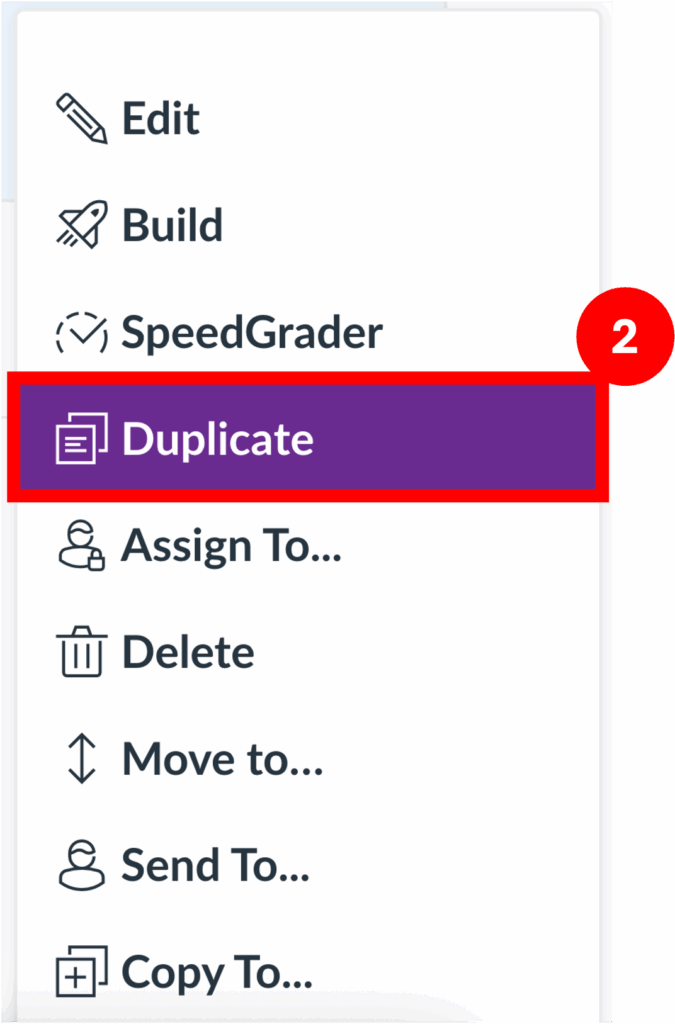
Step 2: Select Duplicate.
Step 3: Delete the original quiz.
Step 4: Edit and publish the copy of the quiz.
Editing a quiz when actual students have made a submission
Scenario: Actual students have already made submissions to the quiz and you need to edit the quiz. In this case, you cannot simply duplicate the quiz and delete the original, as this will erase student submissions.
Suggested workarounds: Depending on whether you need to adjust the question stem, update the correct answer or change the point values, different actions are recommended.
- Option 1: I need to edit the question stem. If you need to edit the question stem, you will need to duplicate the question and allow students an extra attempt. This will ensure that students who have already made a submission have a chance at completing the corrected version.
- Option 2: I need to change the correct answer or the point values.If you need to adjust the point value (for the entire question or for individual answer options) or update the correct answer (for example, if option A was marked correct when it should have been B), you can use the Regrade function. If students have already received grades, it is important to alert them to this change, in order to avoid any confusion when their grade changes.
- Option 3: I want to give all students full credit for the question. If there was a mistake in a question – whether or not you choose to edit it – you can choose to give all students full credit for it. It is important to note that this should only be done if all submissions have been received, as the full credit will only apply to past submissions, and not any future ones made.
Option 1: Edit the question and allow an extra attempt
Step 1: Edit the question via the Build tab and choose Edit a Copy.
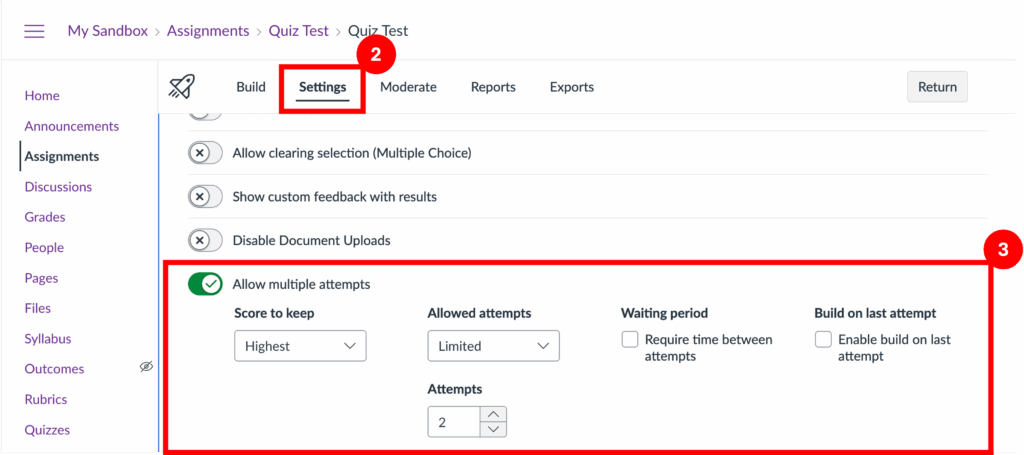
Step 2: To give an additional attempt to all students, enter quiz Settings and scroll down to Allow multiple attempts.
Step 3: Under Allowed attempts select Limited, then enter the desired number. Please note that this number is inclusive of the attempt they have already had – for example, if students have already made 1 submission, entering 2 will only provide them with 1 additional submission.
You can also add attempts for one or more students, rather than the whole cohort, via the Moderate tab. This article explains how: How Can I Give My Students Extra Attempts?
Remember to change the assignment’s due date if needed, to allow students adequate time to take the extra attempt.
Option 2: Update the correct answer or point values and regrade past submissions
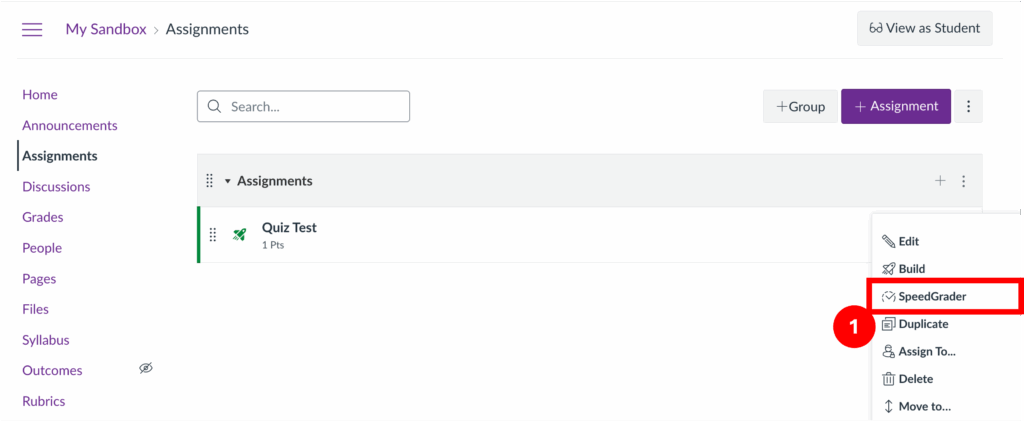
Step 1: Click the 3 dots to the right-hand side of your quiz and select Speedgrader.
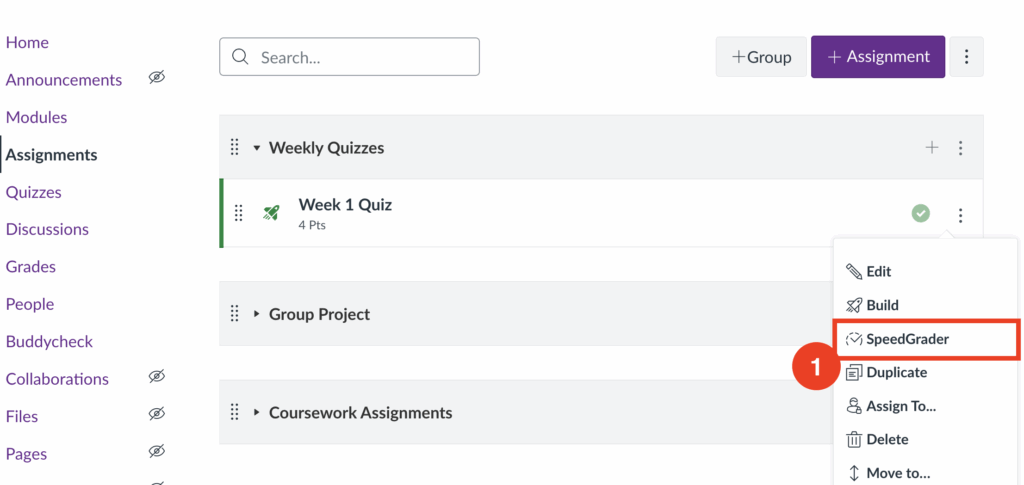
Step 2: Navigate to a student that has made a submission.
Step 3: Identify the question you wish to update and click Regrade.
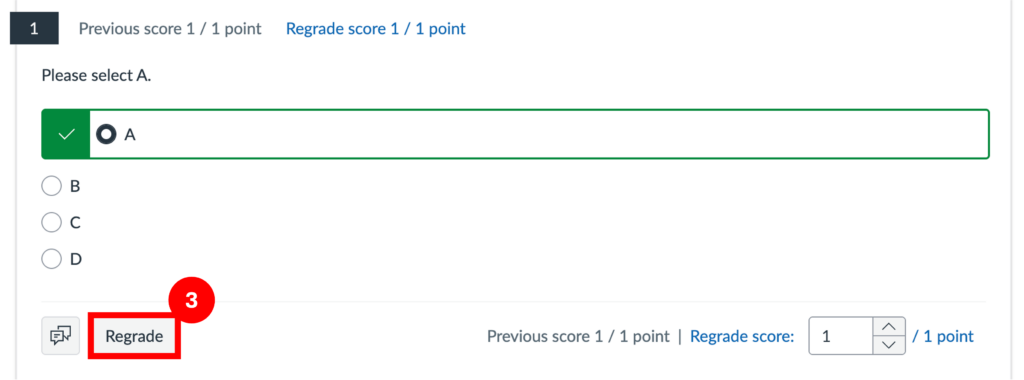
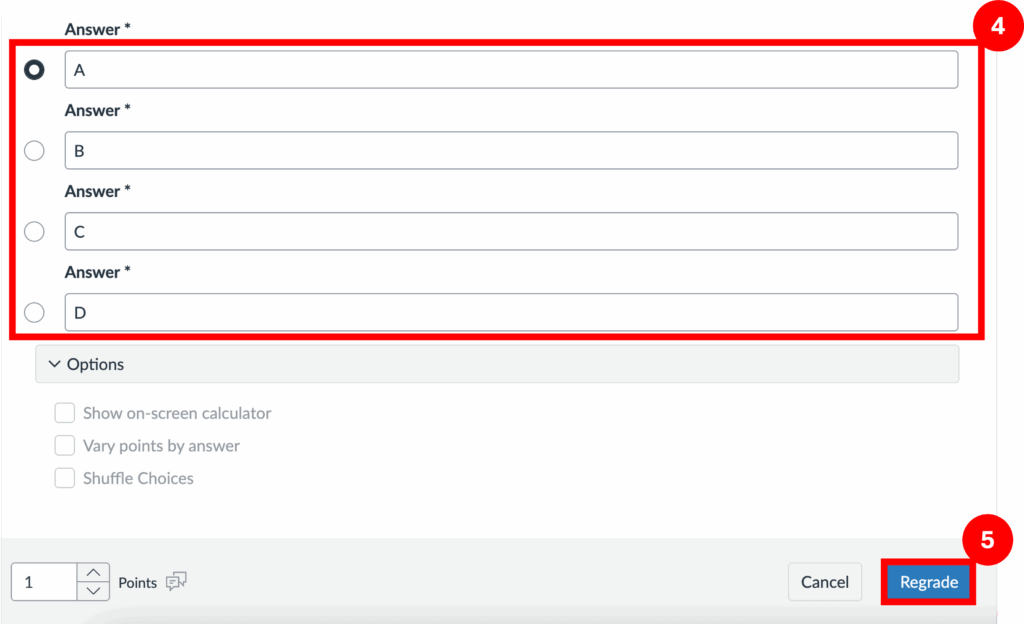
Step 4: Select the correct answer and/or update the points.
Step 5: Click Regrade.
Please note that if editing a Fill in the Blank question, there are additional steps to take. Please see guidance below.
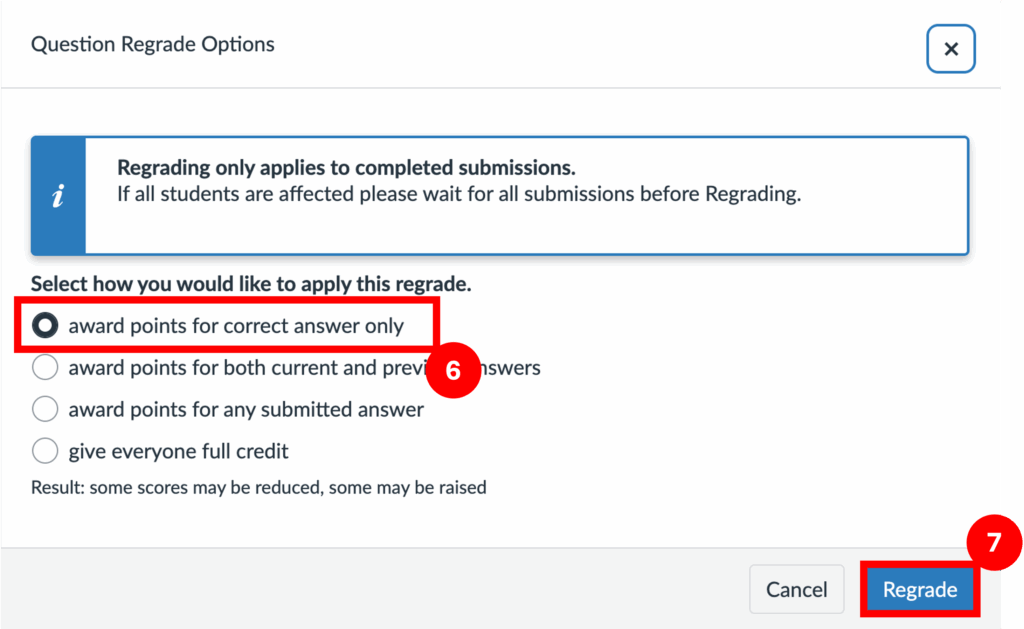
Step 6: Select Only award points for the correct answer.
Step 7: Confirm your selection by clicking Regrade.
Editing Fill in the Blank questions
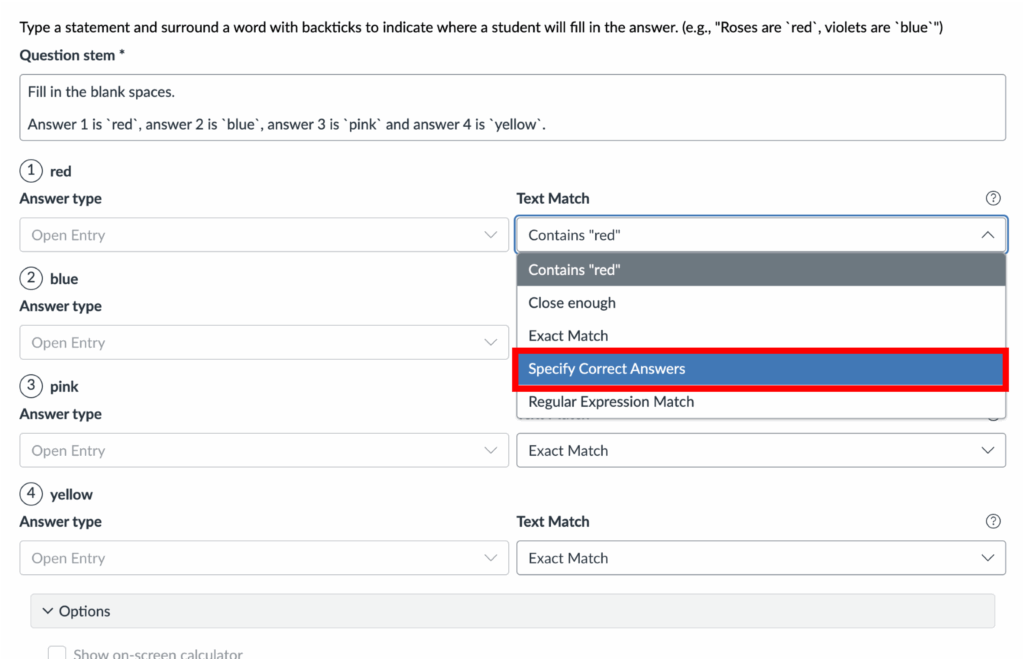
If editing a Fill in the Blank question, the process requires a few additional steps. Follow the process above, but after Step 3, once you have identified the question to be amended, change the Text Match setting to Specify Correct Answers. Enter the correct answer, then change Text Match back to your desired setting. Follow steps 5-7 as above to complete the regrading.
Option 3: Give all students full credit for the question
Step 1: Enter Speedgrader and navigate to a student that has made a submission.
Step 2: Click Regrade.
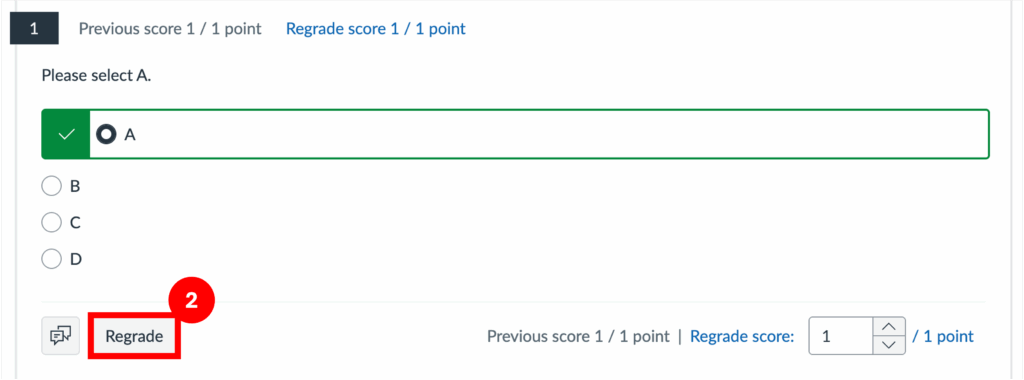
Step 3: Select Regrade again (change the question first if needed).
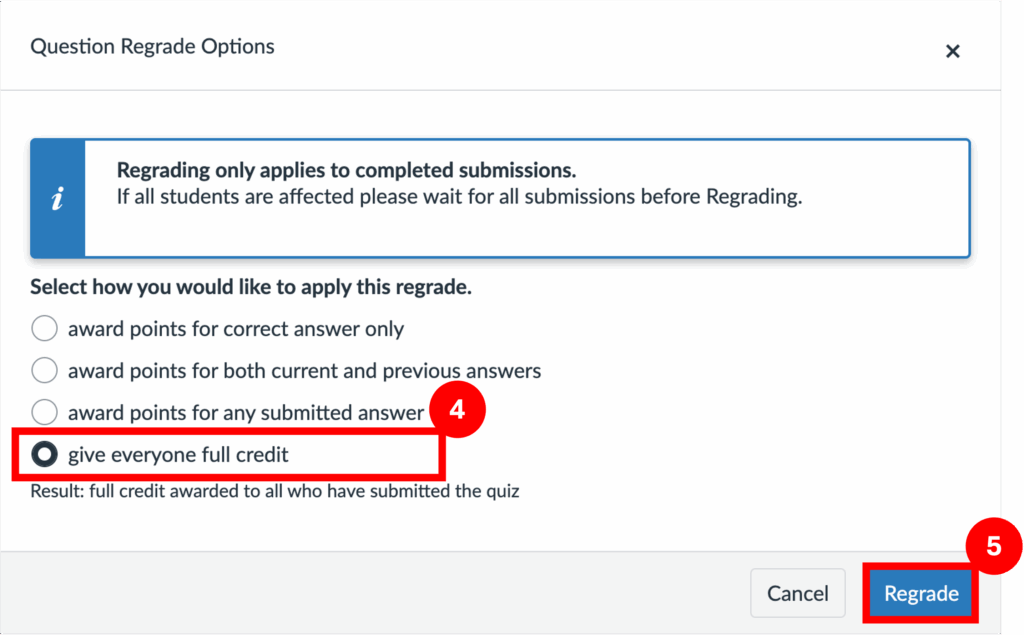
Step 4: Select Give everyone full credit for this question.
Step 5: Confirm your selection by clicking Regrade.