
The ability to copy items and modules between courses in Canvas can save you time and effort when building your live teaching course. We’ve provided both a video demonstration and a written guide — both walk you through the same simple process step by step.
Introduction
The Copy To feature in Canvas allows you to copy individual course items and modules from one course to another.
If you’re moving content from your migrated Canvas course into your live teaching space, we strongly recommend copying specific items and modules (rather than performing a full course copy) to ensure accuracy and avoid transferring outdated content or overwriting important course settings.

While Canvas offers an option to copy or import an entire course, this is strongly discouraged. Following the steps outlined in this article to copy items and modules individually will help prevent errors and ensure your live course remains organised and up to date.

Note: While the instructions on this page demonstrate how to copy an individual item, the same steps apply when copying an entire module.
Video Demonstration
Note: The below video does not contain audio or narration.
Written Instructions
First, navigate to the course that contains the content you want to copy. Find the specific module or item you wish to copy, such as a page, assignment, or file.
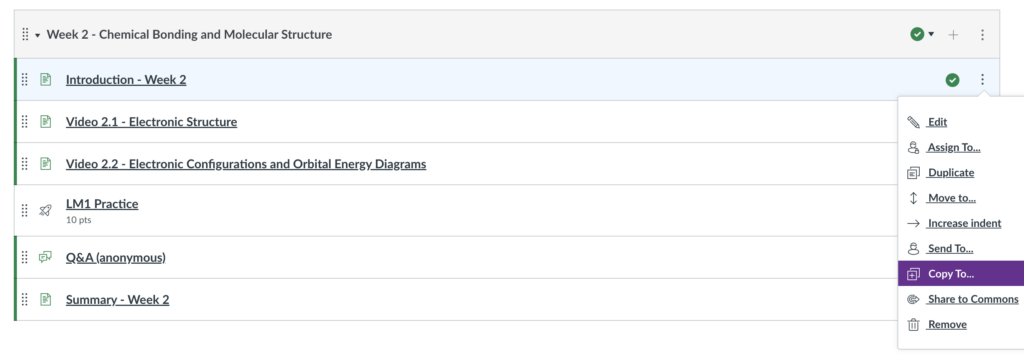
Next, open the options menu for the item or module and select “Copy To…”.
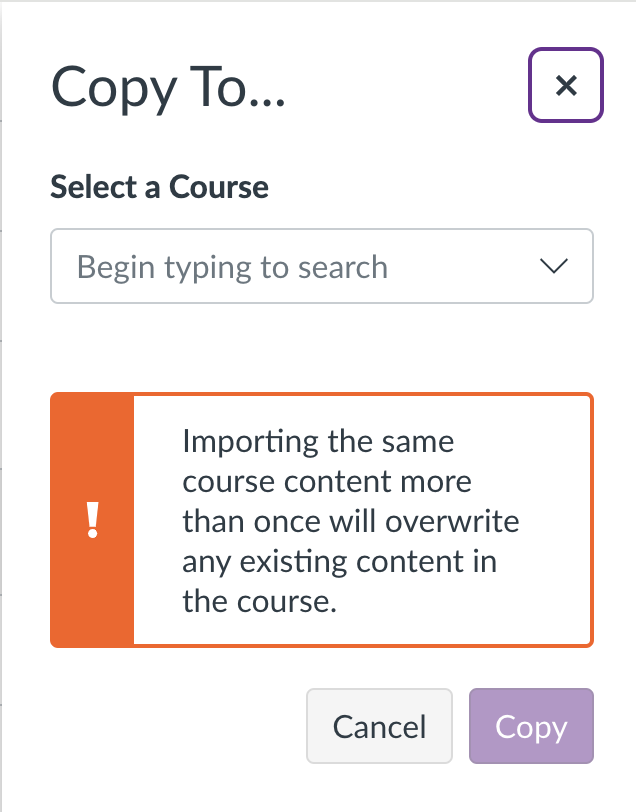
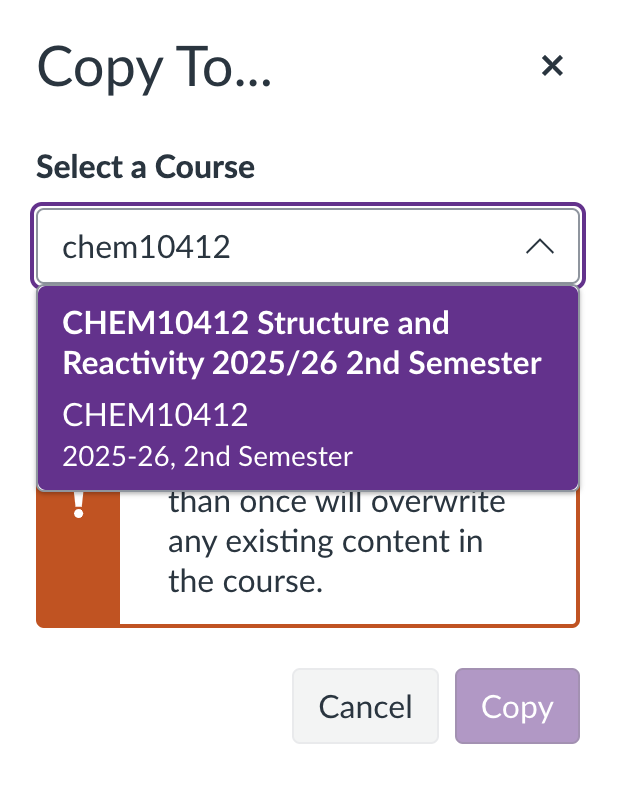
In the Copy To sidebar, use the search box to find your destination course. You can search by course code, course ID, or course name.
Note: Only courses where you have an active or future enrolment will appear.
If you’re copying an individual item (e.g., a page, assignment, or file), you’ll also have the option to select a specific module within the destination course and set its position within that module.
The publish status of your content will carry over to the destination course. If the item is published in the source course, it will remain published in the destination course. Make sure the content’s visibility matches what you intend for your live course before proceeding.
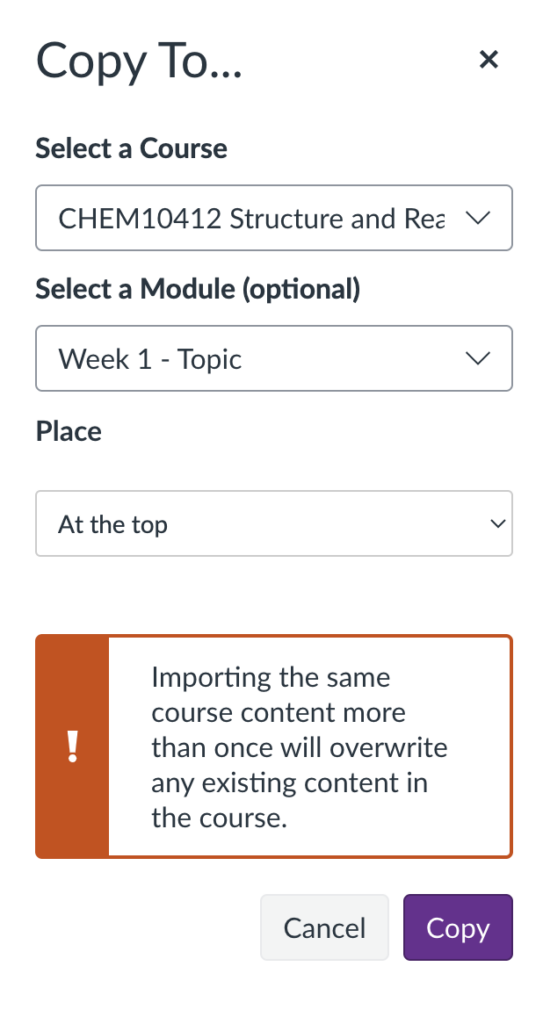
Once you’re ready, click “Copy” and wait for the process to complete.
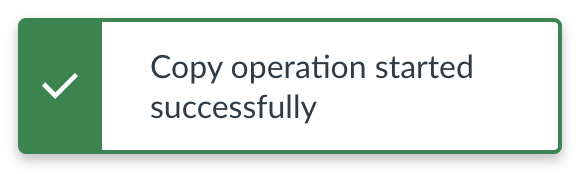
Finally, navigate to your destination course and check that the content has been copied over. The transfer may take a moment — if the content doesn’t appear immediately, try refreshing the page.
