
Canvas allows you to print your quizzes, either as a version that shows all the correct answers or as a blank version with no answers included. Quizzes can be printed on paper or saved to your computer as a PDF file.

Only users with permission to edit quizzes are able to print them.
- Locate the quiz you wish to export to PDF.
- Click the three dots to the right of the quiz title and select Build.
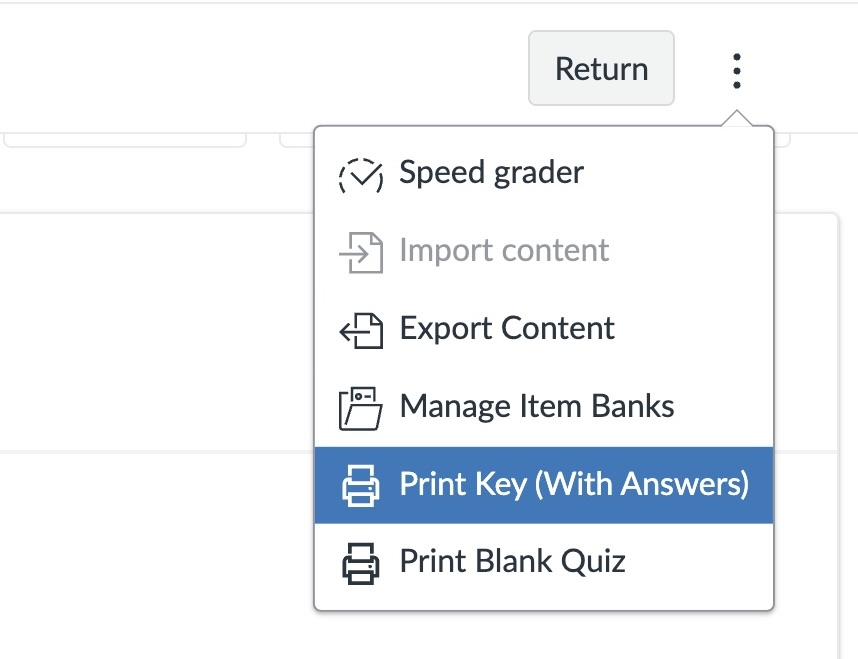
- Select the three dots in the top right corner of the quiz Build page.
- Choose Print Key (With Answers), then Print Preview. This will open a print preview in your browser.
- Set the Destination to Microsoft Print to PDF to print as a PDF file.
- Repeat the process but choose Print Blank Quiz in step 3 if you don’t want to include the answers.

Printing can be done for published and unpublished quizzes.
Step-by-step guidance is available here: How do I print a quiz in New Quizzes?