How do I mark using SpeedGrader?
SpeedGrader allows you to annotate/add inline comments to written submissions, complete a marking rubric (if appropriate) and also add feedback in a variety of other ways (eg. speech to text recognition, record/upload media, add a file attachment).
Go to the Marking and feedback guidance if you need further information about marking with SpeedGrader and using rubrics.
How can I access only the students I need to mark?
All assignments in Canvas, will appear under the Assignments tab within the course menu.
In Canvas, students can be allocated to ‘marking groups’ via Differentiation Tags, or simply tags. Tags are hidden from students so they do not see which tag they have been allocated to. Staff can filter submissions by tag, to view the students they need to mark.
How do I check which students are in a marking group?
If students have been allocated to a marking group via tags, you can view your marking group via the Canvas Gradebook, by following the steps below:
- Click Grades in the course menu to access Gradebook.
- Click Apply Filters, then select Differentiation Tags.
- Select the marking group you wish to display.
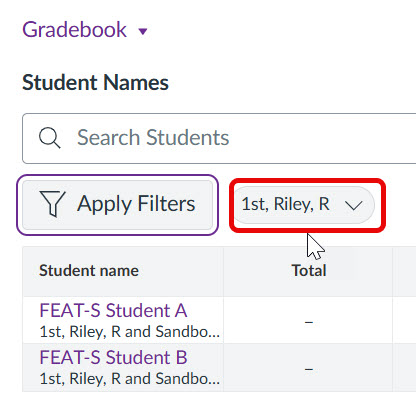
- Across the top of Gradebook you will see the name of the marking group (tag) that has been selected.
- The list of students currently tagged in the marking group selected will be diplayed below.
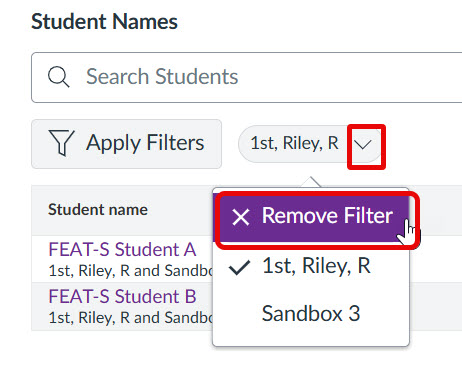
- To clear the selection and display the whole cohort, click the drop down arrow next to the selected tag and then choose Remove Filter.

If you need to update the marking groups allocation, you can add or remove students at any time via the People tab. For step‑by‑step guidance, see: Manage Differentiation Tags.
Accessing and filtering SpeedGrader
If your marking groups are organised using tags, you can filter submissions to view only the work from students in your marking group. Follow the steps below to apply the filter.
- Click Settings in the course menu to access the course settings.
- Under Course Details, scroll down and make sure Launch SpeedGrader Filtered by Student Group is enabled.
- Click Assignments in the course menu.
- Locate the relevant assignment and click the assignment title.
- From the drop‑down menu in the top‑right corner, select your marking group, then click SpeedGrader. This opens the marking interface, showing only the students in the group you selected.
- Select the student you want to mark using the menu in the top‑right. If anonymous marking is turned on, you’ll see pseudonyms (for example, Student 10) instead of real names.

If you believe that you are seeing the wrong students in your marking group, check with the course unit leader or update the tag allocation via the People tab.
See Marking and feedback guidance if you need further information about marking within SpeedGrader and using rubrics.
Accessing Turnitin Similarity reports
Turnitin Similarity reports can be accessed via the SpeedGrader marking interface, a similarity score will display in a panel to the right of a students submission. To access a Turnitin Similarity report via SpeedGrader follow the steps below:
- Select Assignments in the course menu.
- Locate the relevant assignment and click the assignment title to open the assignment settings.
- Next, click on the SpeedGrader link in the top-right.
- Locate the relevant student submission.
- Click on the Similarity Report score (coloured box with percentage) to open the report in a new window.

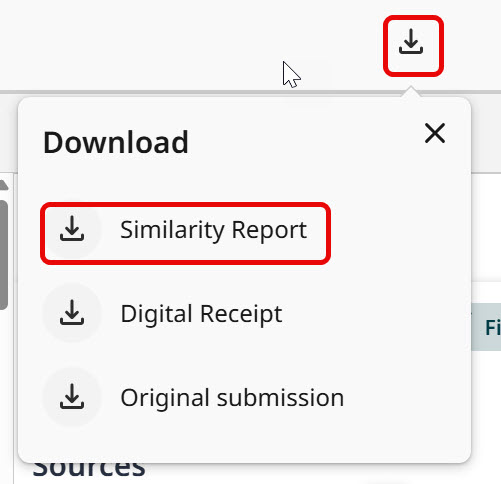
- Within Turnitin Feedback Studio, you can also download a copy of the similarity report, if you need to share this with other markers.
Further support:
Downloading submissions
You can bulk download all submissions for an assignment, via Canvas Gradebook. For step by step instructions see: How do I download all student submissions for an assignment?
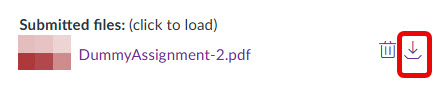
If you wish to download individual assignments, then you will need to access the relevant submission within SpeedGrader. Once you have located the relevant assignment, you should see a download button available next to the submitted file in the marking panel.