
When marking a Cadmus assignment you must have the option to mark via Canvas SpeedGrader selected when setting up your Cadmus assignment. To mark submissions in SpeedGrader you will need to select it as your marking tool when setting up the Requirements for your Cadmus assessment.
To select SpeedGrader as your marking tool
- While you’re in Edit mode on the Cadmus Instructions page, click Set requirements>grading options>settings to be taken to the Requirements page.
- Under Marking + Feedback, scroll to the Marking Tool option.
- Select Use Canvas SpeedGrader.
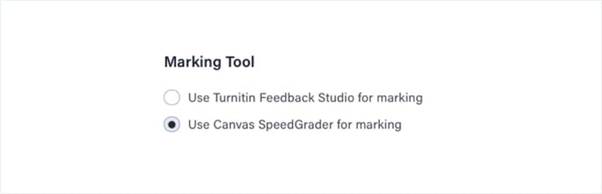

It is important to select SpeedGrader as your marking tool before releasing your assessment. Once students have submitted, you won’t be able to change your marking tool.
Marking final submissions in SpeedGrader
When it’s time to mark, you can access student submissions from the Marking page within the Cadmus interface.
To mark a final submission
- Go to the Marking page.
- Click the percentage number (eg. 83%) under the Similarity heading to view the student’s Turnitin Similarity Report.
- Click Mark next to a student’s name to be taken to SpeedGrader to begin marking:
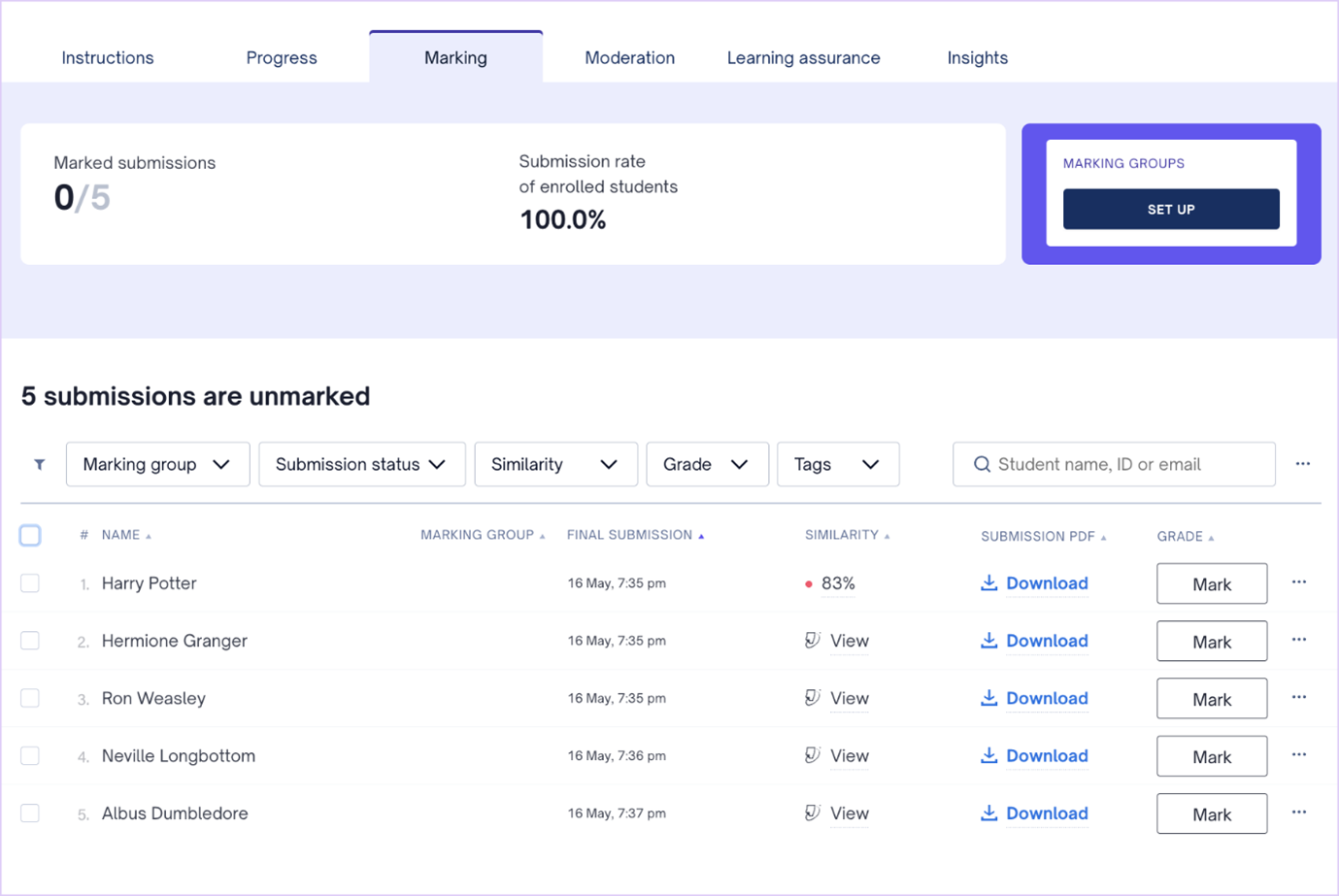
- From here, you can use the full functionality of SpeedGrader to add grades, leave comments, or provide feedback using a rubric.
Providing draft feedback in SpeedGrader
If you add drafting as an option to your Cadmus assessment, you can view students’ work and leave individual feedback through Canvas SpeedGrader. While it’s not possible to assign marks for drafts, you can leave feedback using the full range of SpeedGrader tools like rubrics and comments.
To provide feedback on draft submissions
- Go to the Drafts page.
- Click the percentage number (eg. 83%) under the Similarity heading to view the student’s Turnitin Similarity Report.
- Click Feedback next to a student’s name to open their work in SpeedGrader:
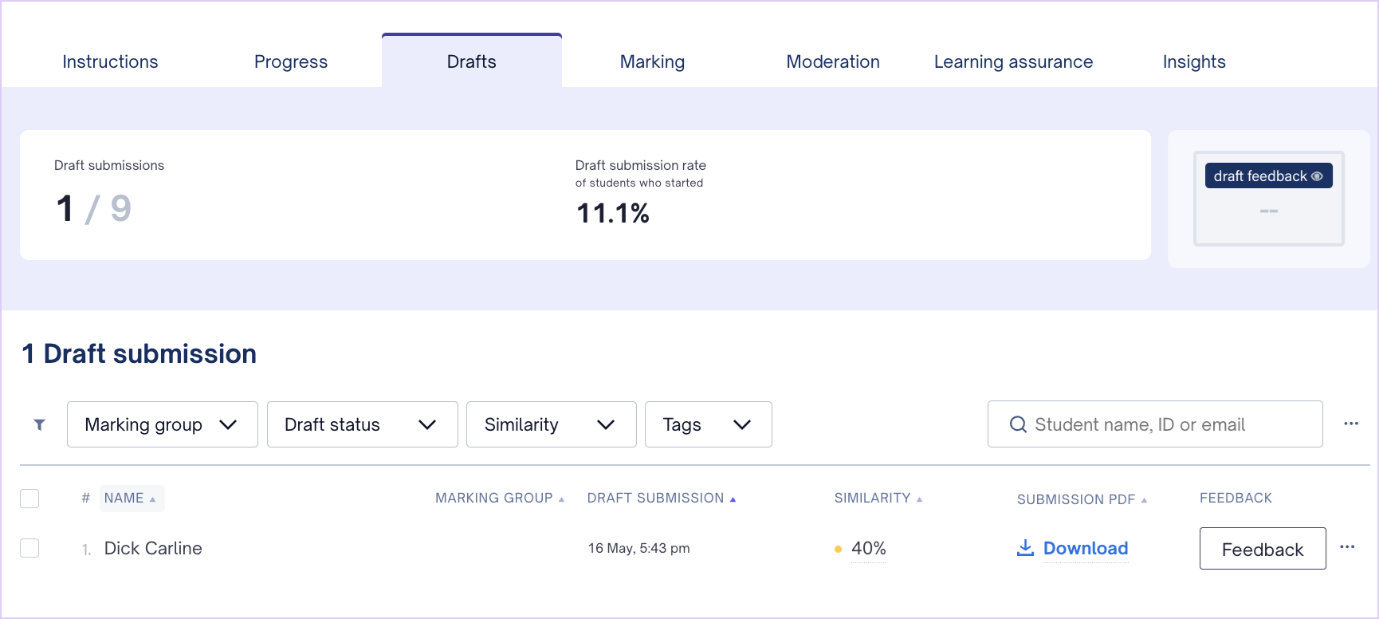
- Add comments and feedback as usual in SpeedGrader.
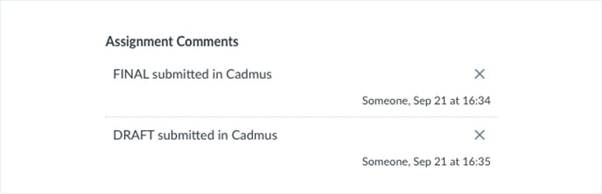
Double-check that you are viewing the right submission (draft or final) in Speedgrader by referring to the submission comments. These provide a timestamp for each submission type. An example of what draft and final submissions look like can be found in the image below
Releasing feedback to students
Once you have finished marking in Speedgrader and you are ready to release feedback, you can do this in the same way you would any Canvas assignment. This article provides steps on releasing marks for an assignment via the Canvas Gradebook.
Once feedback has been released, students will be able to view grades via the Canvas Gradebook in the same way that they would access grades for other Canvas assessments and assignments.