
Gradescope Homework assignments allow students to submit handwritten or typed work. This article provides an overview of how this type of assignment can be useful and how to set up a Homework assignment. For information on managing and grading student work post submission see: Managing submissions and grading a Gradescope homework assignment.
What are Homework assignments useful for?
A key benefit of Gradescope is that the marking workflow enables you to grade by question, rather than viewing / grading a full submission. We recommend the Homework assignment for assessments:
- Which require handwritten submission. (Gradescope will also accept typed work and images).
- Which involve multiple questions or tasks.
- Where staff need to focus on marking a particular section of an assessment (eg. all answers for question 1).
Example scenario: For example, if an assessment requires four different questions, you can create an appropriate question outline (eg. question 1, question 2 etc) during setup. Once the assessment is released students see the question outline within Gradescope. During submission students ‘tag’ each page / image to associate it with a relevant question. Once work is submitted staff can select a question title to view and grade all submissions for that question.
Assignment setup and workflow
The first step is to create your assignment in Canvas, choosing the assignment type External tool and selecting Gradescope. For full step-by step instructions see How do I set up a Gradescope assignment in Canvas.
Once you have launched Gradescope within Canvas you will be asked to choose your assignment type. Follow the instructions below for setting up your Homework Assignment.
- For the assignment type select Homework/Problem Set and then click Next.
- Assignment Name: Enter your assignment title
- Template: You will need to upload an assignment brief for your students. The file must be a PDF and could simply be a list of the questions that students need to respond to. Choose Select PDF, then locate and select an appropriate document.
- Submission anonymization: Enable anonymous marking, if you have decided to use this feature.
- Who Will Upload Submissions?: Leave as Student
- Release date: Set the date and time that the assignment should become visible to students.

IMPORTANT: Once you have created the Gradescope assignment, you will also need to publish the assignment link in Canvas or create a separate menu link for students to access Gradescope.
- Date date: Enter an appropriate due date.
- Allow Late Submissions: Allow Late to submission to ensure students with DASS requirements can submit beyond the main deadline.
- Submission Type: Choose Variable length.
- Create your Rubric: Choose the option that you prefer.
- Template Visibility: Ticking this checkbox will allow students to view and download the document you have uploaded.
- Choose Create Assignment to save the settings you have selected.
- Once you’ve entered some initial details for your assignment in Gradescope, you will return to Canvas.
- Choose Select to navigate away from the popup box, then tick the checkbox Load this tool in a new tab.
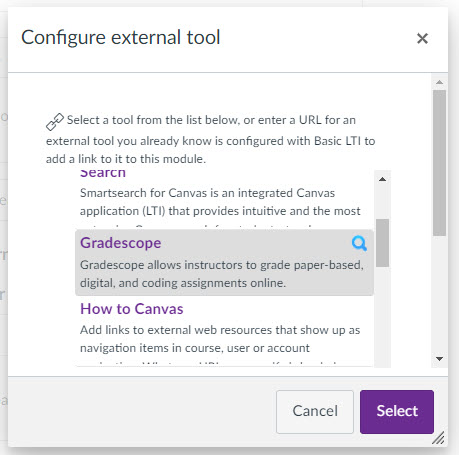
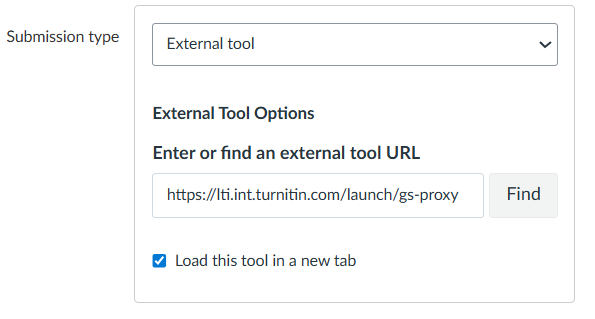
- Finally, scroll to the bottom of the screen and ensure that you Save the Canvas assignment.
- Once your assignment has been saved you will return to the Assignments screen. You can access and manage the assignment via the Assignments menu, opening your assignment link and then choosing Load Gradescope in a new window.
Creating a Question Outline
After creating your assignment, you will need to create a question outline and determine how many points each question is worth. Gradescope contains a Create Outline/Edit Outline menu to set up your question outline.
The question outline will be used to inform the structure of your rubric and will also allow students to ‘tag’ pages to a specific question during submission.
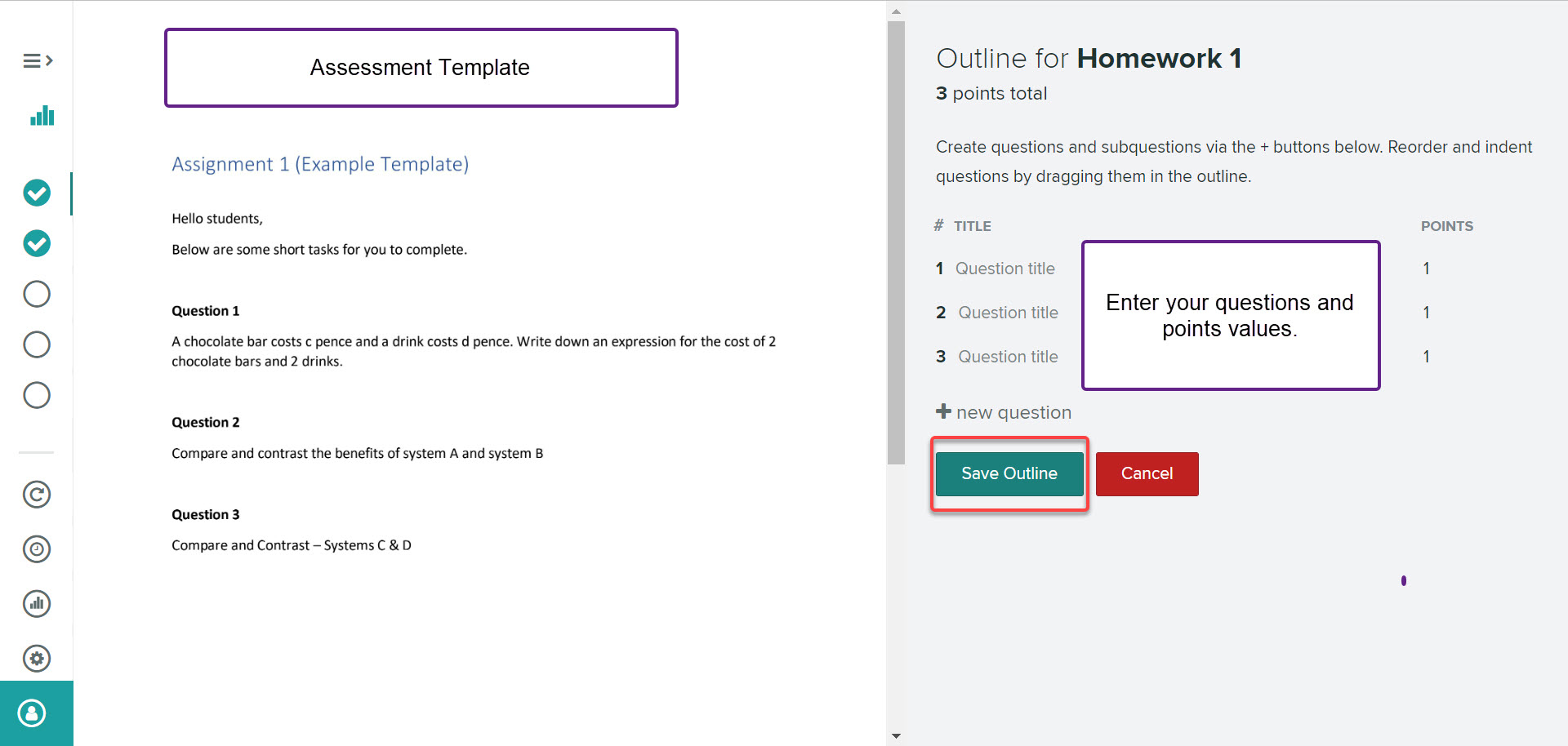
To create your question outline follow the steps below:
- Open the Gradescope assignment from your Canvas course.
- Navigate to the Create Outline/Edit Outline menu.
- Enter your question title and points in the appropriate fields.
- Use the + New question to add additional questions. As you build the outline, a total point tally for the assignment will appear at the top of the page.
- If required you can create sub questions by selecting the + symbol next to an existing question.
- To delete a question select the red X icon next to a question.

- Once you are happy with your question outline choose Save Outline.
- If you need to make changes to your question outline open the assignment from within your Canvas course and then within Gradescope select Edit Outline.
Creating a rubric
Gradescope allows you to create a rubric in advance or on the fly during grading. We recommend that you create your rubric before students submit to avoid any delays to grading.
The question outline and points values created at Edit Outline stage will provide an outline for you to build your rubric. By default the Create Rubric screen will show one rubric item underneath each question. Each rubric item will contain both a point value and box to enter your rubric item description.
For example in the screenshot below each question has a maximum points value of 25 points.
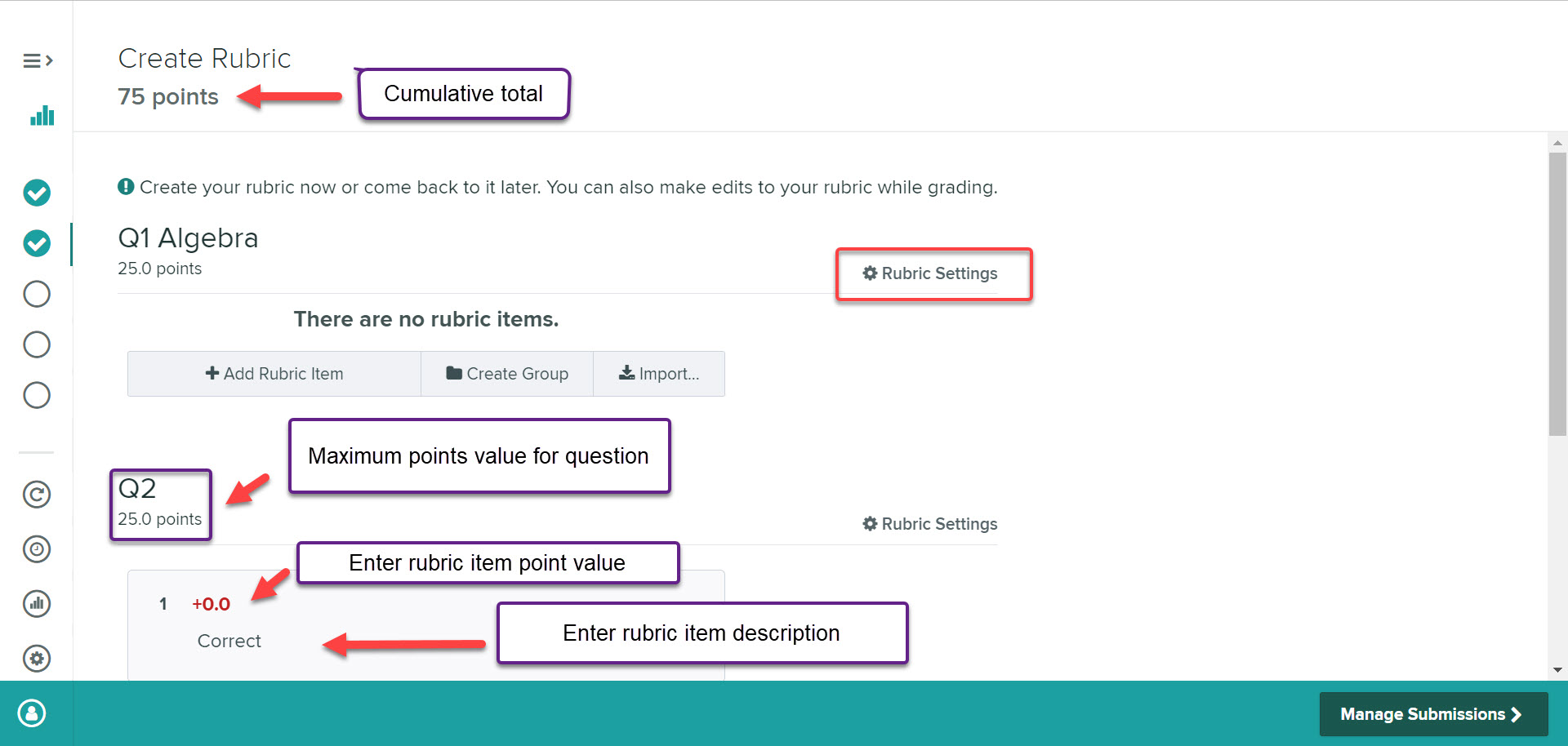
- Click on a rubric item to edit the points value and item description. You can add additional rubric items by click on + Add Rubric Item.
- Click on the cog icon next to Rubric Settings to edit the scoring methods (positive or negative) and score bounds (the maximum or minimum points for a question).
Rubric items and settings can be imported and reused across different questions or assignments. For further guidance see the Gradescope website.