
Gradescope Homework assignments allow students to submit handwritten or typed work. This article provides an of the processes for managing submissions, grading submissions and releasing grades. For information on setting up a Homework assignment see: Setting up a Gradescope Homework assignment.
Using rubrics to grade submissions
During the Grade submission phase you can select appropriate rubric items to apply to student responses for each question.
Each rubric items selected will apply or deduct points to the student’s overall mark. The rubric item describes the reason why a student is receiving points or losing points.

IMPORTANT: Rubric items are shared among all students for that question, so any changes made to rubric items during grading will affect all previously graded students. (If you change the point value or description of a single rubric item, the change applies to all students).
Once marking is completed and grades have been published via Gradescope, students will be able to see any rubric items applied to the submission as part of a feedback report.
Managing Submissions
The managing submissions screen in Gradescope provides an overview of which students have submitted, including any late submissions.
- Open the relevant course unit, locate the assignment and open it to launch the Gradescope Dashboard.
- Click on the relevant assignment within the Gradescope Dashboard.
- Navigate to the Managing submissions screen.
Within this screen you can delete or upload a submission on behalf of a student. Bear in mind that students can re-submit work at any time up to the due date. If you are using anonymous submissions for your assignment, Gradescope will generate a random code, which will show in place of the students name.
Grading submissions
Once students have submitted, you can start to grade work.
- Open the relevant course unit space, click on the relevant assignment link to open Gradescope.
- Next, within Gradescope choose Grade submissions from the left menu panel to show the grading dashboard for the assignment that you need to grade.
The grading dashboard will display your question outline, total points available for each question and a summary of grading progress.
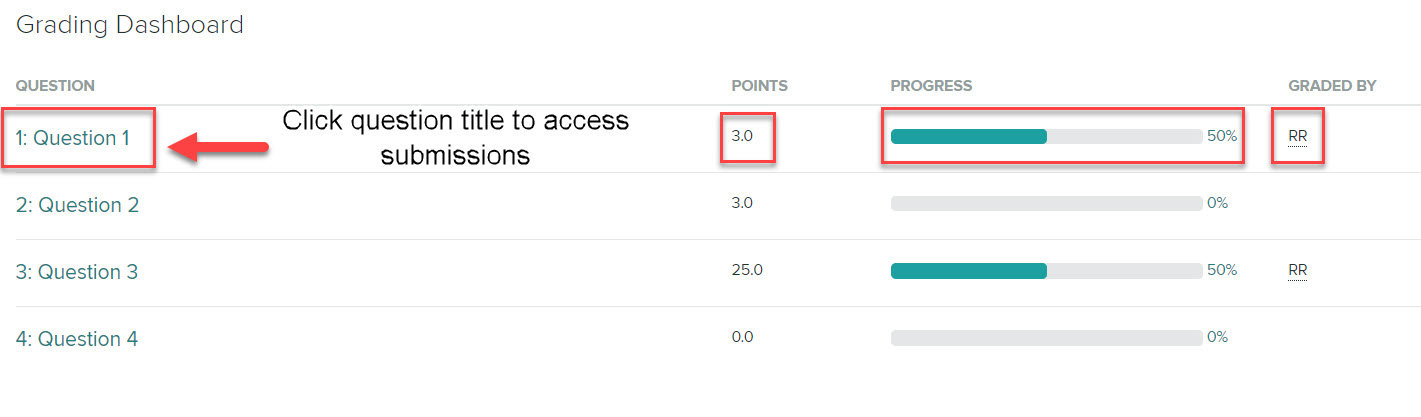
- To begin grading, click the question that you wish to grade to open a new screen containing student submissions for that question. On the bottom menu panel you’ll see which submission you are currently viewing eg. 1 of X.
- Click on full page or use the magnifying class icons to change the view of the submission.
Example submission:
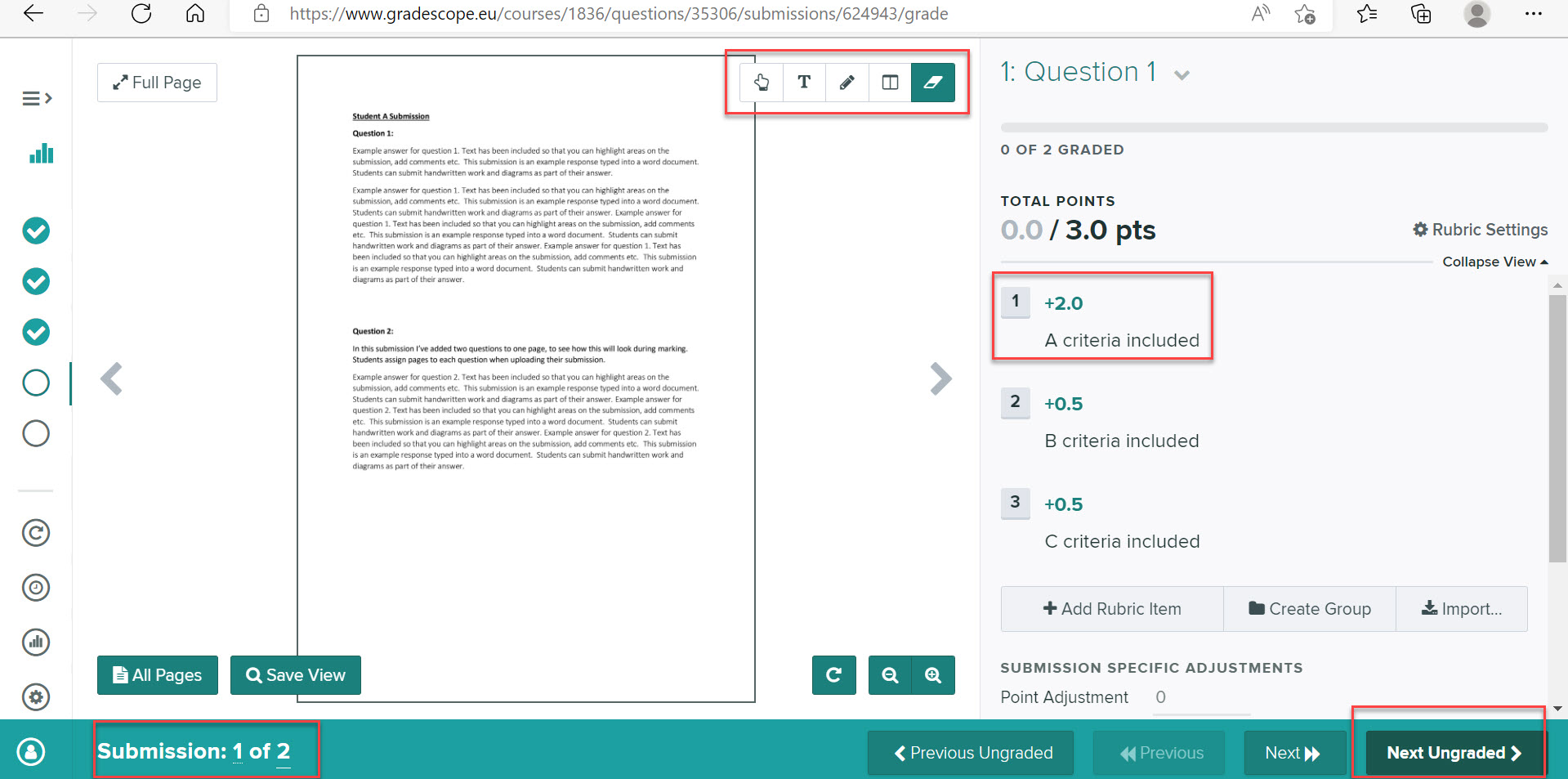
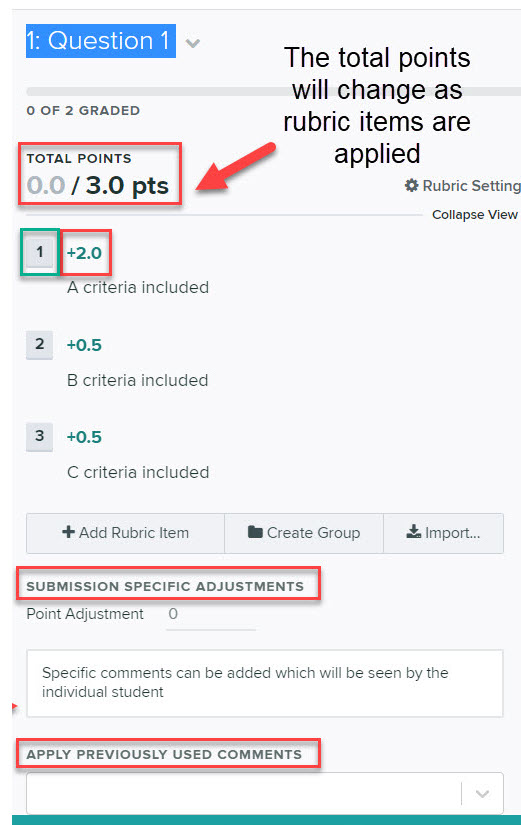
- To start grading, click on the number of the rubric item that you want to apply. Gradescope will save each rubric item that you select and the total points tally will update as you apply rubric items.

WARNING!: Gradescope will allow another member of staff to change and overwrite a rubric statement that you have applied. Gradescope does not retain an audit trail of changes, but will display the initials of staff who have graded a question via the grading dashboard
- Use the subject specific adjustments section, if you would like to enter overall feedback comments for the student you are grading.
- Once you have entered comments Gradescope will store those comments and they will be available to use as previously used comments.
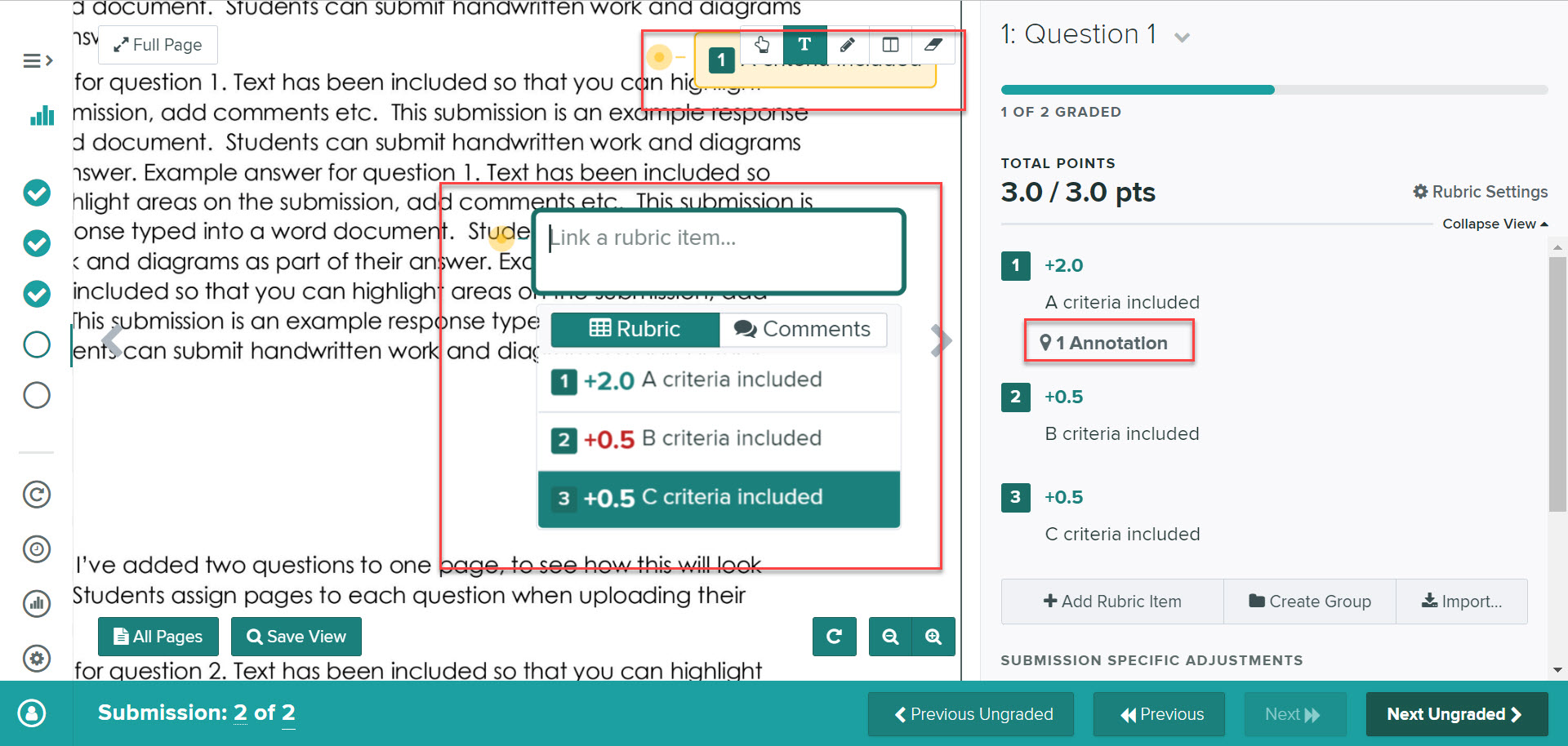
- To annotate directly onto the students submission, hover your mouse to reveal the annotation tools (navigation tool, text tool, pencil tool etc).
- The navigation tool will help you place annotations in the right spot by allowing you to click and drag to move around a student’s submission.
- The text tool allows you to type comments directly on the submission. After selecting the text tool, click anywhere on the page to add anchored text to that spot. Or to quickly add text from the navigation tool, just double click on the page. Text annotations will be autosaved and can be reused.
- The pencil tool allows you to mark freeform on the submission.
- The box tool allows you to boxes by clicking and dragging to create rectangles on top of the submission.
- The eraser tool allows you to click on any annotation to remove it.
- To link a text comment to a rubric item, click on the text tool, next click on the area of the document you wish to annotate. A new box will appear (select the chosen rubric item), then click on comments and add your comment. Any annotations linked to rubric items will be indicated underneath the rubric item on the right of the screen.
- Once you have finished grading the submission, click Next Ungraded (use this option to ensure that you don’t begin grading work that another colleague may be grading).
Review Grades
Once all grading is completed, the next stage in the grading process is to Review Grades.
The review grades screen provides an overview of graded work and allows you to check grades and feedback for individual students. To do that:
- Open the relevant course unit space, click on the relevant assignment link to open Gradescope.
- Next, choose Review grades from the left menu panel.
- Click on a student name or pseudonym (if anonymous marking is enabled), to access a student’s full submission, including full grades and feedback. (You can also download a copy of the individual submission and view the student’s submission history).
You can also use the menu options within this screen to download grades, export evaluations or submissions, post grades to your course unit space and publish grades.
Releasing feedback and grades
Grades can be published (in Gradescope) and released (to Canvas Gradebook) from the Review Grades screen in Gradescope. The process you follow will depend on what information you would like students to be able to access.
Publishing the full marked paper:
If you would like students to see their full graded papers, you will need to publish grades within Gradescope and publish the assignment link within Canvas, to enable students to access Gradescope to view their paper.
- Open the relevant assignment in Canvas to launch Gradescope.
- Once Gradescope launches, open the relevant assignment.
- Next, select Review grades from the left menu panel.
- Select Publish Grades.

- Once you are ready for students to access the paper in Gradescope, publish the assignment link in Canvas.
Publishing final grade
If you wish to share the final overall mark with students via Canvas, you will first need to publish the assignment in Canvas and then go to Gradescope and post the grades from Gradescope to Canvas.
- Open the relevant assignment in Canvas to launch Gradescope.
- Once Gradescope launches, open the relevant assignment.
- Next, select Review grades from the left menu panel.
- In the Review grades screen select Post Grades to GradeScope.

- A popup box will appear confirming which course (Canvas space) and assignment the grades will be posted to.
- Click Post Grades.
- Once grades are posted, go to the Grades screen in Canvas to verify that the grades have transferred as expected.
- Once you are ready to release grades, find the relevant assignment in the Grades screen, click the (…) and choose Post grades.
If you need to withhold grades from a specific student, the easiest way to do that is to un-grade one question within the submission. Check the Review Grades page to make sure that the graded checkmark is greyed out for the affected student, before publishing and posting grades.