
This article looks at how staff can enter feedback in Canvas assignments, what feedback looks like for students when released and what types of feedback can and cannot be bulk downloaded.
Feedback and grade visibility
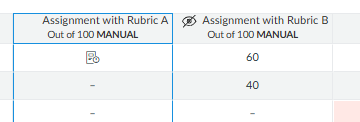
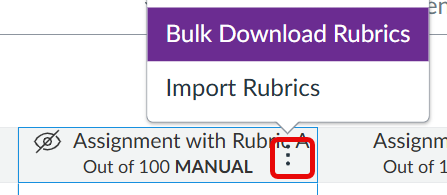
A manual grade posting policy is used by default in Canvas courses, this means that assignment grades and feedback remain hidden from students until staff are ready to ‘post grades’. In Canvas Gradebook at the top of the assignment column you will see ‘Manual‘ underneath your assignment title confirming, indicating that a manual grading policy is in place. Once grades are entered for an assignment an icon showing a crossed out eye will also appear indicating that grades are hidden from students.
Releasing grades and feedback
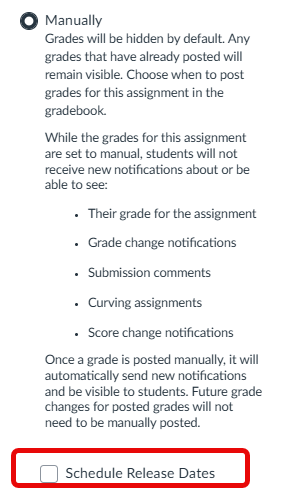
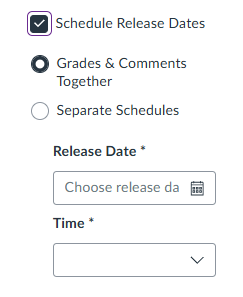
Canvas has introduced a new functionality (December 2025), which allows staff to schedule a release date for grades and feedback. This essentially is a way to automate when to ‘unhide’ feedback and grades. Grades and feedback can be released together or on separate dates.

LIMITATIONS: The scheduled dates apply to all students and allows staff to choose a single date / time for release of grades and a single date/time for release of feedback. It is not possible to set multiple release dates for specific sub sections of students. If grading is carried out after scheduled dates have passed students will be able to see feedback and grades as they are entered. If grades are posted manually, this will override any scheduled dates.
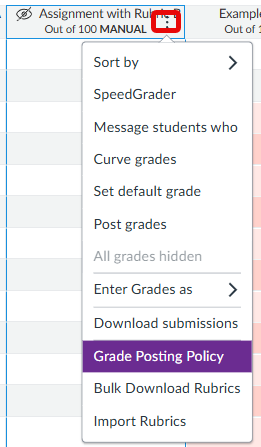
To schedule release to to the Grades Screen, locate the relevant assignment, selecting the (…) and choosing Grade Posting Policy. We recommend unit leaders communicate agree release dates clearly with markers and relevant staff to avoid issues with accidental release if there are any delays in marking.
Rubrics – staff vs student view
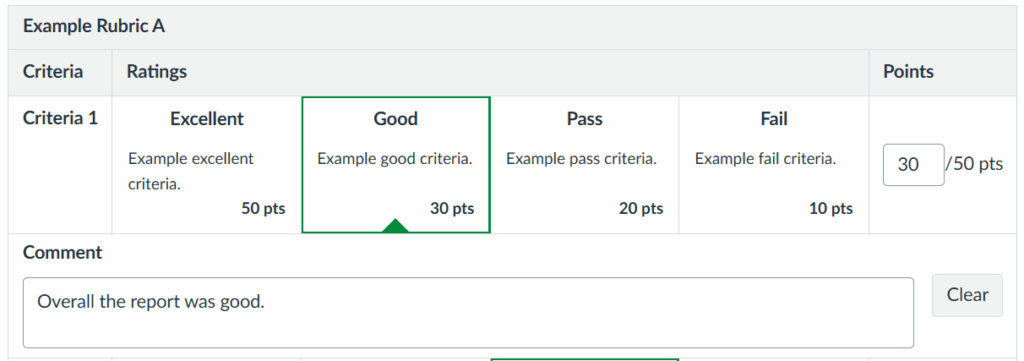
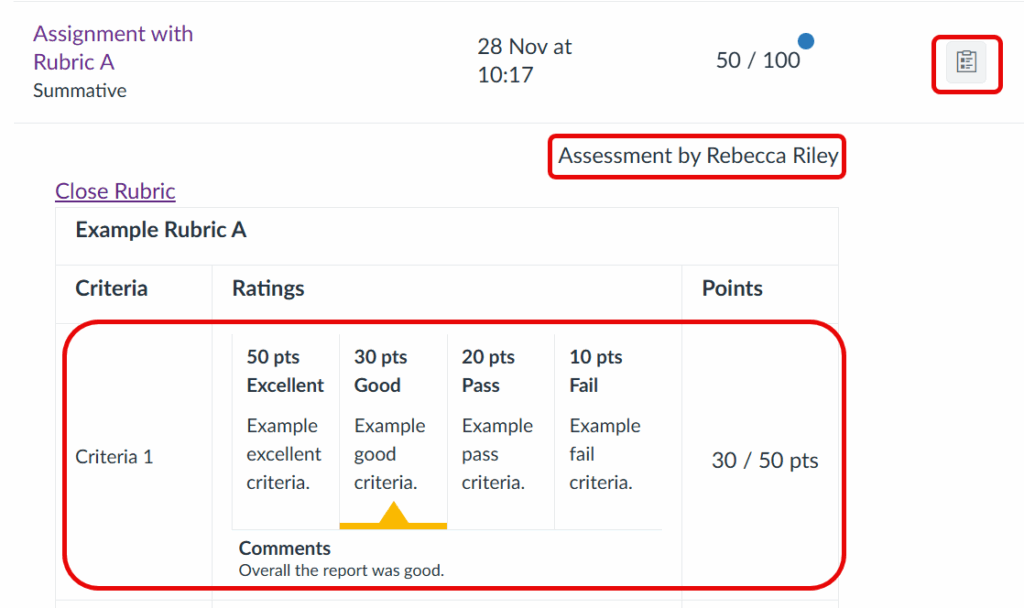
Staff can select descriptors in a rubric and can enter a comment as part of the rubric directly below each criteria. When grades are released, students see the descriptors, points values and comments as they have been entered on the rubric. Students see the name of the assessor who completed the rubric (this cannot be suppressed).
Download Options: Criteria, points and comments entered into a rubric can be bulk downloaded via the Grades screen if required.
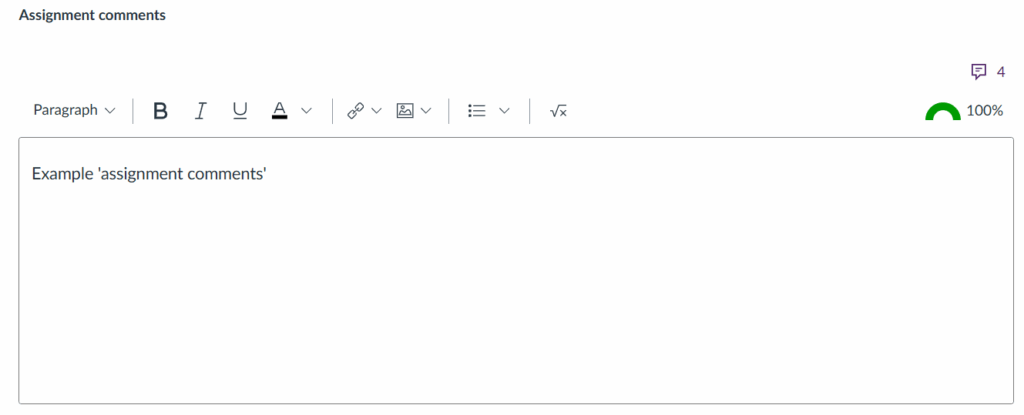
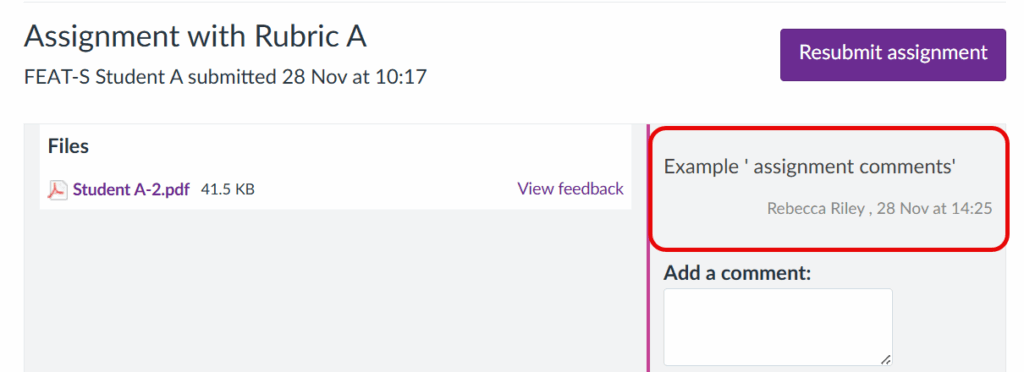
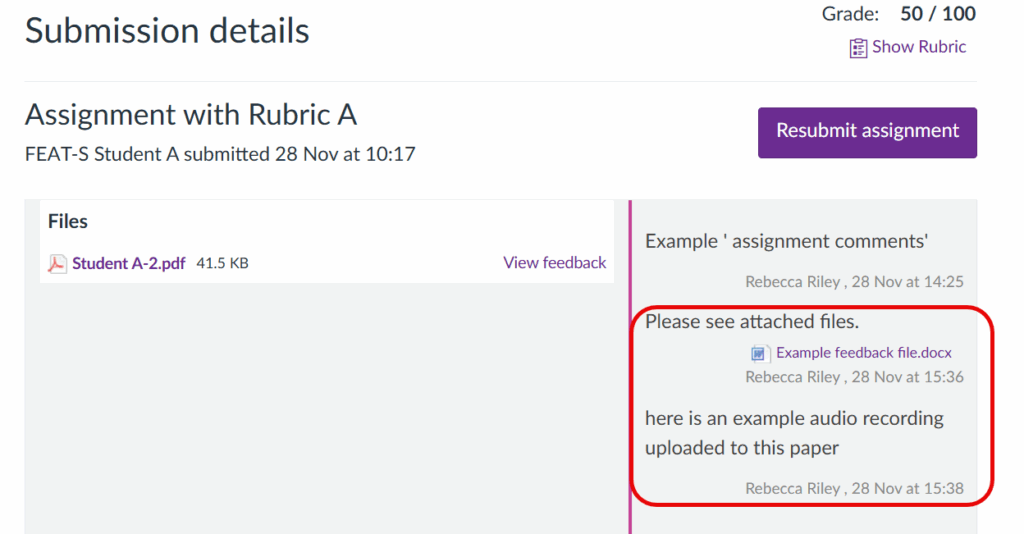
Staff can enter ‘assignment comments’ via SpeedGrader in a text field which appears at the bottom of the SpeedGrader marking panel. When grades are released students can view the comments via the Grades menu, by either clicking on the comment bubble icon or opening the assignment link.
Download options: Feedback entered as an ‘Assignment comment’ cannot be bulk downloaded. (This is because feedback entered as ‘assignment comments’ are not considered to be part of the rubric by Canvas).
Adapting your rubric to enable bulk download of summary comments
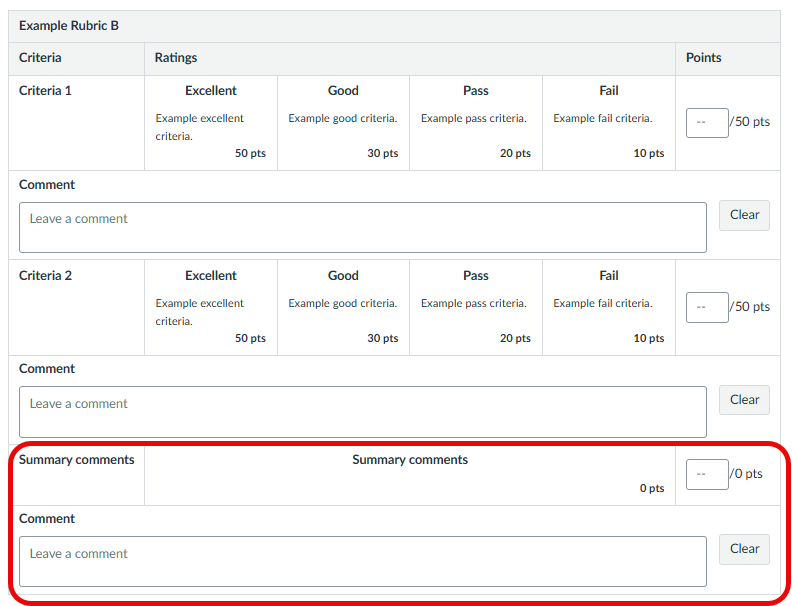
As noted above if staff add overall feedback via ‘Assignment comments’ these comments cannot be bulk downloaded. However, staff can choose to adapt their rubric in advance to add a criteria worth zero points that will enable staff to enter summary comments as part of the rubric.
Inline comments – staff view vs student view
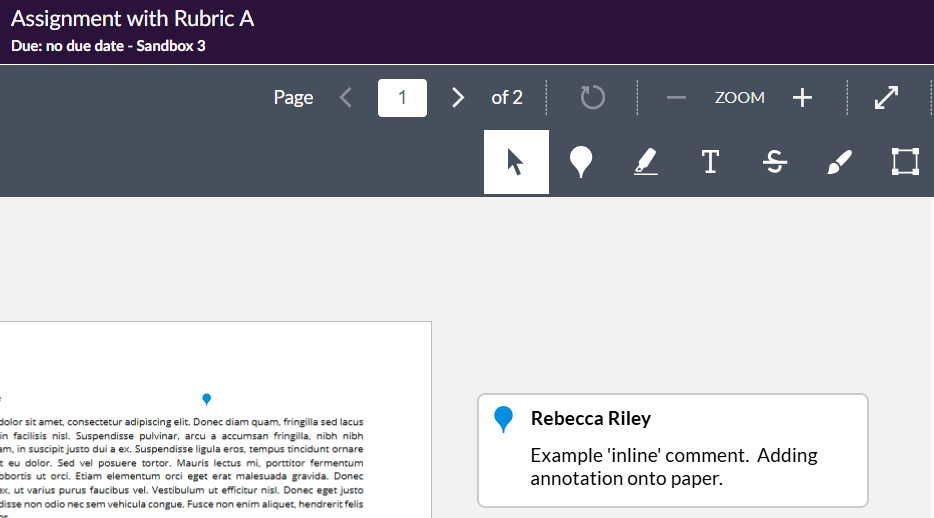
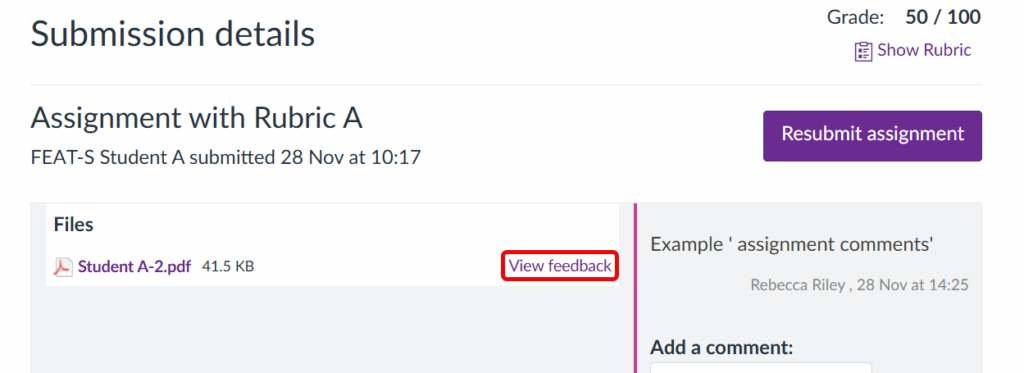
Staff can add ‘inline’ comments to annotate directly onto a submission in SpeedGrader. When grades are released students can view inline comments via the Grades menu, by clicking on the assignment link and choosing ‘View feedback‘.
IMPORTANT: Inline comments cannot be bulk downloaded. Staff and students can download annotated papers individually via SpeedGrader. (Download button in top left corner).
Audio, Video and documents – Staff vs Student view
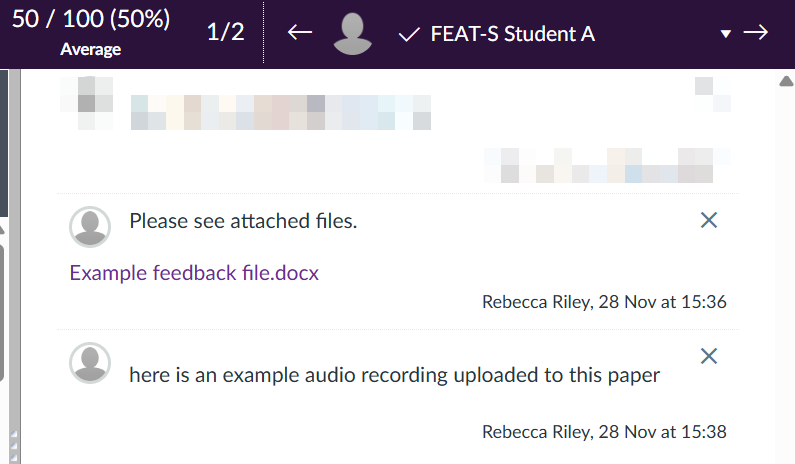
Staff can add audio and video comments or attach documents to SpeedGrader. When grades are released students can view the comments via the Grades menu, by either clicking on the comment bubble icon or opening the assignment link.
IMPORTANT: Feedback added via Audio, Video or uploaded via document cannot be bulk downloaded.
Bulk downloading rubric feedback
If a rubric has been completed, then rubric data can be downloaded as a CSV file.
- To bulk download rubric data for an assignment, open the course unit, open Grades menu, locate the relevant assignment column, click on the (…) and select Bulk Download Rubrics.
- You can download data for All students, Has assessment (has data entered) or Not Assessed.
- The downloaded report includes the student name, criteria rating, points and comments as entered by the marker. The report does not contain a UoM student ID.

Assignment comments – staff vs student view