
A rubric in Canvas is a scoring guide that helps you evaluate students’ work based on specific criteria. They present students with the expectations of an assignment and how they’ll be scored accordingly. You can attach rubrics to Assignments, graded Discussions, and Quizzes, or use them as standalone assessment tools.
Rubrics can be created and managed via the Rubrics area of your Canvas course space.
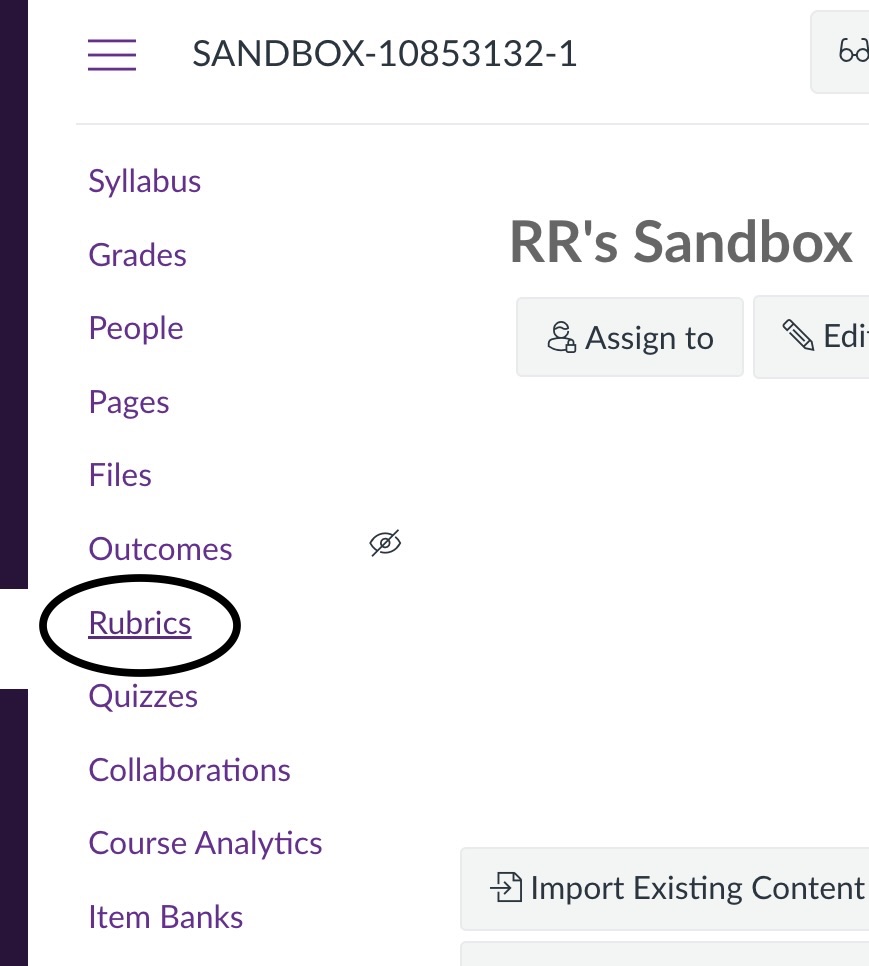
STEP 1: In the Course Navigation Menu, click Rubrics to access the Rubrics area of your course.
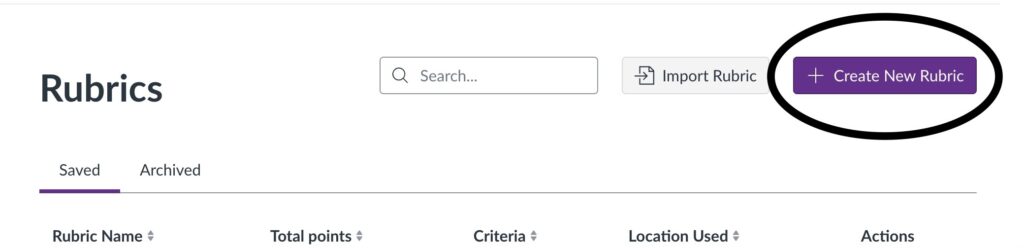
STEP 2: Select + Create New Rubric to create a new rubric.
Setting Up a Rubric
To build a rubric from scratch in Canvas, you need to name your rubric, select appropriate settings and also draft criteria, which will form the basis of your rubric.
STEP 1: Adjust rubric settings

- Type: Scale or Written Feedback. A Scale rubric allows you to use either fixed points or set a points range for each rating (rubric cell). A Written Feedback rubric is designed to provide qualitative feedback, and does not support point ranges. To create a rubric which is similar to a Turnitin Grading form, use a Written Feedback rubric, but leave the rating descriptions fields blank.
- Rating Order (High < Low): Determines the order that the ratings appear in your rubric. For example, Distinction to Fail versus Fail to Distinction.
- Scoring: You can choose Scored or Unscored for both Scale and Written Feedback rubrics. This simply determines whether or not the points for each criteria will be displayed to staff and students when the rubric is applied. To verify that points have been removed on an ‘Unscored’ rubric, locate the rubric via the Rubrics menu, then under Actions (…) choose Edit and then Preview Rubric.
- Use this rubric for assignment grading: To have your rubric automatically calculate and apply the final grade for an assignment, you must enable the Use this rubric for assignment grading setting. If this setting is not enabled, the rubric score will not transfer to the grade field in SpeedGrader and a marker will need to manually enter the grade.

IMPORTANT: Enable Use this rubric for assignment grading in rubric settings before markers complete a rubric, to avoid staff needing to manually enter an overall grade in SpeedGrader.
STEP 2: Add rubric criteria
By default, for both Scale and Written Feedback rubrics, a new criterion will be marked out of 4 points, with standardised rating names.
To customise criteria you can:
- Enter Criteria Name and Description. E.g., Knowledge and Understanding; adding criteria description is optional.
- Change the Rating Names to fit your rubric. E.g., Excellent, Very Good, Good, Pass, Fail.
- Enter a Rating Description. These are the descriptions which will appear in each cell within your rubric.
- Hover your mouse to reveal a + icon to add new ratings.
- Drag and drop ratings to a new position within your criterion.
- Click the trash can icon to delete any ratings you don’t need.
- Change the Points value.
- Enable Range Scoring in a Scale rubric in order to give flexible point ranges.
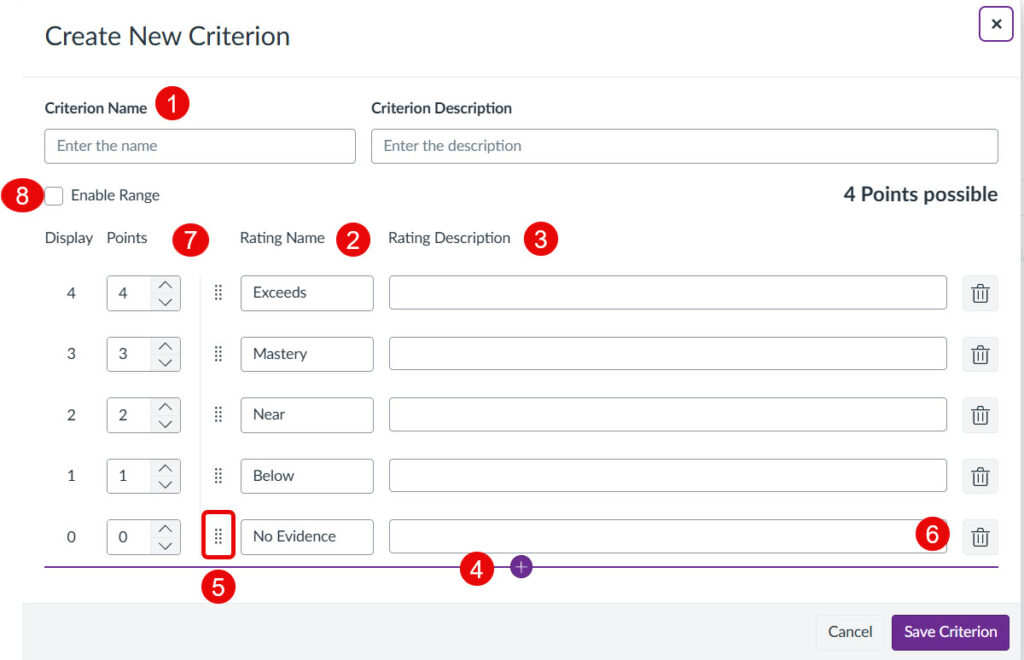
In a Scale rubric, if you wish to apply a points range to each rating, we recommend entering the maximum points next to each rating before ticking the Enable Range box.
STEP 3: Preview and save rubric
- You can use the Preview Rubric function to verify that the rubric has been set up correctly.
- Click Save Rubric to save the rubric.
Step 4: Attach Rubric to Assignment
Once you’re rubric has been created, you can then add this rubric to an assignment.
- Navigate to the relevant assignment and edit it.
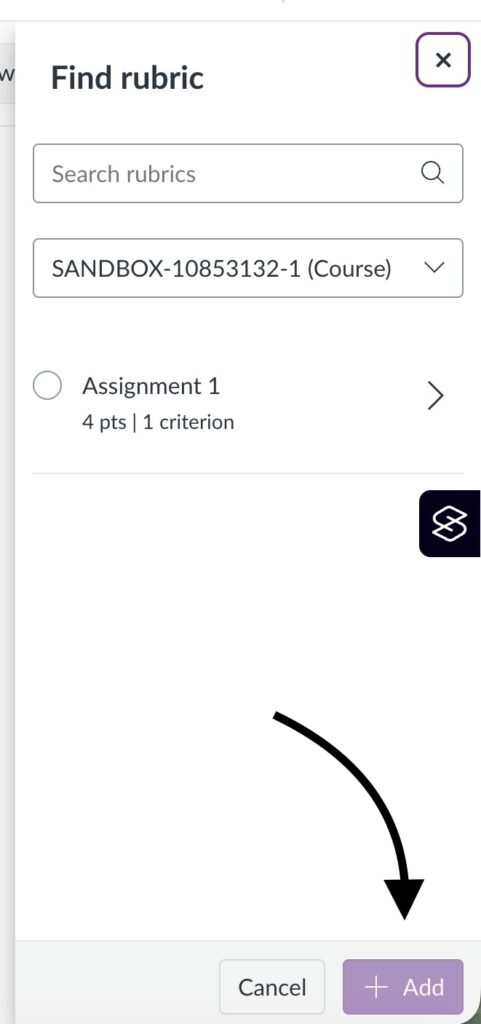
- Click Find rubric. This is where you can search for any rubrics that you or others have created by typing into the Search function the name of the Rubric.
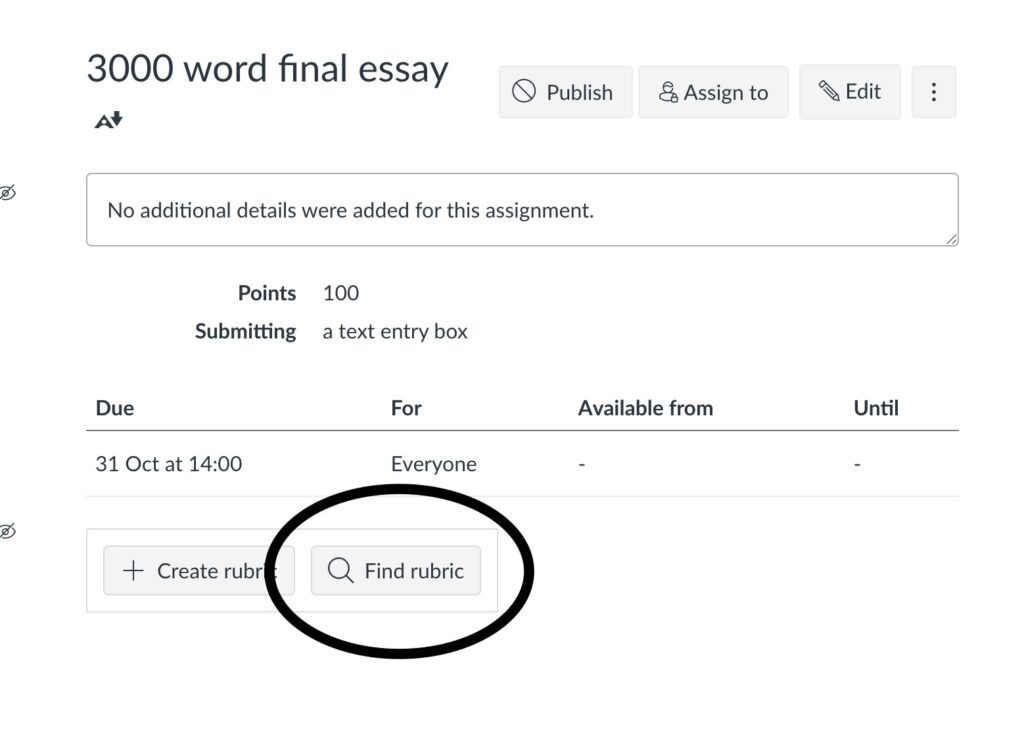
- Select the rubric you would like to add and click the + Add button.
Editing a Rubric
Once a rubric has been created, you can perform a few actions.
- Access the rubric via the Rubrics area of you course.
- In the Saved tab, identify the rubric you’d like to edit and select the three-dot icon. Choose an action:
- Edit to edit the rubric.
- Duplicate to make a copy of the rubric in the same course.
- Copy To to create a copy of the rubric in another course.
- Delete to delete the rubric.
- Archive to move the rubric to the archived area.
Archived rubrics cannot be added to assignments, but can un-archived from the Archived tab.

If a rubric has been used in more than one assignment, you cannot edit it. However, you can duplicate a rubric and edit the copy instead.
If you delete a rubric, Canvas will remove the rubric from all associated assignments in the course and will remove any existing scores and assessments given using the rubric.
Editing Criteria
If you are building a new rubric from scratch, you may find it quicker to draft the first criterion, set up with your rating headings (e.g., Excellent, Good, Pass), and then duplicate that criterion. This will avoid you needing to edit the default rating names for each new criterion. Once you have the desired number of criteria, you can then edit each one to add rating points and descriptions.
To edit an existing criterion, follow the steps below.
- Use the pencil icon to edit a criterion.
- Use the +/square icon to duplicate a criterion. This will create a copy of the criterion than you can rename, edit and save.
- Use the trash can icon to delete a criterion.
